
Introduction
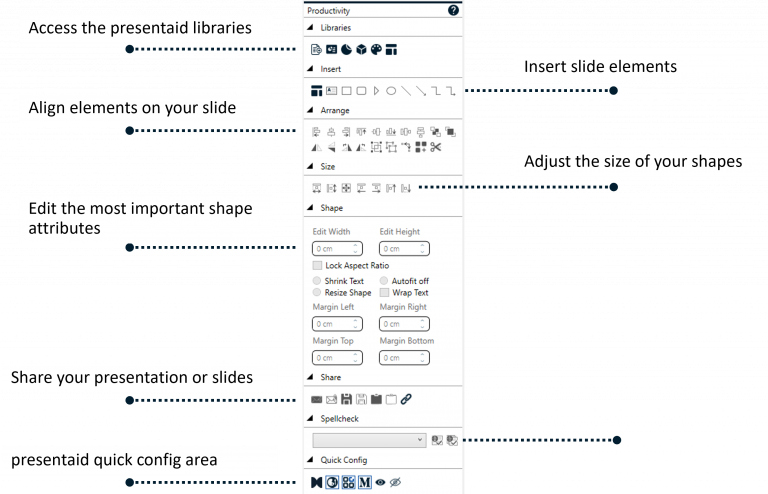
The Productivity Pane provides you with all you need to get done more in less time:
- Collection of most important insertion, alignment and resizing functions
- Direct access to shape and textbox attributes: usually hidden somewhere in the PowerPoint pane
- presentaid libraries and additional functionalities: at your fingertips

You can easily enable/disable the Productivity Pane by either clicking the respective button in the presentaid ribbon, or by changing the configuration in the presentaid configuration menu.
Functionality
The Productivity Pane consolidates alignment, distribution, sizing, positioning, rotation, and spacing tools into a single always-accessible panel.
Align with Ctrl: Master Alignment
The six alignment buttons in the pane - Align Left, Align Center, Align Right, Align Top, Align Middle and Align Bottom - work in two ways:
| What happens | |
|---|---|
| Click | PowerPoint's own alignment: the selected shapes are aligned to each other. A single selected shape is aligned to the slide. |
| Ctrl+click | presentaid's Master Alignment: the selected shapes are aligned to the reference shape, which itself stays where it is. For example, Ctrl+click on Align Left lines up every left edge with the left edge of the reference shape. |
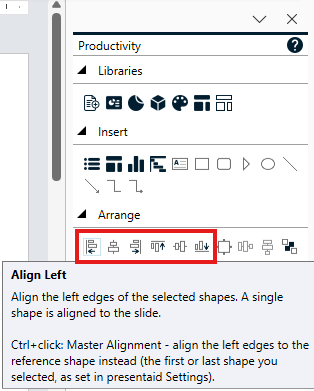
By default, the reference shape is the shape you selected first. You can change this to the shape you selected last in the presentaid settings under Shape Smart Alignment. Switch on Show Reference Shape flag to see a small REF flag on the reference shape whenever several shapes are selected.
Also Available in the Pane
You can open these presentaid features directly from the Productivity Pane:
- Insert Chart: How to Insert a Chart
- Gantt Chart: How to Work with Gantt Charts
- Agenda Manager: How to Work with the Agenda Manager
- Elements Library: How to Work with Elements
- Style Painter (Shape section): Style Painter
- Slide Radar: How to Work with Slide Radar
- presentaid settings