Keeping a deck visually consistent is hard once it grows beyond a handful of slides: fonts drift, colors sneak in from copy-pasted slides, shapes get dragged half off the canvas, and footnotes lose their reference. The presentaid Design Checker acts like an automated proofreader for your slide design. It scans your presentation, flags anything that looks off-brand or inconsistent, and lets you jump straight to the problem - with a one-click fix for most findings.
Open the Design Checker
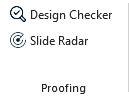
In the presentaid ribbon, go to the Proofing group and click Design Checker. This opens the Design Checker task pane on the right side of PowerPoint.Proofing Ribbon Group
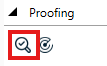
Alternatively, trigger the Design Checker via the presentaid productivity pane by clicking Design Checker.presentaid Productivity Pane Proofing
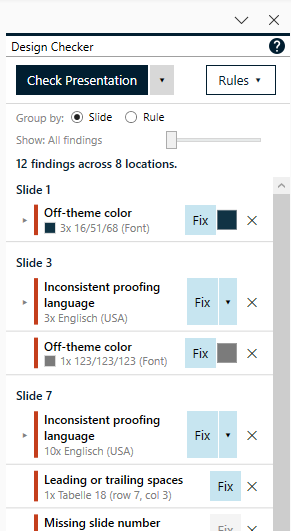
Click Check Presentation to scan the whole deck. Use the small arrow next to the button to instead scan only the currently selected slide(s).Design Checker Pane
Review Findings
Once a check has run, the pane shows a summary line (e.g. "14 findings across 6 locations") and a list of findings.
Findings can be grouped by Slide or by Rule using the toggle above the list.
Use the severity slider to only show Errors, Warnings and errors, or All findings (including cosmetic Info-level items).
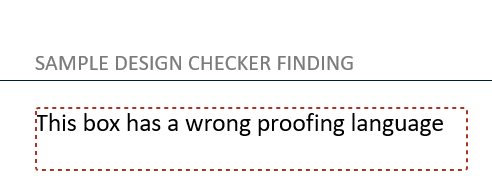
Click on a finding to jump to the relevant slide. presentaid draws a dashed highlight box around the exact shape or text so you immediately see what triggered the finding.Finding Navigation Highlight
For each finding you can:
Action
Description
Fix
Applies the recommended fix to every occurrence in the group in a single, undoable step. If more than one fix is possible (e.g. several approved colors or fonts), use the small arrow next to Fix to pick one.
Undo
Reverts a fix and restores the original formatting - independent of PowerPoint's own undo history.
✕ Ignore
Dismisses the finding. Ignored findings are remembered inside the presentation file itself, so they won't reappear on future checks.
Note: Some findings (e.g. missing slide numbers, orphaned footnotes, mixed quotation marks) cannot be fixed automatically and are reported so you can correct them manually.
Configure which Rules to Check
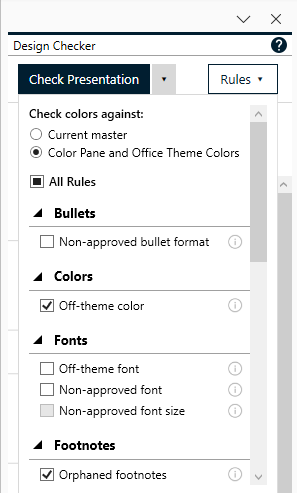
Click Rules ▾ to open the rules configuration popup.
Rules Popup
Choose whether colors should be checked only against the current slide master's theme colors, or also against your Colors Pane and Office Theme Colors (tints, shades, and custom brand colors).
Untick any rule (or entire category) that you don't want to be checked. Your selection is remembered for future sessions.
Rules marked as requiring a Company Profile are greyed out until your IT admin has configured the respective standard (see below).
Design Rules Reference
The Design Checker currently implements the following rules:
Layout
Rule
Severity
What it checks
Shapes outside the slide
Error
Flags any shape that extends outside the visible slide area. Offers to move it fully onto the slide or delete it.
Inconsistent footer text
Warning
Compares footer text across all slides. If most slides share the same footer, minority slides are flagged with a fix to match the majority text.
Inconsistent title font size
Warning
Compares title font sizes across slides using the same slide layout and flags outliers.
Distorted circle
Info
Flags oval/circle shapes whose width and height are almost, but not quite, equal - usually the result of an accidental resize. Offers to make it a perfect circle.
Missing slide number
Error
Flags slides where the layout defines a slide number placeholder, but it isn't shown or is empty.
Near-miss alignment (off by default)
Info
Flags shapes whose position or size is close to, but not exactly matching, other shapes on the slide - likely eyeballed instead of aligned. Offers to snap to the matching value.
Footer position/format
Warning
Compares a slide's footer position, size, and font against its own layout's footer placeholder and flags drift.
Slide number position/format
Warning
Same check as above, applied to the slide number placeholder.
Titles
Rule
Severity
What it checks
Title position
Warning
Flags a title shape that has been moved or resized compared to its layout's title placeholder.
Title font
Warning
Flags a title using a different font, size, or bold setting than its layout's title placeholder (skipped if the title already uses a theme or company-approved font).
Fonts
Rule
Severity
What it checks
Off-theme font
Error
Flags any text not using the presentation's own theme heading or body font.
Non-approved font (requires Company Profile)
Error
Flags any text using a font outside your organization's approved font list.
Non-approved font size (requires Company Profile)
Error
Flags text using a font size outside your organization's approved list of sizes.
Bullets
Rule
Severity
What it checks
Non-approved bullet format (requires Company Profile)
Error
Compares each bullet's character, font, size, color, and indent margins against your organization's defined standard per outline level.
Colors
Rule
Severity
What it checks
Off-theme color
Error
Flags any shape fill, line, or text color that isn't part of the deck's approved colors, and offers the nearest matching approved color as a fix.
Language
Rule
Severity
What it checks
Inconsistent proofing language
Warning
Flags text tagged with a different spell-check language than the dominant language of the deck.
Footnotes
Rule
Severity
What it checks
Orphaned footnotes
Error
Matches superscript reference numbers in your text against footnote legends at the bottom of the slide, and flags markers without a matching legend, legends without a matching marker, and duplicate legends.
Text Quality
Rule
Severity
What it checks
Manual character spacing
Info
Flags text with manual character spacing/kerning applied and offers to reset it to normal.
Inconsistent hyphenation
Info
Flags the same compound word written both with and without a hyphen across the deck (e.g. "Kick-Off" vs. "Kick off").
Inconsistent quotation marks
Info
Flags a deck that mixes straight quotes (") with curly/smart quotes.
Spacing
Rule
Severity
What it checks
Double spaces
Info
Flags two or more consecutive spaces and offers to collapse them to one.
Leading or trailing spaces
Info
Flags spaces at the start or end of a line and offers to remove them.
Note: Error, Warning, and Info are default severity levels assigned per rule - you cannot change a rule's severity, but you can use the severity slider in the pane to control what is displayed, or untick a rule entirely.
Configure the Company Design Standard (Admin)
If you are a company administrator, you can define an organization-wide design standard that the "Non-approved font", "Non-approved font size", and "Non-approved bullet format" rules check against.
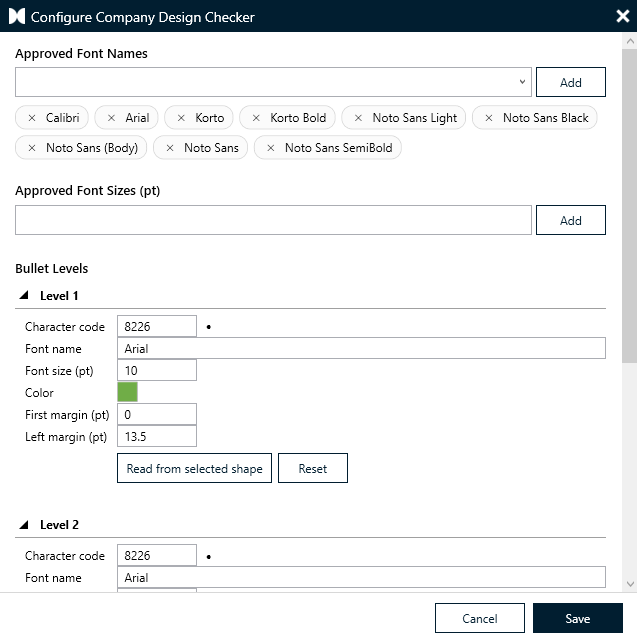
In the presentaid ribbon, go to About → Expert Tools → Company Admin → Configure Company Design Checker.
Define your Approved Font Names and Approved Font Sizes as simple lists.
Define the required formatting for Bullet Levels 1–9 (character, font, size, color, indent margins). Use Read from selected shape to capture the formatting directly from an example bullet in PowerPoint instead of entering values manually.Company Design Checker Profile
Click Save. The standard applies to all users in your organization the next time they run the Design Checker.