
Introduction
You have formatted one shape exactly the way you want it, and now ten more shapes should look the same. PowerPoint's Format Painter copies everything at once and stops after a single click. The presentaid Style Painter lets you decide exactly what to copy - for example only the fill and the font, but not the size - and keeps painting until you are done.
Quick Start
- Select the shape whose look you want to copy (exactly one shape).
- In the presentaid Productivity Pane, open the Shape section and click the Style Painter button (the paint roller) at the bottom.
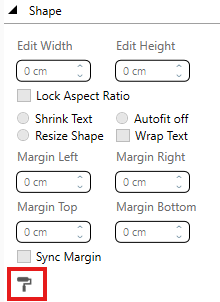
Style Painter button in the Productivity Pane - Choose what to copy in the dialog and click Start.
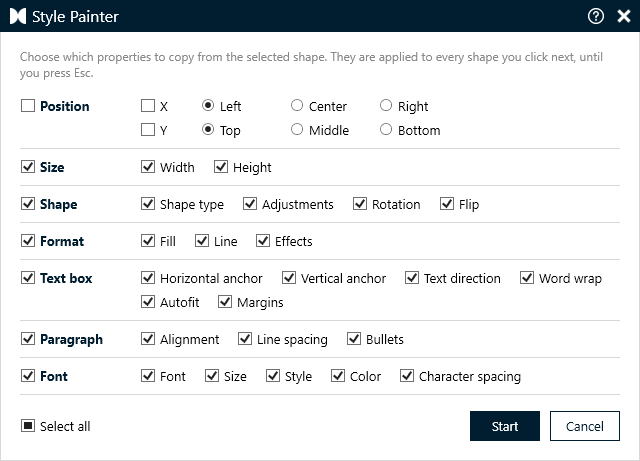
Style Painter dialog - Click the shapes that should get the style. Each shape you click takes on the look immediately - keep clicking as many shapes as you like.
- Press Esc when you are done (or click the Style Painter button again).
Choosing What to Copy
The dialog groups the properties the same way you think about a shape. Tick exactly the ones you want:
| Group | Options | What is copied |
|---|---|---|
| Position | X, Y | Where the shape sits on the slide (see Position alignment below) |
| Size | Width, Height | The shape's dimensions |
| Shape | Shape type, Adjustments, Rotation, Flip | The outline form (e.g. rounded rectangle), its yellow adjustment handles (e.g. how round the corners are), rotation and mirroring |
| Format | Fill, Line, Effects | Fill colour or gradient, outline colour, weight and dash style, and effects such as shadow, glow, soft edges and reflection |
| Text box | Horizontal anchor, Vertical anchor, Text direction, Word wrap, Autofit, Margins | How text sits inside the shape |
| Paragraph | Alignment, Line spacing, Bullets | Left/centred/right text, line and paragraph spacing, bullet and numbering style |
| Font | Font, Size, Style, Color, Character spacing | Typeface, font size, bold/italic/underline, text colour and letter spacing |
Handy shortcuts:
- Tick or untick a group name to select or clear the whole row at once.
- Use Select all at the bottom to select or clear everything.
- Position and Size are off by default, so painting changes how shapes look without moving or resizing them.
- presentaid remembers your choice - next time the dialog opens with the same ticks.
Position Alignment
When you copy the position, you decide which edge lines up with the original shape:
- X: Left, Center or Right - e.g. Right lines up the right edges, so shapes of different widths end flush on the same line.
- Y: Top, Middle or Bottom - e.g. Middle centres shapes of different heights on the same horizontal line.
Painting Several Shapes at Once
You don't have to click shapes one by one:
- Select several shapes (Shift+click or drag a selection rectangle) - every selected shape is painted.
- Groups: each shape inside the group gets the look. If you copy the position or size, the group moves and resizes as a whole.
- A shape inside a group: click into the group and select the single shape - only that shape is painted.
Undo
Every paint is a single undo step. Painted the wrong shape? Simply press Ctrl+Z.
Good to Know
When is the button available?
The Style Painter starts from exactly one shape. The button is greyed out when:
- several shapes, or nothing, are selected,
- the selection is a group, table, chart, SmartArt or an embedded object (e.g. an Excel object),
- you are currently typing inside a shape - click the shape's border so the whole shape is selected,
- you are in Slide Master view.
These are the same rules as for saving a Quick Style, plus the object types whose look lives in their content rather than in the shape itself.
Details worth knowing
- The style is taken when you click Start. Changing or deleting the original shape afterwards does not change what is painted.
- Text formatting is taken from the beginning of the original shape's text and applied to the whole text of the shapes you paint.
- Theme colours stay theme colours. If the original uses a theme colour, painted shapes use the same theme colour - so they keep following your template.
- Shapes filled with a picture or texture: the picture fill is copied as well. In rare cases, mixed text formatting inside the painted shape (e.g. a single bold word) is evened out.
- Only what fits is copied. Painting a picture or a table, for example, skips text settings that don't apply to it.
- The Sketched outline style is not copied - PowerPoint does not make it available to add-ins.
- Need help while you work? The ? icon at the top of the Style Painter dialog opens this guide.
Style Painter or Quick Styles?
| Style Painter | Quick Styles | |
|---|---|---|
| Best for | Quickly making shapes on your slides match each other | Reusing approved styles again and again, also across presentations |
| Choose what to copy | Yes, property by property | Applies the saved style |
| Stored | No - only while painting | Yes, in your style library |