Introduction
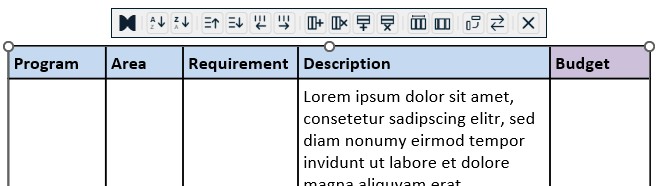
The presentaid Table Context Menu gives you quick access to powerful table management actions directly inside PowerPoint. When you select a table, a context menu will automatically appear above it, providing a set of tools to sort, move, add, remove, and restructure your table - without leaving the slide.
How to Access the Context Menu
Simply click on any table in PowerPoint. The presentaid context menu will appear above the selected table automatically.
Available Actions
Sort Columns
Sort the table columns in ascending or descending order based on the content of the selected column.
Move Columns and Rows
Reorder your table structure without copy-pasting:
- Move column left / right: Shifts the selected column one position to the left or right
- Move row up / down: Shifts the selected row one position up or down
Add and Remove Columns and Rows
Quickly expand or shrink your table:
- Add column: Inserts a new column next to the selected one
- Remove column: Deletes the selected column
- Add row: Inserts a new row next to the selected one
- Remove row: Deletes the selected row
Distribute Column Width
Adjust column widths in one click:
- Distribute equally: Sets all columns to the same width
- Distribute based on content: Resizes each column to fit its content
Transpose Table
Flips the table so that rows become columns and columns become rows - useful when you need to change the orientation of your data.
Flip Column Order
Reverses the order of all columns in the table from left to right.
Disabling the Context Menu
If you prefer not to use the presentaid Table Context Menu, you can disable it in the presentaid settings or by using the Quick Config in the presentaid Productivity Pane.