
Introduction
When you insert a slide from your company's shared Slide Library, it becomes a copy in your presentation - if the original slide in the library is later improved or corrected, your copy doesn't automatically know about it. Slide Radar closes this gap: it keeps track of which slides in your presentation originated from the Slide Library and lets you know as soon as a newer version is available, so your decks never drift out of sync with the central source of truth.
Automatic Notifications
By default, Slide Radar checks for outdated slides in the background whenever you open a presentation. If it finds slides with a newer version available in the Slide Library, a notification pops up in the bottom-right corner of PowerPoint.
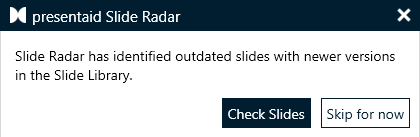
- Click Check Slides to open the comparison window.
- Click Skip for now to dismiss the notification. Slide Radar will check again the next time you open the presentation.
Manual Check
You can also trigger a check manually at any time.
- In the presentaid ribbon, go to the Proofing group and click Slide Radar.
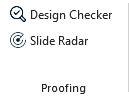
Proofing Ribbon Group - Alternatively, trigger the Slide Radar via the presentaid productivity pane by clicking Slide Radar.
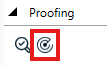
presentaid Productivity Pane Proofing - If every tracked slide is up to date, presentaid confirms that all slides from the Slide Library are in sync. Otherwise, the comparison window opens.
Comparing and Syncing Slides
The Slide Radar window lists every outdated slide (or group of slides, if multiple slides were inserted together as one library item), showing your current version side-by-side with the updated library version.
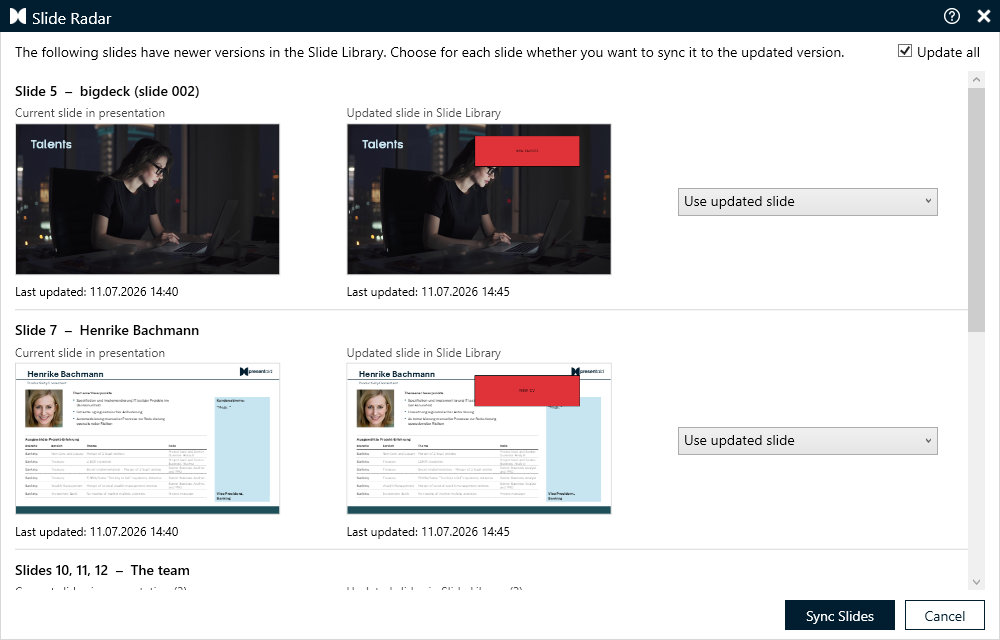
For each row you can choose:
| Option | Description |
|---|---|
| Use updated slide (default) | Replaces your current slide(s) with the latest version from the Slide Library. |
| Use current slide | Keeps your current slide(s) as they are. Slide Radar will ask again next time the library version changes. |
| Use current slide and don't ask again | Keeps your current slide(s) and stops tracking them - Slide Radar will no longer flag this slide as outdated. |
Use the "Update all" checkbox at the top to apply "Use updated slide" to every row at once. Once you are happy with your choices, click Sync Slides to apply them, or Cancel to close the window without making any changes.
Excluding a Library Slide from Slide Radar
As the author of a Slide Library item, you can decide whether it should be tracked by Slide Radar at all.
- When saving a slide to the Slide Library, tick or untick "Include in Slide Radar sync" in the save dialog.
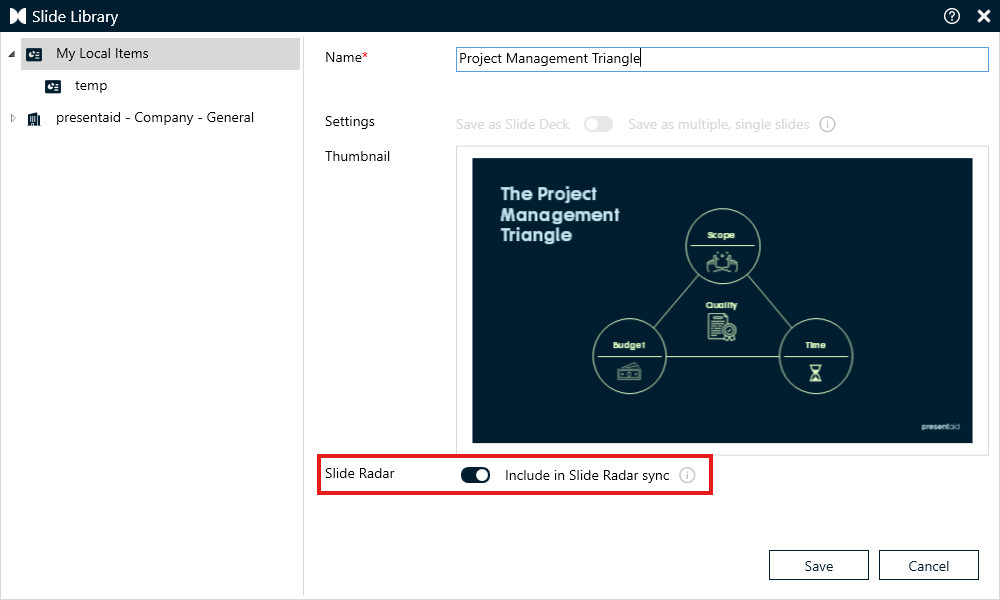
Slide Library Radar Toggle - For an existing library item, right-click it in the Slide Library and toggle "Include in Slide Radar sync" from the context menu.
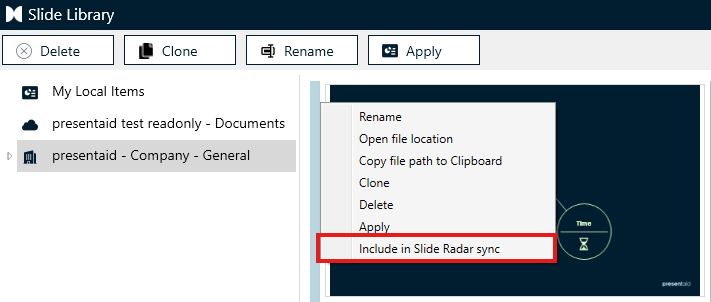
Slide Library Radar Toggle
If this option is unticked, presentations that use this slide will never be flagged as outdated by Slide Radar, even if the library version is changed later.