
Introduction
With the presentaid Agenda Manager, you can easily create an agenda slide and sections dividers. Variable content, like the page numbers, are updated automatically.
Create an Agenda
- Open the presentaid Agenda Manager by clicking on the respective button in the Productivity Pane or the Ribbon
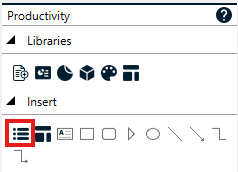
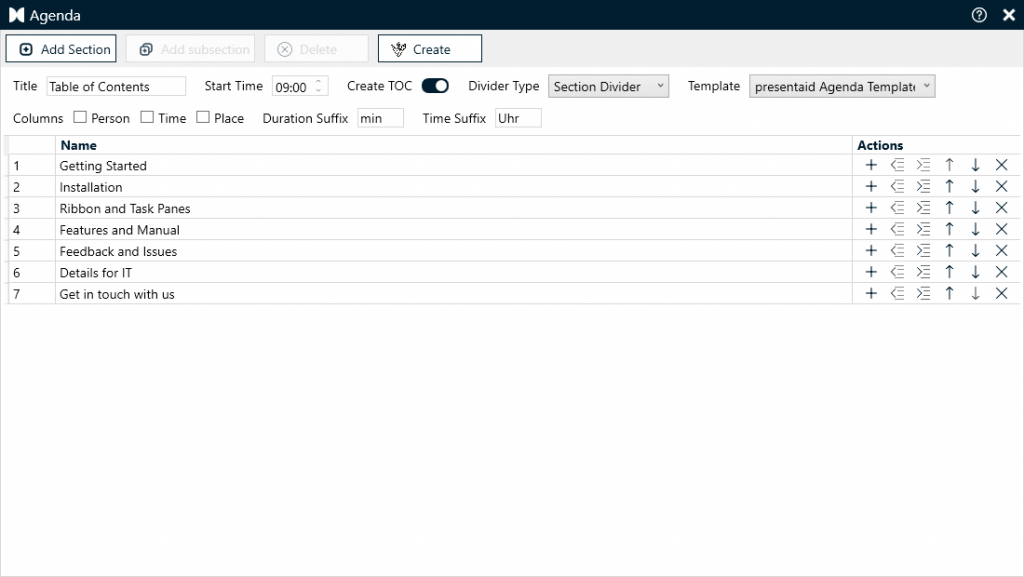
Start Agenda Manager - In the presentaid Agenda Manager you can add section and configure the parameters of the Agenda. Check below table to see which parameters you can set.
- Once you are done, click Create to render the slides.
The following parameters are available in the Agenda Manager:
| Parameter | Description |
|---|---|
| Title | The text that will be shown in the header of your ToC slide. |
| Start Time | If you choose to show the duration and time of your agenda items, these items will be derived off of your start time. |
| Create ToC | Create a Table of Contents at the beginning of your presentation |
| Divider Type | None: No divider slides will be created. Section Divider: Section dividers will be added at the beginning of each section. TOC Divider: A TOC slide will be added at the beginning of each section. Depending on your template, the active section is highlighted accordingly. |
| Template | Choose the agenda template that you would like to use. The dropdown shows both your local as well as shared templates. |
| Columns | Add information of the person/presenter, time, and place to your agenda slides. |
| Duration Suffix | The duration suffix will be appended to the value in the "Duration" column when creating the agenda slides. |
| Time Suffix | The time suffix will be appended to the value in the "Time" column when creating the agenda slides. |
Update an Agenda/Page Numbers
Once you have created the agenda, you can add the respective content slides to the sections that have been created. To update your agenda (e.g. order of sections, page numbers as shown in the ToC), simply open the Agenda Manager again and click Create.
Define your own Agenda Template (expert)
After installing presentaid, you already have some agenda templates to choose from. However, if you need to create your own template, simply follow the below process.
Some background:
- Each Agenda Template exists of exactly 2 slides: 1 slide for the Table of Content style, 1 slide for the Section Divider style
- To create the agenda shapes, presentaid allows for various sets of shapes to be defined and to be used dynamically when rendering the shape.
- The ToC template differentiates between active and inactive sections. This is required to highlight sections when you rendering ToC divider slides
To create your own template, simply follow these steps:
- Open the Agenda Manager via the presentaid Ribbon → About → Expert Tools → Show Agenda Manager
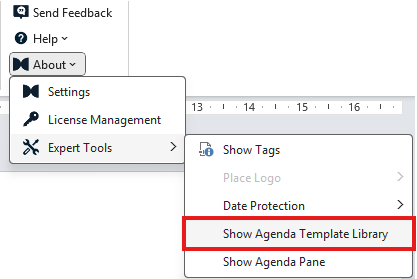
Open Agenda Manager - Select an existing item and click Modify or click Create to start with a fresh template
- You will start with a presentation with 2 slides now. The task pane on the right side allows you to assign tags to the shapes. The available tags are explained below.
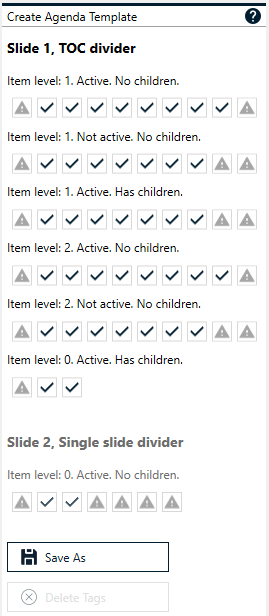
Agenda Manager Taskpane - Once you are done, click Save As and save your template in the presentaid library.
Available shapes/tags
ToC Slide tags
Shapes per row:
| Shape Type | Description |
|---|---|
| Pointer | A simple shape that will be rendered for each row of the ToC. E.g. you can draw an arrow or a hand to highlight the active section. |
| Number (mandatory) | Shows the section number |
| Name (mandatory) | Shows the section name |
| Time | Shows the section time |
| Duration | Shows the section duration |
| Person | Shows the section person |
| Place | Shows the section place |
| Page | Shows the section page |
| Background | This shape spans over the entire agenda item in the ToC |
| Line | Line that is drawn on top of the agenda item row |
Additional shapes:
| Shape Type | Description |
|---|---|
| FinalLine | Line that is drawn at the bottom of the rendered agenda. |
| AgendaTitle | Shows the Title string as specified in the Agenda Manager |
| EndOfSlide | This shape is used to determine the bottom of the area in which the agenda should be rendered. If your content exceeds this line, presentaid will auto-scale the rendered shapes when creating an agenda. |
Section Slide tags
| Shape Type | Description |
|---|---|
| Number (mandatory) | Shows the section number |
| Name (mandatory) | Shows the section name |
| Time | Shows the section time |
| Duration | Shows the section duration |
| Person | Shows the section person |
| Place | Shows the section place |