
Introduction
In general, the presentaid Elements are a collection of images and shapes that you can add to your Elements Library for easy reuse.

Save an Element in the Library
- Right click the shape which you want to save and choose presentaid Save → Save Element

Save Element - Select a location, provide a name, and click save
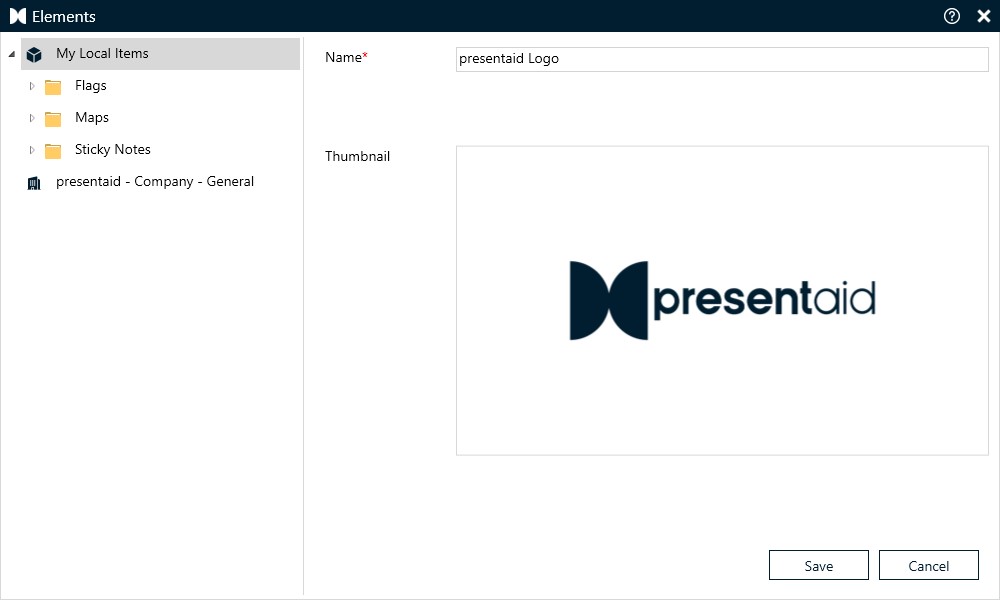
Save Element Window
Apply an Element to your Slide
- Click on the Element icon in the productivity pane to open the Elements Library

Element Pane Button - Select the Element that you want to add to the slide and doubleclick or click Apply
Bulk Import Elements
If you already have elements that you would like to add to the presentaid Elements Library, simply follow below steps. For the bulk import, we support jpg, jpeg, png, bmp, gif, tif, svg and pptx (shapes on first slide) files.
- Place the items that you want to import in your "ElementsLibrary" Folder
- Open the presentaid settings via the Productivity Pane
Open Settings - Go to the Shared Locations. There is a yellow cloud with an exclamation mark indicating that you can execute an action. Click on the cloud and the import will be executed
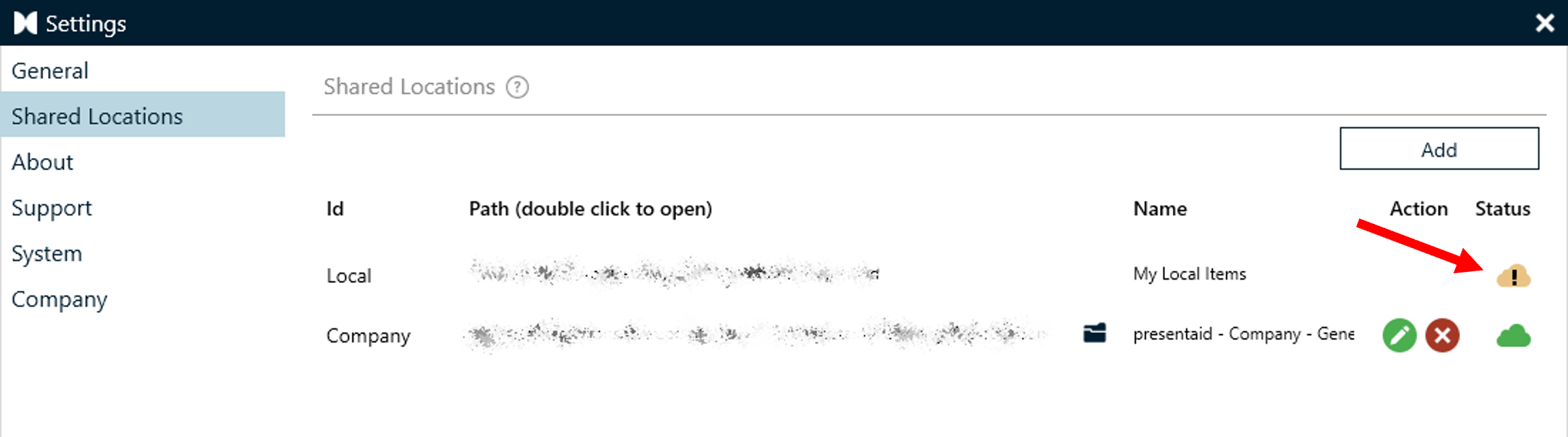
Bulk Load Elements
Note: If you don't know where your files are located, simply go to Settings → Shared Locations and double click on the path
Work with placeholder text
The Elements support certain placeholders. Everytime an Element is placed, the placeholder text will be substituted.
| Placeholder | Meaning |
|---|---|
| #date# | Places the current date in format "dd/MM/yyyy" |
| #timestamp# | Places a timestamp in ISO 8601 Format UTC time |
| #username# | Places the username of the logged in user |
| #userfirst# | Places the first name of the logged in user |
| #userlast# | Places the last name of the logged in user |
| #userin# | Places the initials of the logged in user |