
The Chart Style Configurator defines chart styles: which settings a chart should get - series colours, fonts, axes, legend and more - so nobody has to re-apply the house look by hand on every slide.
You can set up several styles side by side - for example one colour pattern for actuals and one for forecasts, or a light and a dark variant - and mark one of them as the default. Every new chart gets the default style, and any other style is one click away.
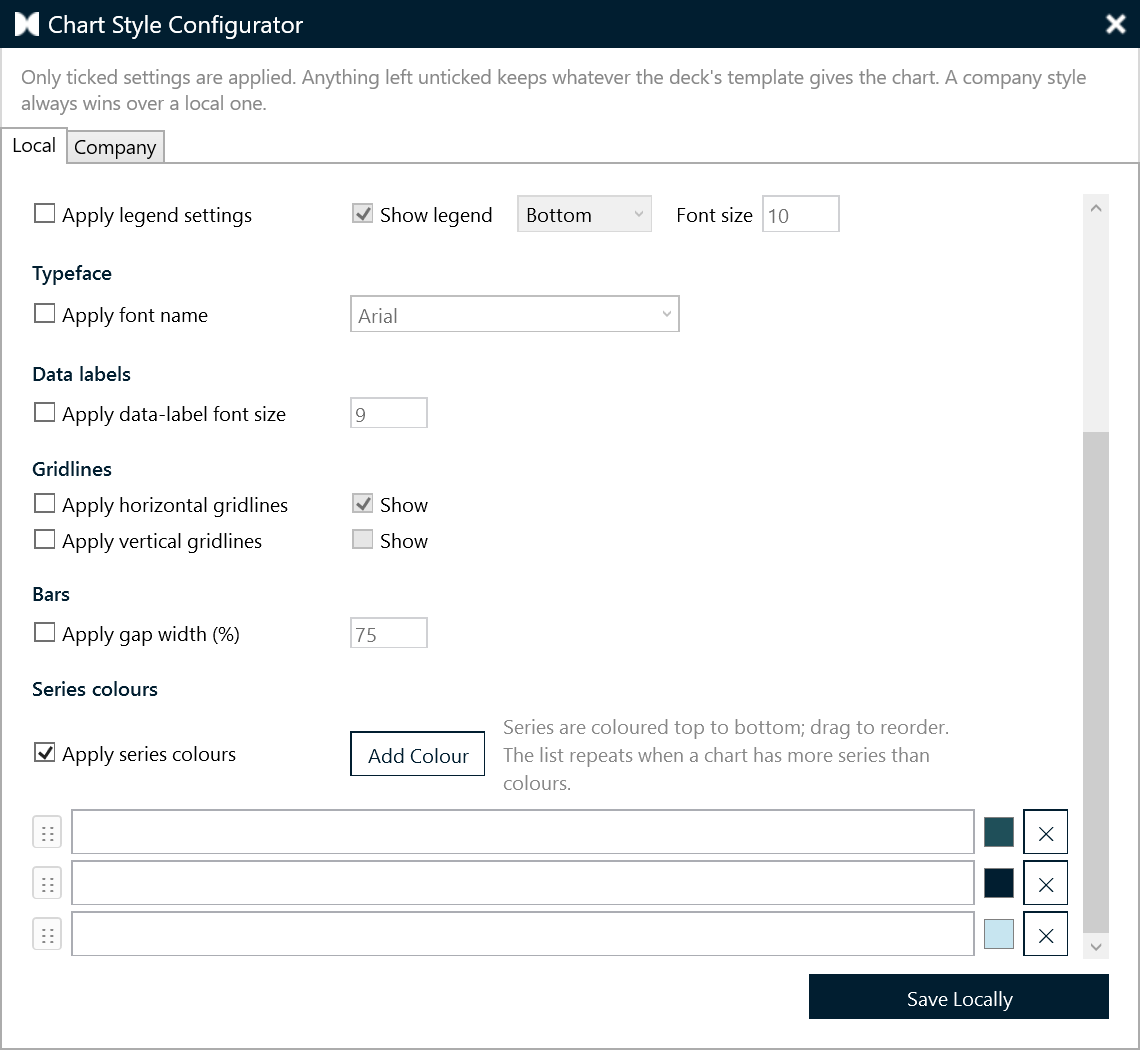
Opening it
presentaid ribbon → About → Expert Tools → Chart Style Configurator.
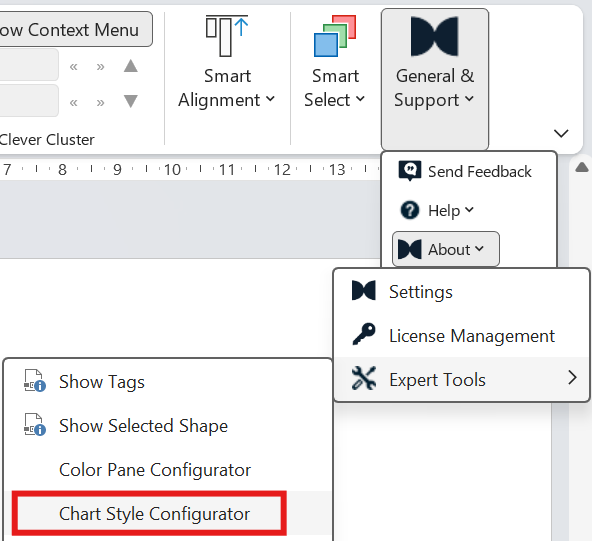
Several styles
The Styles list in the configurator holds all your styles. Select a style in the list to edit its settings.
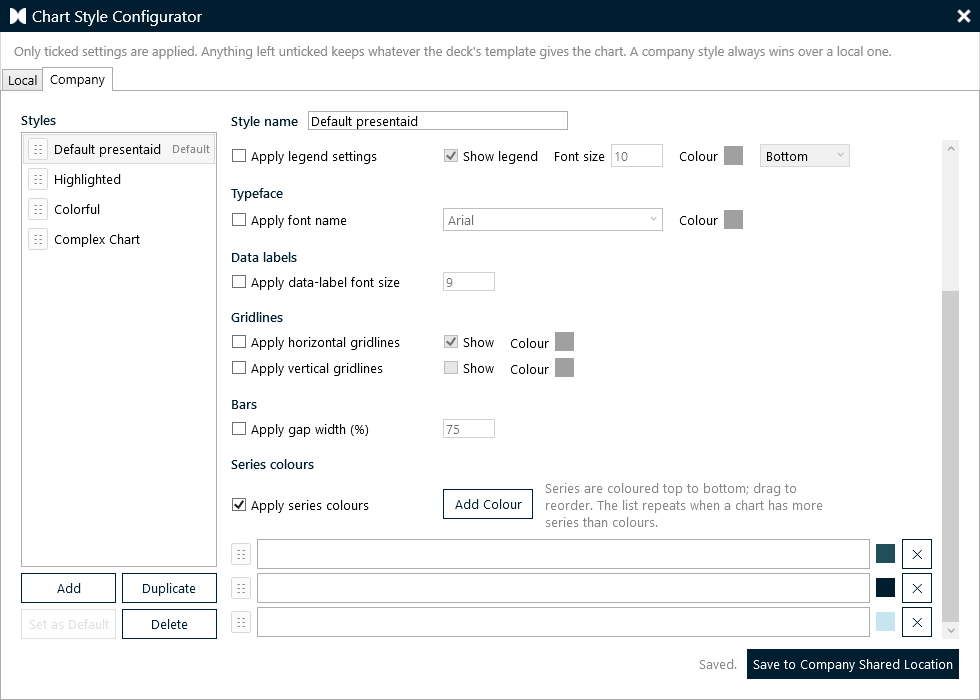
- Add: creates a new, empty style.
- Duplicate: copies the selected style - the quickest way to build a variant that differs only in, say, its colours.
- Delete: removes the selected style.
- Set as Default: makes the selected style the default. It is marked Default in the list. New charts get the default style, and Apply Style in the ribbon applies it with one click.
- Style name: shown in the ribbon and in Chart Properties, so pick names your colleagues understand - "Actuals", "Forecast", "Competitors".
- Drag a style up or down to reorder the list. That order is the order in which the styles are offered when you apply them.
The most important rule: everything is opt-in
Each block in the form has its own "Apply …" tick, and everything to the right of it stays greyed out until you tick it.
A block you do not tick is not touched at all - the chart keeps whatever your deck's template gives it. This is deliberate, and it is not the same as switching the setting off:
| What you set | What happens to a new chart |
|---|---|
| "Apply title settings" unticked | The title is left exactly as the template made it |
| "Apply title settings" ticked, "Show title" unticked | The title is actively switched OFF |
What you can define
Each style has its own set of blocks:
| Section | Settings |
|---|---|
| Title | Show or hide, font size |
| Value axis (Y) | Show or hide, font size, number format |
| Category axis (X) | Show or hide, font size |
| Legend | Show or hide, position, font size |
| Typeface | One font name for every text element in the chart |
| Data labels | Font size |
| Gridlines | Horizontal and vertical, independently |
| Bars | Gap width in % |
| Series colours | An ordered, repeating palette |
Series colours
The palette is a simple ordered list - series 1 gets the first colour, series 2 the second, and so on. There is deliberately no grouping here, unlike the Colour Pane: in a chart the ORDER is the meaning.
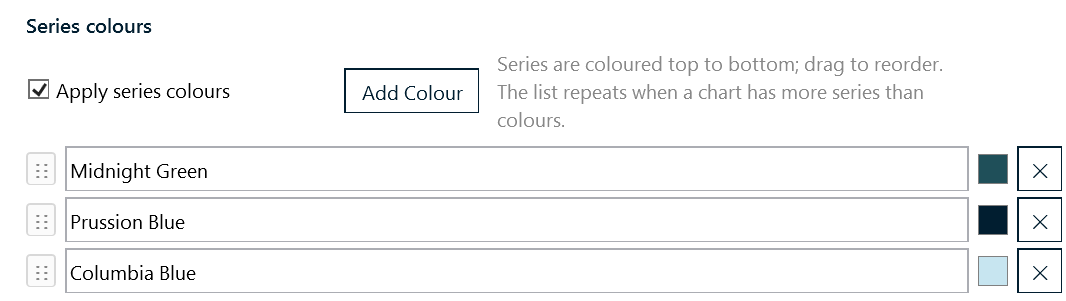
- Add Colour: appends a row.
- Click the swatch to open the same colour picker used across presentaid.
- Drag the ⋮⋮ handle to reorder; a blue line shows where the row will land.
- If a chart has more series than you defined colours, the list repeats from the top.
- On a pie or doughnut the palette colours the slices, since a pie is a single series.
- On a Mekko it colours the areas, and on a waffle the categories - in the order they appear in the data sheet.
If you define no palette
Colours are the one setting with a fallback. A chart inserted through presentaid with no palette configured gets the presentaid house colours - a deep navy, a teal, a pale blue and a pale green - rather than whatever accents your deck's theme happens to carry. It makes a presentaid chart recognisable at a glance.
Define a palette and it wins; untick Series colours and the house colours come back. Every other block behaves as before: not ticked means not touched.
Series added later
When you add a series to an existing chart - through Edit Data, or because a linked Excel range grew - PowerPoint creates it in a theme colour, and the chart ends up with one bar that does not match.
presentaid paints that new series from the palette the next time you select the chart. Each series keeps the colour its position earns, so adding one never reshuffles the colours already on the slide.
Every chart remembers which style it was given. A chart you styled as "Forecast" gets its new series in the Forecast colours, not in the default's. If that style is deleted later, the chart falls back to the default style.
Local and Company styles
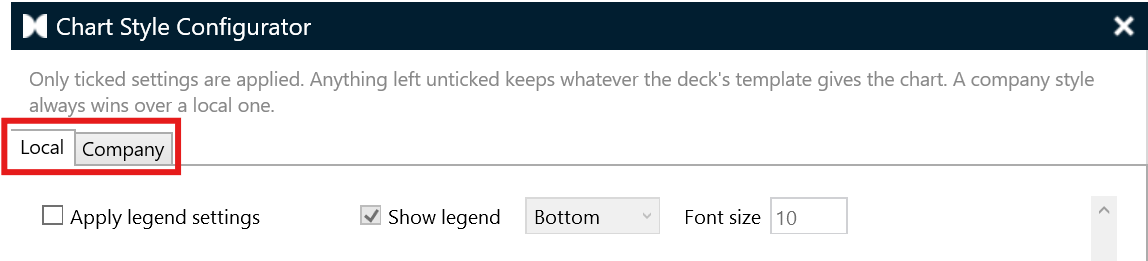
- Local: your own styles, stored in your personal presentaid folder. Always available.
- Company: the shared styles, stored in the company library. The tab only appears if a company library is connected and you have write access to it.
All styles of one location live in a single file called chartstyle.xml, either in your local presentaid folder or in the root of the company library. If it is missing or unreadable, presentaid simply behaves as though no style were configured - charts keep PowerPoint's own defaults, apart from the house palette described above.
When a style is applied
Automatically, every time you insert a chart through presentaid - with the default style.
For the constructed chart types - waterfall, Mekko, pie, waffle, scatter, bubble, butterfly - the style is applied after the chart is built, and the construction wins wherever the two disagree. A Mekko or a waffle, for example, deliberately has no axes, so a style asking for a visible value axis will not bring them back, and a pie ignores the axis and gridline blocks for the same reason. On a waffle the style's legend block sets the position, size and colour of the waffle's own legend.
Series that are deliberately invisible are never coloured: a waterfall's spacer and the canvas behind a Mekko or a waffle carry structure, not colour, and painting them would put a phantom bar behind your chart.
Manually, at any time - select a chart and use one of two places:
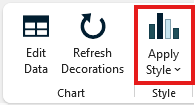
- Ribbon: on the presentaid Charts tab, click Apply Style to apply the default style, or open its list to pick any style. The default comes first and is marked "(default)"; the others follow in the order of your list.
- Chart Properties: open Chart Properties in the action bar. The Chart style section lists every style - default first, each row shown in the style's own colours. Click a style to apply it.
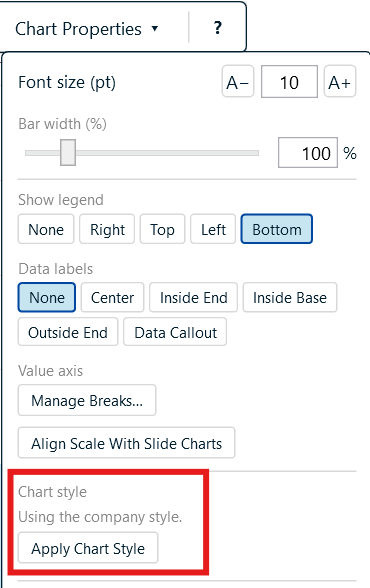
The Chart style section also tells you which styles are in force - "Using the company styles" or "Using your local styles" - which is the quickest way to understand why a local change appears to have had no effect. If no style is set up yet, it says so and points you to About → Expert Tools.