
A linked chart reads its data from a range in an external Excel workbook instead of you typing it in. The chart itself stays a normal native PowerPoint chart - the link only decides where the numbers come from.
Creating a link
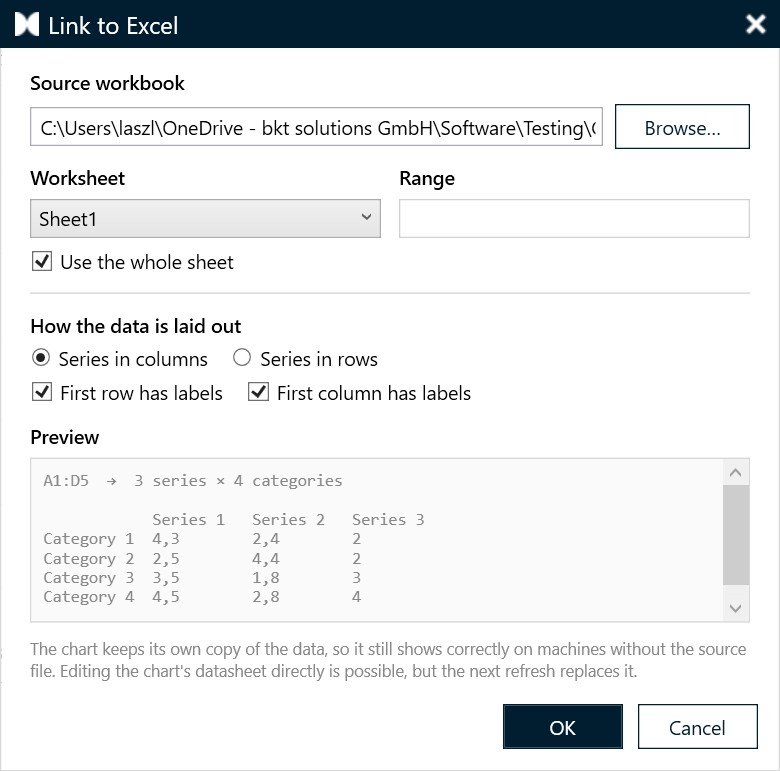
- Select the chart and open Chart Properties → Excel data → Link to Excel.
- Choose the workbook. If the file is already open in Excel, pick it from the Open in Excel dropdown instead of the file browser - no need to close it first.
- Choose the sheet and the range, or tick whole sheet.
- Set how the range maps onto the chart:
- series in columns or series in rows
- whether the first row holds labels
- whether the first column holds labels
- The preview shows exactly what will land in the chart. Confirm, and presentaid writes the data into the chart's own data sheet.
Moving files without breaking the link
presentaid stores both a relative and an absolute path, and resolves the relative one first.
- Move the deck and the workbook together into another folder: the link keeps working.
- Move only the deck: the link falls back to the workbook's absolute path.
- If neither resolves, presentaid looks for a file of the same name next to the presentation.
Refreshing - on your terms
presentaid never refreshes a linked chart behind your back. Opening a deck does not silently change a single number.
Instead, presentaid watches the source file's modification date. When the file has changed since your last refresh, an amber chip appears as the first item on the chart's action bar:
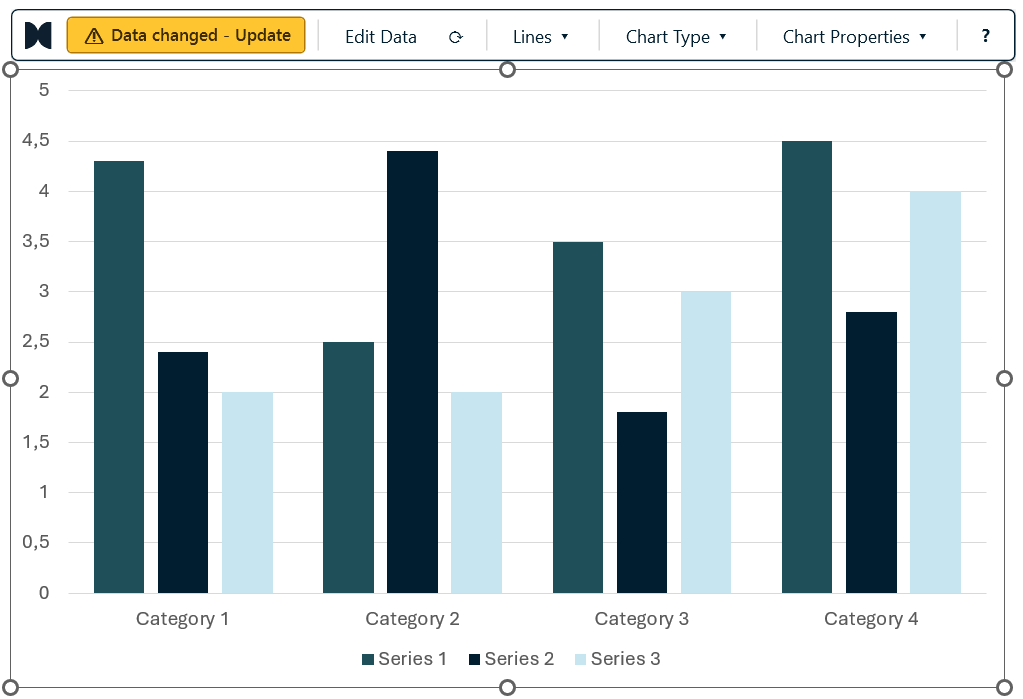
Click it to pull in the new data, or ignore it and present what you have. The check is a lightweight file-date lookup, so it also picks up changes while you work - edit the workbook in Excel, switch back to PowerPoint, and the alert appears within a few seconds without you having to re-select the chart.
You can also refresh at any time from Chart Properties → Excel data → Refresh now, or drop the link entirely with Remove link - the chart keeps the data it already holds.
What happens to your annotations
Everything survives a refresh. Growth arrows re-anchor to their categories, value lines stay at their values, custom styling is re-applied, and label text is recalculated from the new numbers.