
Select any managed chart and a small floating bar appears above it. It follows the chart as you move or scroll, and disappears as soon as you select something else.
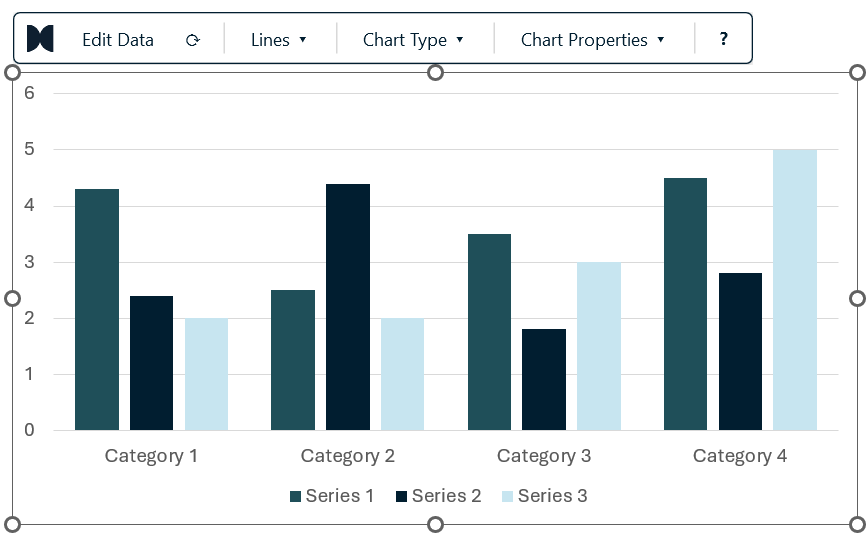
Edit Data
Opens the chart's embedded data sheet, scrolled to A1. Type your values, and the chart - including every presentaid annotation on it - updates live as you edit.
Refresh
The circular arrow re-reads the chart and re-draws all presentaid decorations at their correct positions. You rarely need it: presentaid re-renders automatically whenever the underlying data or the chart geometry changes. Use it after you have resized the chart by hand, or if you edited the chart through PowerPoint's own dialogs.
Lines
The Lines menu holds everything that gets drawn on top of the plot:
- Growth arrow: an elbow arrow between two data points showing the delta
- CAGR arrow: a straight arrow showing compound annual growth between two points
- Difference arrow: a vertical double arrow between two values
- Value line: a horizontal benchmark line at a fixed value
- Show Connector Lines: the step connectors between waterfall segments
- Show Total Labels / Sort Segments: for stacked charts
- Show Horizontal / Vertical Gridlines
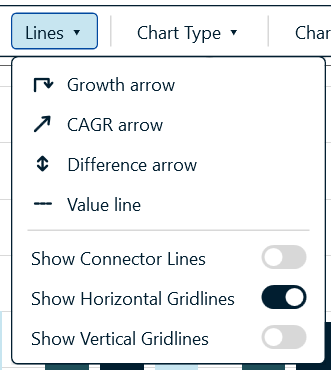
Chart Type
Switches between Clustered, Stacked and 100% stacked without rebuilding the chart.
Chart Properties
A flyout with the settings you normally hunt for in several different PowerPoint dialogs - font size, bar width, legend position, data labels, axis number format and scale, chart title, axis breaks, scale alignment and the Excel link.
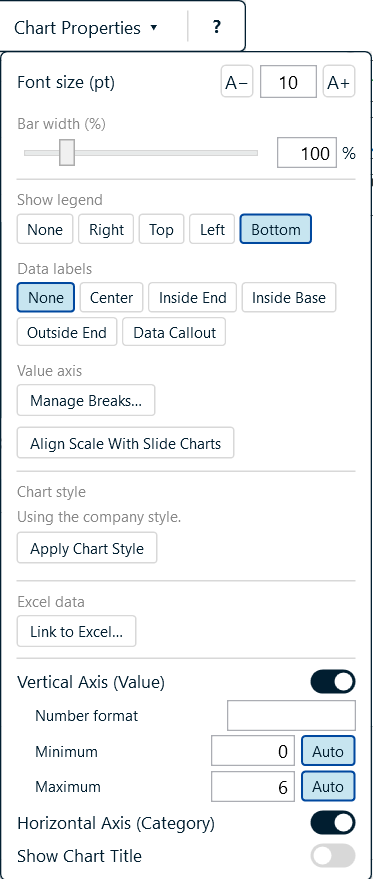
The flyout is draggable, so you can park it out of the way while you compare charts. On a waffle chart it shows the waffle's own settings - grid, cell size, symbol, legend text and colours - instead of bar width, data labels and axes; see Waffle charts.
The presentaid Charts Ribbon Tab
When a chart is selected, PowerPoint shows its own Chart Design and Format tabs. presentaid adds a third tab next to them: presentaid Charts. It puts the most-used chart actions where you are used to looking for them - in the ribbon.
| Button | What it does |
|---|---|
| Edit Data | Opens the chart's data sheet - the same as Edit Data in the action bar |
| Refresh Decorations | Recalculates the labels and positions of arrows, lines and other presentaid decorations from the chart's current data - the same as the circular arrow in the action bar |
| Apply Style | Click the button to apply your default chart style, or open its list to pick another one. See Chart Style Configurator |