
A Dynamic Grid stays linked to the data source it was rendered from (an Excel workbook or a SharePoint list). Whenever the underlying data changes you can pull the latest values into your slide without rebuilding the grid.
Refresh the data
- Select the rendered Dynamic Grid on the slide. A small Refresh Data callout appears just above it.
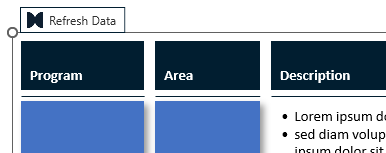
Refresh Data callout - Click Refresh Data. presentaid re-reads the source and repaints the grid with the current data, keeping your layout, styles and position.
More options (right-click)
Right-click the Refresh Data callout for additional actions:
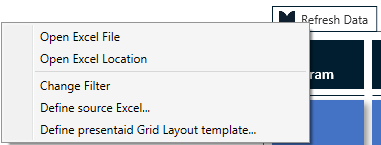
- Open Excel File / Open Excel Location - open the linked workbook or its folder (Excel-based grids).
- Open SharePoint List in Browser - open the linked list in your browser (SharePoint-based grids).
- Change Filter - adjust which rows are included (see below).
- Define source Excel... / Define source SharePoint list... - re-point the grid to a different source.
Change the filter and refresh
You can change which rows a drawn grid shows at any time - for both Excel and SharePoint grids.
- Right-click the Refresh Data callout and choose Change Filter.
- presentaid reads the current source values and opens the filter dialog. Pick the values (or conditions) you want to keep.
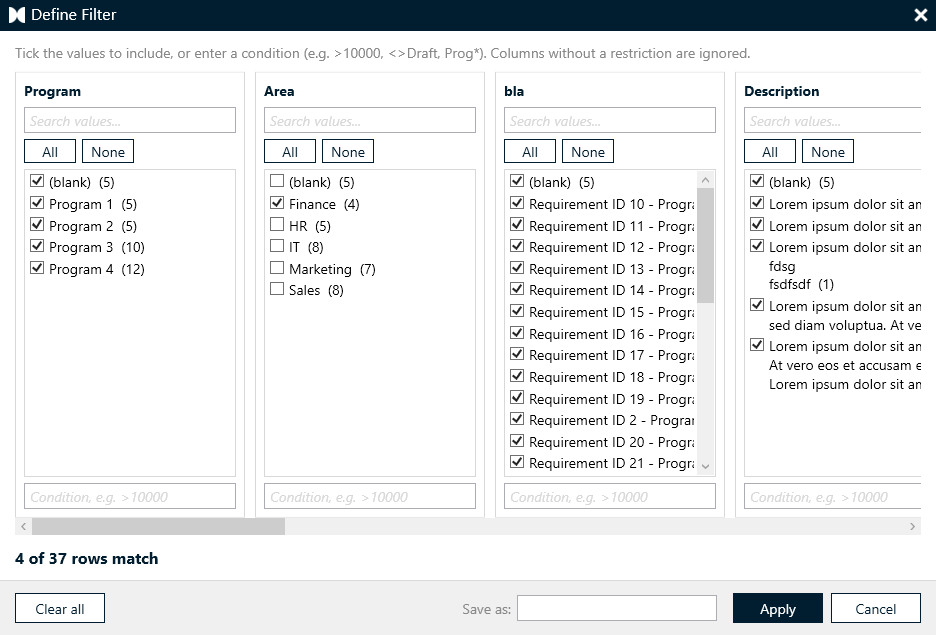
Change filter - Confirm - the grid is refreshed and re-drawn with the new filter applied.
Tip: The filter is stored on the grid, so a later Refresh Data keeps showing exactly the rows you selected.