
presentaid Insider feature: The SharePoint data source is a presentaid Insider feature. Enable it under Settings → *Enable presentaid Insider features*. If Insider is off, the Dynamic Grid always loads from Excel and the SharePoint option is hidden.
In addition to Excel, a Dynamic Grid can pull its data directly from a Microsoft SharePoint list. The list columns behave just like Excel columns - you add, style and configure them in exactly the same way.
Load data from a SharePoint list
- Add a Dynamic Grid and open the task pane (see *How to Create a Dynamic Grid*).
- Click the small arrow next to "Load Data from MS Excel" and choose Load Data from MS SharePoint List.
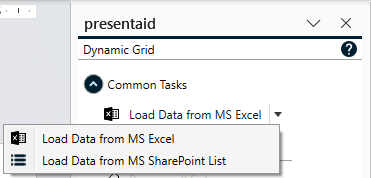
Choose data source - Paste the link (URL) to your SharePoint list and confirm.
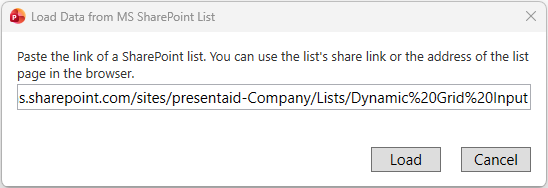
Enter SharePoint list link - The first time you connect you are asked to sign in to Microsoft 365. presentaid uses the standard Microsoft sign-in (OAuth) in your browser - choose your work or school account. After the first sign-in you stay signed in, so later connections happen automatically.
- The list data is now available in PowerPoint and you can build the grid as usual.
Note for administrators: Reading SharePoint lists requires the Microsoft Graph permission *Sites.Read.All*. In most tenants a Microsoft 365 administrator has to approve (consent to) the presentaid app once for the whole organization; afterwards every user can sign in without further prompts. Access is always limited to the sites the signed-in user can already open.
Once your grid is drawn you can keep it up to date and adjust its filter at any time - see *Refresh a Dynamic Grid and Change its Filter*.