
In Render Mode you fill a saved Dynamic Grid template with the rows of your Excel sheet.
Before you start
- You need a saved template (Grid Layout): How to Create a Dynamic Grid
- Your data must be a flat table with column headers. The easiest way is an auto-filter or a table range on the Excel sheet.
Starting in Excel
- Select the sheet which contains the data that you want to show in PowerPoint. You can also use the Excel Filter function to filter for the items that you want to render.
- In the presentaid ribbon, click Template Manager
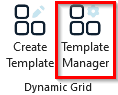
Template Manager Ribbon - Select the template that you want to populate and decide whether you want to render the Dynamic Grid on a new slide or the current slide and if you want to render the filtered data or the selected data
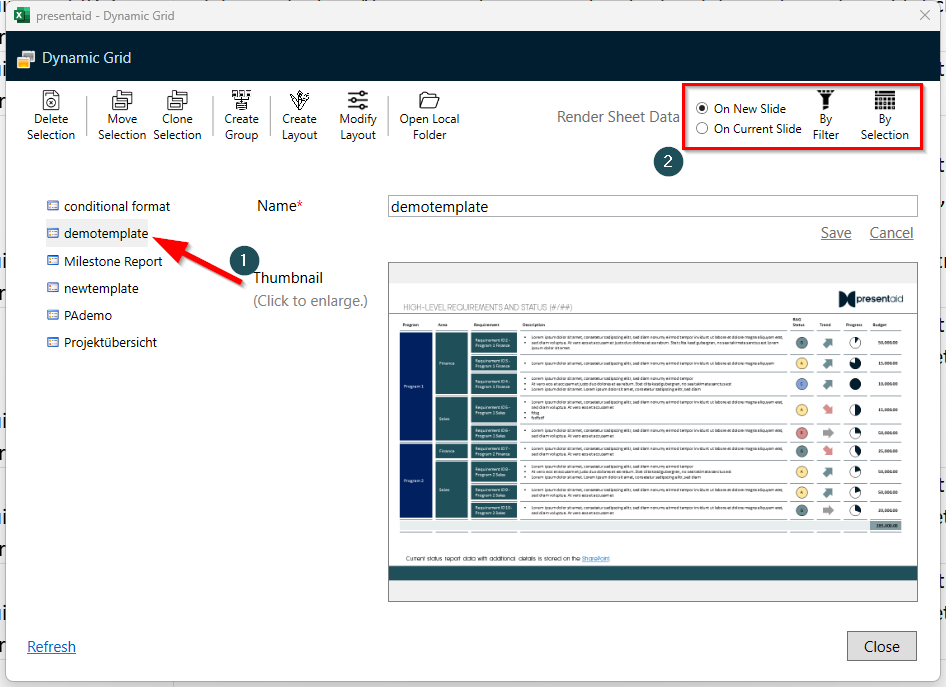
Template Manager
Filtered or Selected Data
- Filtered data: renders all rows that are visible with the current Excel filter.
- Selected data: renders only the rows you selected on the sheet.
After Rendering
- Data changed? Select the grid and click Refresh Data, or right-click it to change the filter: Refresh a Dynamic Grid and Change its Filter
- Columns renamed or moved in Excel? Re-map them in the Template Manager: How to Modify an Existing Dynamic Grid
- Data in a SharePoint list? Use a SharePoint List as Data Source