
Introduction
The presentaid Word Document Library allows you to store and use word document templates. Whenever you start a new document, you can choose from your saved templates.

Save a Document
- In Word, click on "File" → "presentaid" → "Save Document in Library"
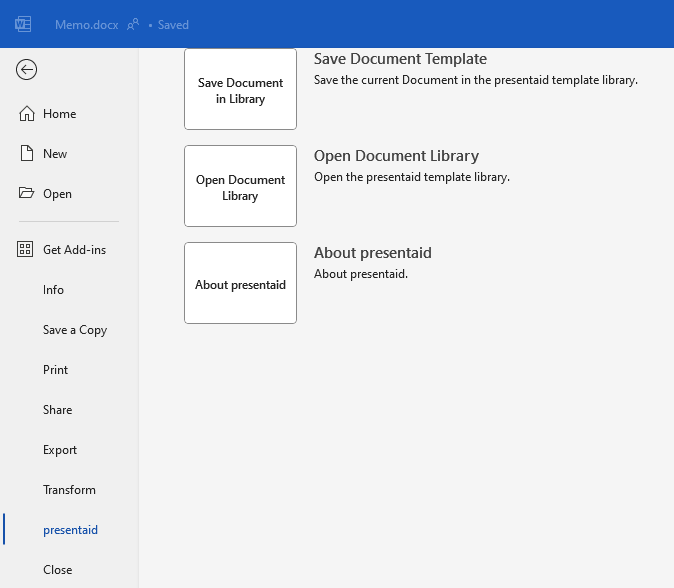
Save Document - Provide a name and save your document template.
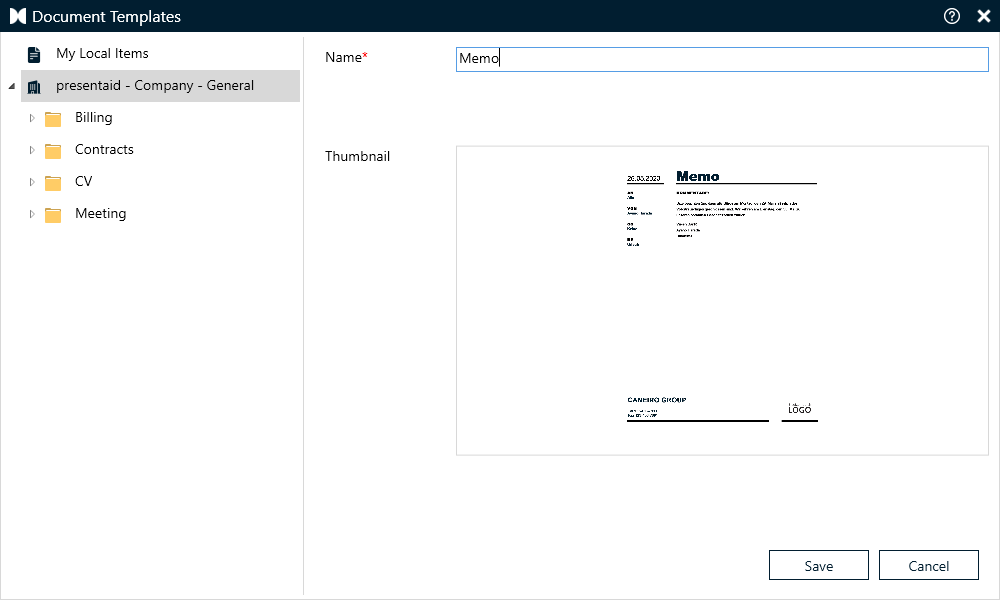
Save Document Name
Use a Document Template
By default, every time you start a new document in Word, the Document Template Library will pop up. You can disable this feature in the About pane.
Note: If you are part of an organization, this setting might be disabled and managed centrally by your organization.
Alternatively, you can click on "File" → "presentaid" → "Open Document Library" to choose from the templates you saved.
Good to Know
- Share templates with your team by connecting a Shared Library on SharePoint: How to Work with Shared Libraries
- Import existing documents in bulk: copy the .docx files into the Word Library location and start the indexing from Word (presentaid → About). The steps are in the same Shared Libraries article.
- The PowerPoint equivalent is the Presentation Template Library.