
Excel stores conditional formatting rules inside the workbook they were created in. There is no built-in way to carry a set of rules over to the next workbook: copying the cells brings the rules along, but it overwrites the target's own fills, fonts and number formats at the same time.
The Conditional Format Library closes that gap. Save a set of rules once, then apply it to any range in any workbook - without touching the formatting that is already there.
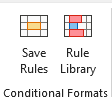
Save Conditional Formats
Rules are defined with Excel's own tools. presentaid stores them and puts them back; it does not replace Excel's rule editor.
- Create your rules as usual via Home → Conditional Formatting.
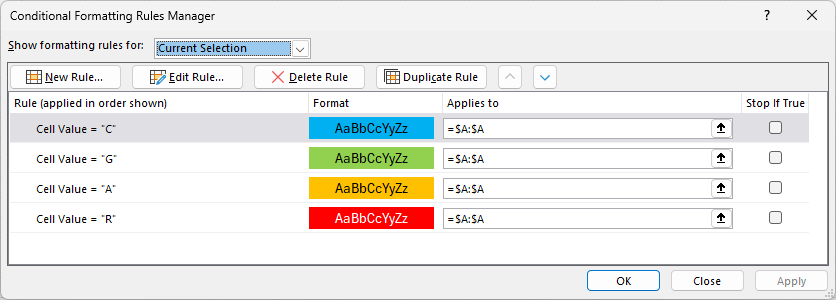
Excel Rules - Select the range the rules sit on. Every rule on that selection is saved together, in the order Excel evaluates them - so a red / amber / green set stays one item, not three.
- In the presentaid ribbon, go to Conditional Formats → Save Rules.
- Give the set a name and choose the library to save it into.
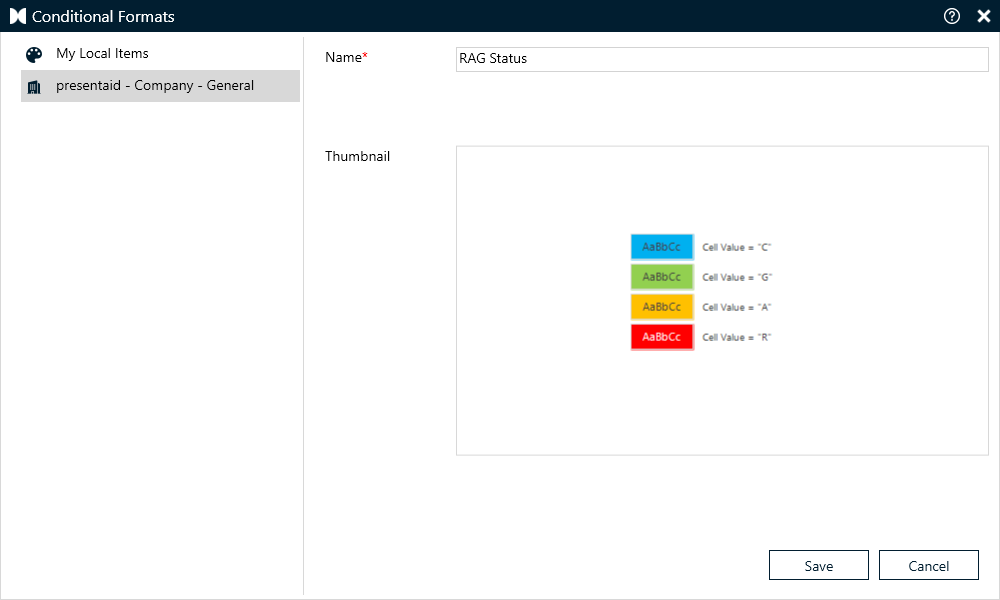
Save
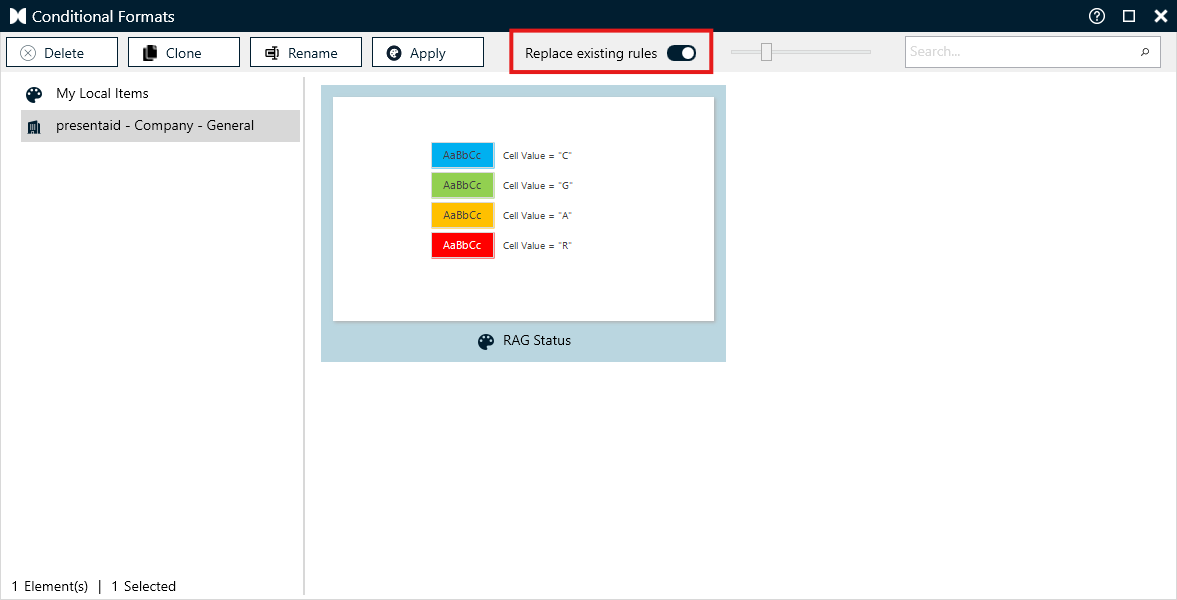
The thumbnail is generated from the rules themselves: one line per rule, showing what a matching cell will look like and the condition that triggers it.
Apply Conditional Formats
- Select the range you want to format, in any workbook.
- Click Conditional Formats → Rule Library.
- Double-click the item, or select it and click Apply.
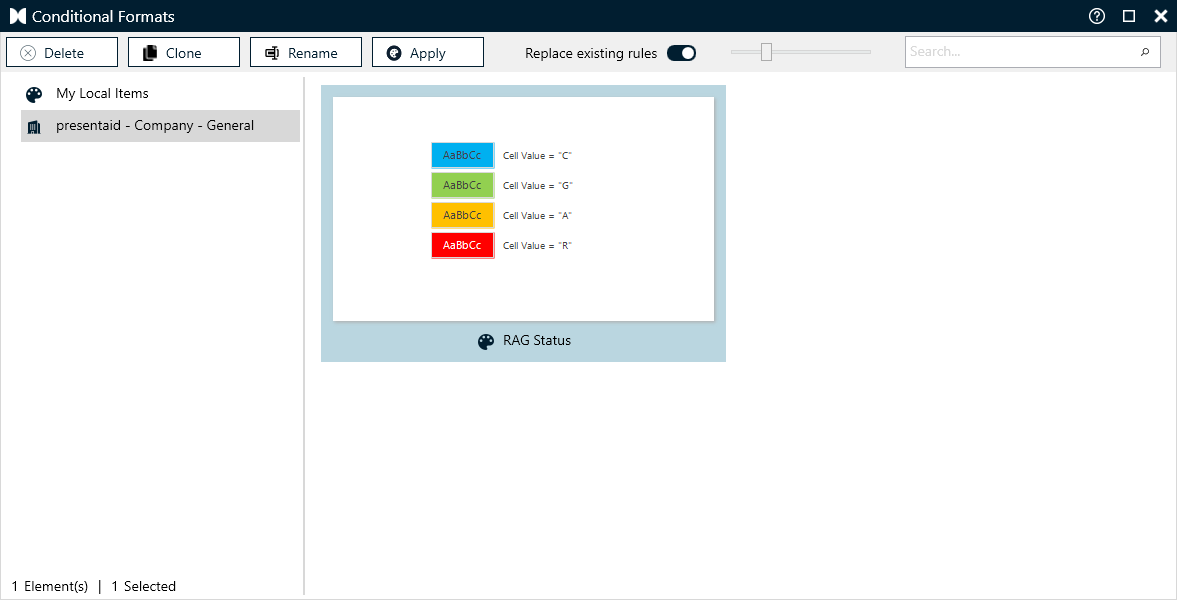
Library
Formulas are re-anchored to wherever the rules land. A rule written as =$B5="x" on a range starting at B5 becomes =$F10="x" when it is applied to a range starting at F10, so mixed absolute and relative references keep meaning the same thing.
A rule set also adapts to the shape of the target. Rules that covered the whole saved range stretch to cover the whole new selection, while a rule that covered only one column of it keeps to the matching column.
Replace or add
By default, applying a set removes the rules that are already on the selection. Switch off "Replace existing rules" to add the saved rules alongside them instead.
What gets saved
Everything Excel's own Rules Manager can build:
| Rule type | Examples |
|---|---|
| Cell value | between, equal to, greater than, ... |
| Formula | use a formula to determine which cells to format |
| Text | contains, begins with, ends with |
| Dates | yesterday, this week, last month, ... |
| Top / bottom | top 10 items, bottom 5 percent |
| Above / below average | including the standard deviation variants |
| Duplicate / unique | duplicate values, unique values |
| Blanks and errors | blanks, no blanks, errors, no errors |
| Colour scales | 2-colour and 3-colour |
| Data bars | including bar colour, direction and axis |
| Icon sets | traffic lights, arrows, flags, ratings |
Each rule keeps its formatting - fill, font, borders and number format - along with its Stop If True setting and its place in the rule order.
Theme colours are stored as theme colours rather than as fixed RGB values, so a rule saved against Accent 1 follows the theme of whichever workbook it is applied to.
Sharing rule sets with your team
Conditional format libraries behave like every other presentaid library. Next to your local library you can read from a team or company library, so one agreed set of status colours can be maintained centrally and used by everyone. See the Shared Libraries article for how to set those up.