
Introduction
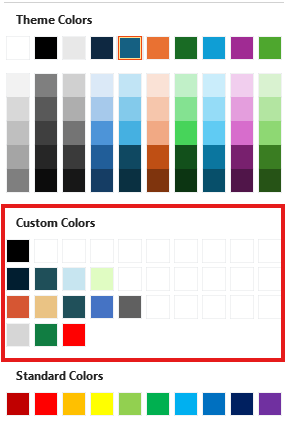
PowerPoint's color menus can show a Custom Colors row with up to 50 named colors - ideal for brand colors that don't fit into the twelve theme colors. PowerPoint has no button to fill this row: the colors are stored in the XML of the presentation's theme, and normally have to be added by hand (see our blog post How to Add Custom Colors to the PowerPoint Color Picker).
The presentaid Custom Color Hacker does it for you:
- Edit up to 50 colors with names, using the presentaid color picker.
- Take over the brand colors from the presentaid Color Pane with one click.
- See a preview of the color menu, and lay out rows of ten with Fill Row.
- Apply the colors to all slide masters at once - or only to the ones you choose.
- Works in PowerPoint and in Word (for shapes, text boxes and WordArt).
Opening the Custom Color Hacker
- Open the presentation or template you want to add custom colors to, and make sure it is saved on your computer.
- In the presentaid ribbon, go to About → Expert Tools → Custom Color Hacker.
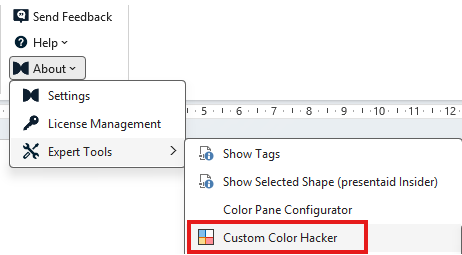
presentaid ribbon: About, Expert Tools, Custom Color Hacker
In Word, you find the same button in the General & Support group under About → Expert Tools → Custom Color Hacker.
presentaid reads the custom colors the file already has, then opens the window. If the presentation already has custom colors, they are loaded into the list, so you can edit them instead of starting over.
The Window
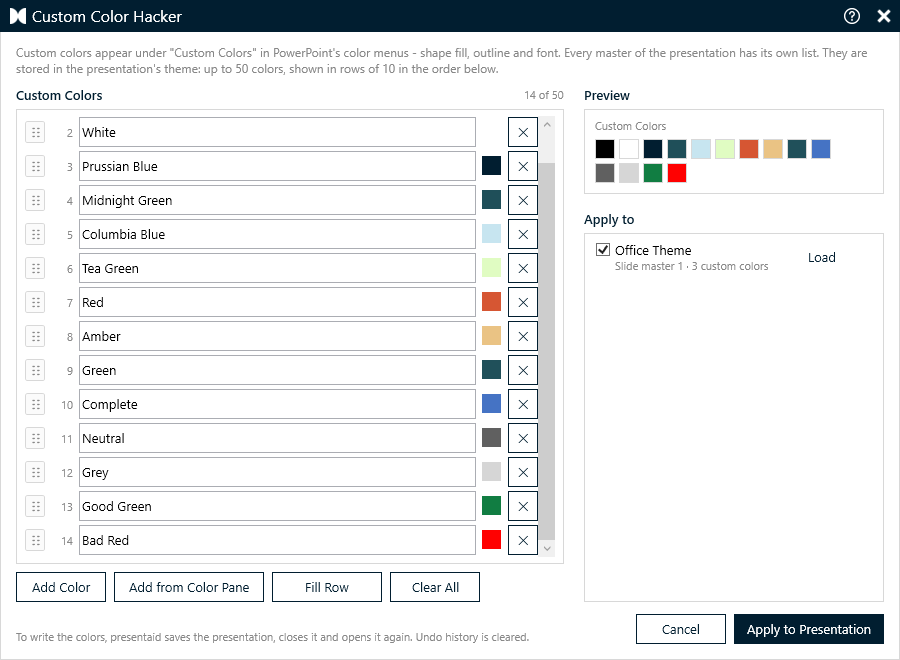
- Custom Colors (left) - the list of colors in the order they appear in the color menu. The counter shows how many of the 50 places you use.
- Preview (top right) - the colors as they will look in PowerPoint's color menu, in rows of ten.
- Apply to (bottom right) - the slide masters (and notes and handout masters) the colors are written to.
Adding and Editing Colors
- Click Add Color to add a new color at the end of the list.
- Click the color square to choose the color with the presentaid color picker - from the theme colors, the standard colors, or by entering a hex value.
- Type a name. The name appears as a tooltip when you hover over the color in PowerPoint, so use names everyone understands, such as "Brand Red 100%".
- Drag a color by its handle (⋮⋮) to move it to another place.
- Click ✕ to remove a color.
- Click Add from Color Pane to add the brand colors of the presentaid Color Pane. Colors that are already in the list are skipped, so you can click it again later without creating duplicates.
- Click Clear All to empty the list.
Laying Out Rows with Fill Row
PowerPoint shows custom colors in rows of ten, filled from left to right - there are no empty places. To start a color family on a new row, the row before it is filled up with white placeholder colors named "blank".
- Click the last color of a family in the list (or in the preview) to select it. The selected color is highlighted.
- Click Fill Row. presentaid inserts white "blank" colors right after the selected color until its row is complete. The colors behind it move to the next row.
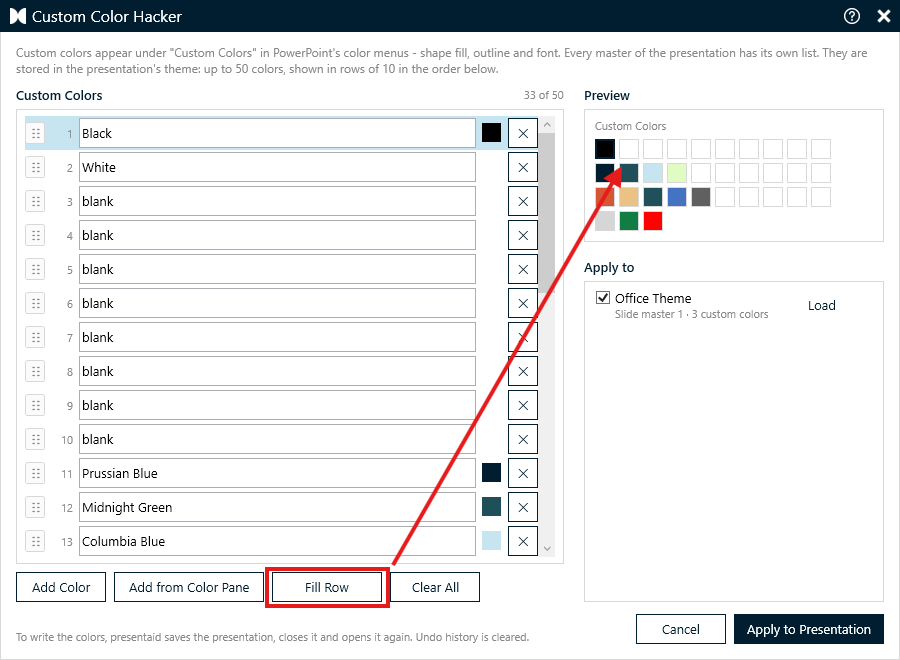
A selected color and the preview after Fill Row
If no color is selected, Fill Row completes the last row. Blanks that are already behind the selected color count as padding, so clicking Fill Row twice never adds more blanks than needed.
Choosing the Masters
Every slide master of a presentation has its own theme, and with it its own list of custom colors. Slides only show the custom colors of the master they are based on.
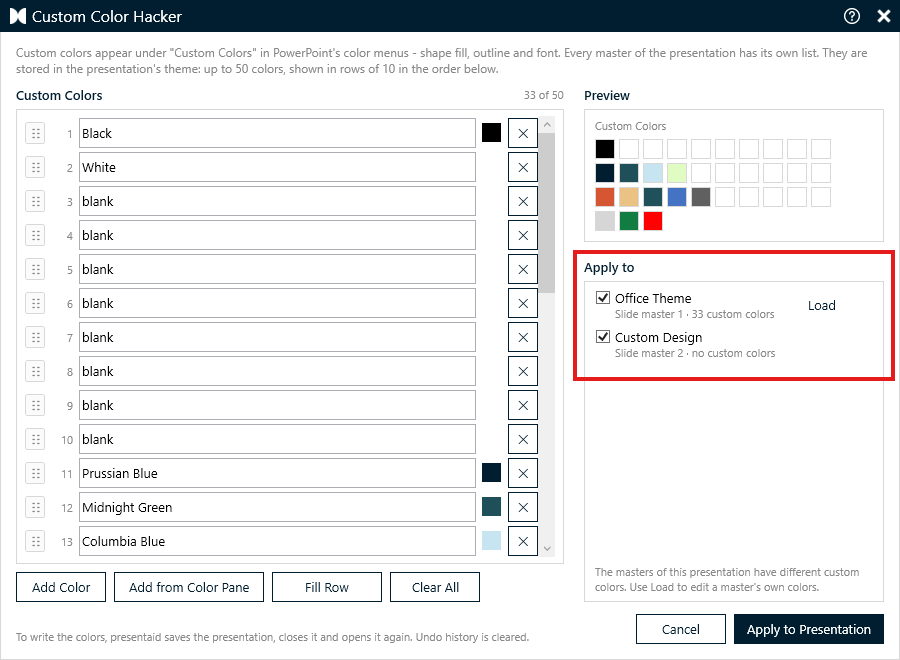
- All slide masters are selected by default - this is what you want in most cases.
- The notes master and handout master are listed if the presentation has them. Select them if you also want the colors while editing notes pages or handouts.
- If a master already has custom colors, click Load next to it to edit exactly that master's colors. The list is replaced with its colors, and only this master is selected.
Applying the Colors
- Click Apply to Presentation (in Word: Apply to Document).
- Confirm the dialog.
presentaid saves the presentation, closes it, writes the custom colors into the theme of every selected master and opens the presentation again on the slide you were on. Open any color menu, such as Shape Fill, to see your colors under Custom Colors.
Requirements
The Custom Color Hacker writes the colors into the file itself, so the file must be:
| Requirement | Why |
|---|---|
| Saved | A new, never saved presentation has no file yet. |
| Stored on your computer | Files opened directly from SharePoint or OneDrive in the browser can't be rewritten. Save a copy to a local folder, apply the colors there and upload it again. |
| An Open XML file | PowerPoint: .pptx, .potx, .pptm, .potm, .ppsx, .ppsm. Word: .docx, .dotx, .docm, .dotm. The old .ppt and .doc formats have no theme file. |
| Not read-only or marked as final | presentaid has to be able to save the file. |
If one of the requirements isn't met, the window shows a red message explaining what to do, and the Apply button stays disabled. You can still look at the colors the file already has.
Removing Custom Colors
Open the Custom Color Hacker, click Clear All and then Apply to Presentation. The custom colors are removed from all selected masters.
Custom Colors in Word
In Word, every document has exactly one theme, so the Apply to list shows a single entry, Document theme.
Word shows custom colors only when you format shapes, text boxes and WordArt - in Shape Fill and Shape Outline.
What About Excel?
The Custom Color Hacker isn't available in Excel. Excel reads the same theme, but removes the custom colors the next time it saves the workbook - so the colors would be gone after the first save. In addition, Excel never shows custom colors for cell fill, font or border colors.
Under the Hood
Custom colors are stored in a list called a:custClrLst in each theme file (ppt/theme/themeN.xml in PowerPoint, word/theme/theme1.xml in Word), after the a:extraClrSchemeLst element:
The Custom Color Hacker changes nothing else in the file. You can read more about the technique in our blog post How to Add Custom Colors to the PowerPoint Color Picker.
Good to Know
- Up to 50 colors - PowerPoint shows five rows of ten and ignores any further colors.
- Where custom colors appear - in PowerPoint for Windows and Mac (2016 and later). PowerPoint for the web, iOS and Android don't show them.
- Templates - add the custom colors to your .potx template, and every new presentation based on it has them.
- .thmx theme files don't keep custom colors. Use a .potx or .pptx template instead.
- Duplicating a slide master also duplicates its custom colors. A new, empty master starts without them - add the colors to it, too.