
Your brand has more than six colors - but PowerPoint's color picker only shows the twelve colors of the theme, plus the ten colors you used most recently. Everything else means typing hex codes into More Colors, using the eyedropper on an old slide, or keeping a "color cheat sheet" slide at the end of every deck. Sooner or later someone picks a red that is almost your brand red.
There is a better way that very few people know about: PowerPoint has a hidden Custom Colors row in every color menu that can hold up to 50 named colors. It is not available anywhere in PowerPoint's interface - you have to add it to the file's XML. This article explains how custom colors work, how to add them manually, what can go wrong, and how the presentaid Custom Color Hacker does the same in one click.
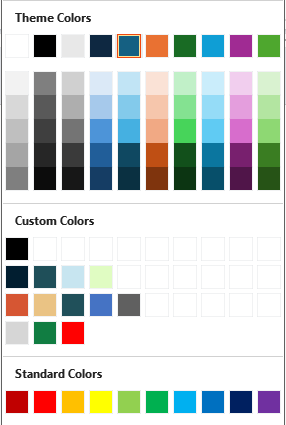
Theme colors, recent colors and custom colors
PowerPoint's color menus (Shape Fill, Shape Outline, Font Color and many more) show up to four groups of colors:
- Theme Colors - the twelve colors of the slide master's color scheme (two text/background pairs, six accents and two hyperlink colors), plus the generated tints and shades below them. You set them under View > Slide Master > Colors > Customize Colors. Twelve slots are rarely enough for a full corporate palette.
- Standard Colors - ten fixed colors that are the same in every presentation. They are rarely on brand.
- Recent Colors - the last ten colors you picked through More Colors or the eyedropper. They change all the time, are first-in-first-out and can't be curated.
- Custom Colors - up to 50 named colors stored in the presentation's theme. They show up for everyone who opens the file, in the order you define, with the name as a tooltip. This is the group you want for brand colors.
Where PowerPoint stores custom colors
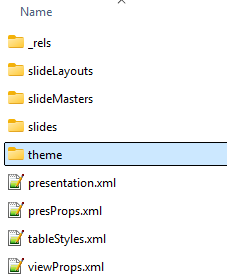
A .pptx file is a ZIP archive full of XML files. Every slide master has its own theme file in the folder ppt/theme - theme1.xml for the first master, and further theme files for additional masters, the notes master and the handout master.
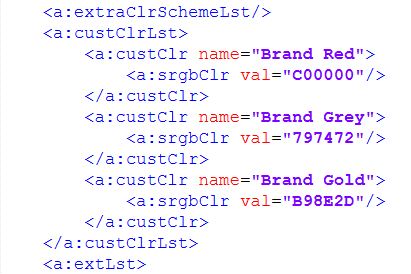
Custom colors live in a list called <a:custClrLst> inside the theme. Each entry has a name and an RGB value:
<a:custClrLst>
  <a:custClr name="Brand Red"><a:srgbClr val="C00000"/></a:custClr>
  <a:custClr name="Brand Grey"><a:srgbClr val="797472"/></a:custClr>
  <a:custClr name="Brand Gold"><a:srgbClr val="B98E2D"/></a:custClr>
</a:custClrLst>
The Open XML standard defines exactly where this list goes: after <a:extraClrSchemeLst/> and before <a:extLst> near the end of the theme file. PowerPoint reads it, shows the colors in the picker and keeps them when it saves the file again.
How to add custom colors manually (the XML hack)
You don't need any special tools for the manual way - just a text editor and some care. Work on a copy of your template.
- Write down your colors as hex values (for example C00000 for a dark red) and give each a name.
- Save and close the presentation in PowerPoint.
- Rename the file from
.pptx(or.potx) to.zip. If you don't see file extensions, enable View > File name extensions in Windows Explorer. - Open the ZIP, go to the
ppt/themefolder and copytheme1.xmlto your desktop.
- Open
theme1.xmlin a text editor such as Notepad++ or Visual Studio Code. The file is one long line - turn on word wrap. - Find
<a:extraClrSchemeLst/>near the end of the file and paste your<a:custClrLst>block right after it - before<a:extLst>if the file has one.
- Save the file, copy it back into the ZIP (replacing the original) and rename the ZIP back to
.pptx. - Open the presentation. Your colors now appear under Custom Colors in every color menu.
Here is what the end of a theme file looks like with custom colors in place:
  </a:objectDefaults>
  <a:extraClrSchemeLst/>
    <a:custClrLst>
      <a:custClr name="Brand Red">
        <a:srgbClr val="C00000"/>
      </a:custClr>
      <a:custClr name="Brand Grey">
        <a:srgbClr val="797472"/>
      </a:custClr>
      <a:custClr name="Brand Gold">
        <a:srgbClr val="B98E2D"/>
      </a:custClr>
    </a:custClrLst>
  <a:extLst>...</a:extLst>
</a:theme>
The rules PowerPoint applies
- Up to 50 colors. The picker shows five rows of ten; anything beyond is ignored.
- Rows of ten, filled left to right. There are no empty slots. If a color family should start on a new row, pad the row with white "blank" entries. The same trick lines colors up in columns: put each family's first color in the top row and pad the rest.
- The name is the tooltip. Use names people understand, such as "Brand Red 100%" or "Chart Grey".
- Plain RGB values. Use
<a:srgbClr val="RRGGBB"/>with six hex digits and no # sign. - The XML must be exact. A typo, a missing quote or a list in the wrong place makes PowerPoint say the file needs to be repaired - and the repair throws your colors away.
Pitfalls of the manual way
The XML hack works, but it is easy to get wrong - especially in real templates:
- Every master has its own list. If your template has several slide masters, each
themeN.xmlneeds the colors. Slides based on a master without the list don't show them. The notes and handout masters have their own themes too. - Which theme file belongs to which master? The numbering of the theme files doesn't tell you; you have to follow the relationships in
ppt/slideMasters/_rels. - Saving as a .thmx theme file drops the custom colors. Keep them in a .potx or .pptx template instead.
- ZIP tools can break the file. Some archivers, especially on macOS, add hidden files or recompress the archive in a way PowerPoint refuses to open.
- No undo. Keep a backup before editing, and test the result on a copy.
- Not everywhere. Custom colors appear in PowerPoint for Windows and for Mac 2016 and later. PowerPoint for the web, iOS and Android don't show them.
Do custom colors work in Word and Excel?
Word: for shapes. A Word document has one theme (word/theme/theme1.xml) and accepts exactly the same list. Word shows the colors under Custom Colors when you format shapes, text boxes and WordArt - in Shape Fill and Shape Outline. The Font Color menu on the Home tab, highlighting, shading, borders and the page color don't offer them, so they don't help with coloring text.
Excel: no. Excel reads the same theme part, but in our tests with Microsoft 365, Excel removes the custom color list the next time it saves the workbook. The colors would be gone after the first save, so we don't recommend it.
The easy way: presentaid Custom Color Hacker
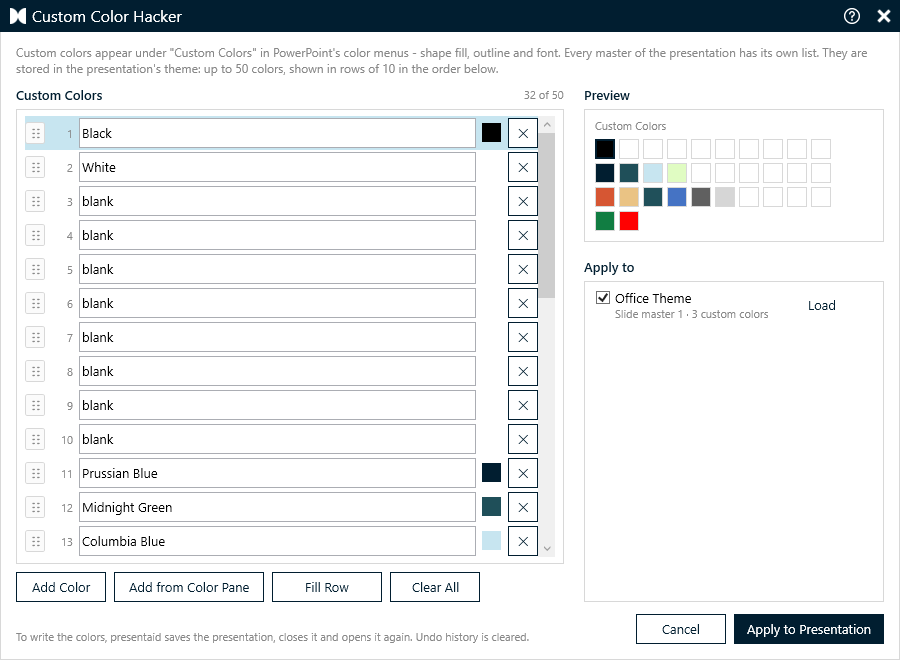
The presentaid Custom Color Hacker does the XML hack for you - for every master, without renaming files or touching XML.
- Open your presentation or template in PowerPoint.
- In the presentaid ribbon, go to About > Expert Tools > Custom Color Hacker.
- Add your colors: pick them with the color picker or type a hex value, give each a name, and drag them into the order you want. Add from Color Pane takes over the brand colors you already maintain in presentaid's Color Pane.
- Check the Preview - it shows the colors in rows of ten, exactly as PowerPoint's picker will. Select a color and click Fill Row to start the next color family on a new row.
- Choose the masters under Apply to - all slide masters are selected by default - and click Apply to Presentation.
presentaid saves the presentation, writes the custom colors into the theme of each chosen master, checks that the file is valid and opens it again. The rest of the file stays exactly as PowerPoint wrote it - and if anything goes wrong, your original file is left untouched.
What else the Custom Color Hacker does for you:
- Reads existing custom colors, so you can edit a template's list instead of starting over. If masters have different lists, Load picks the one you want to edit.
- Applies to all masters at once, including the notes and handout masters if you want.
- Validates as you type - no more than 50 colors, no "No Fill", no broken hex values.
- Removes custom colors: clear the list and apply.
- Works in Word too - for shapes, text boxes and WordArt. The same window is available under About > Expert Tools in presentaid for Word.
Read the step-by-step guide in the Knowledge Base.
Tips for a good custom color palette
- Order by family, not by importance. One row per color family (reds, greys, golds, ...) is easier to scan than one long list.
- Include the tints you actually use. If your brand book has 80%, 60% and 40% versions of a color, add them - that's what stops people from guessing.
- Keep the theme colors for the essentials. The theme drives charts, tables and SmartArt automatically. Custom colors are for everything that goes beyond the twelve theme slots.
- Put the colors in the template. New presentations based on the template inherit the custom colors automatically.
FAQ
How many custom colors can PowerPoint show?
PowerPoint shows up to 50 custom colors, in five rows of ten. Colors beyond the 50th are ignored.
Where are custom colors stored?
In the theme of each slide master, in a list called a:custClrLst inside ppt/theme/themeN.xml. Each master has its own theme and its own list.
Why don't my custom colors show up on some slides?
The slides probably use another slide master whose theme has no custom colors. Add the colors to every master - the Custom Color Hacker selects all slide masters by default.
Can I save custom colors in a .thmx theme file?
No. Saving a theme as .thmx drops the custom colors. Keep them in a .potx or .pptx template instead.
How do I remove custom colors from PowerPoint?
Delete the a:custClrLst block from the theme file, or open the Custom Color Hacker, click Clear All and apply the empty list.
Do custom colors work in Excel?
Not reliably. Excel reads the theme, but in our tests with Microsoft 365 it removes the custom color list the next time it saves the workbook. In Word, custom colors work for shapes, text boxes and WordArt, but not for the font color of text.
Want to try it? Give your brand colors a permanent place in PowerPoint's color picker - free for 30 days, no credit card required.
Start your free trial