
With Bring your own brand, you show presentaid in your company's colors - the libraries, Settings, Slide Radar, File Size Inspector, wait and error messages - and decide how the icons in the presentaid ribbons and the Productivity Pane are colored. The settings apply to everyone who uses your company's Shared Location.
Before You Start
Bring your own brand is part of the Company section of the presentaid settings. You only see that section if you have write access to the company Shared Location - see Organization Wide Roll-out. Settings made there are stored in that location and apply to all its users.
Open Bring Your Own Brand
- Open the presentaid settings.
- Go to Company → Bring your own brand.
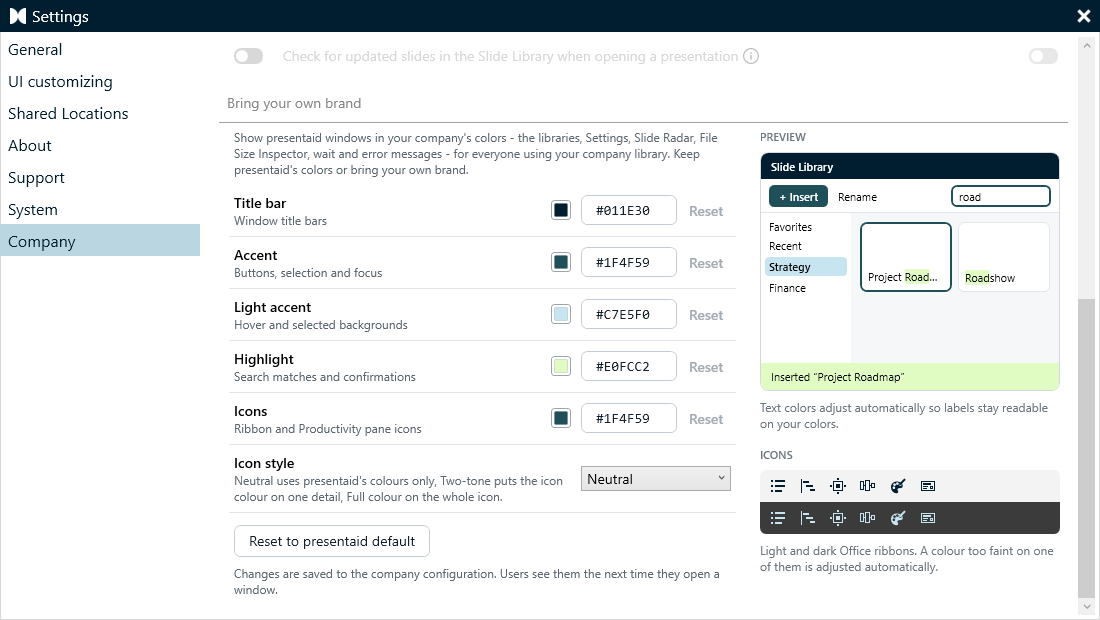
Bring your own brand
Window Colors
| Color | Used for |
|---|---|
| Title bar | Window title bars |
| Accent | Buttons, selection and focus |
| Light accent | Hover and selected backgrounds |
| Highlight | Search matches and confirmations |
Pick a color for each, or keep presentaid's default. Reset to presentaid default brings back presentaid's colors. Users see the changes the next time they open a window.
Icons
Icons sets the icon color: the brand color the icons use. Without one, icons use presentaid's teal.
Icon style sets how the color is used:
| Style | Light Office themes | Dark Office themes |
|---|---|---|
| Neutral (default) | presentaid navy | presentaid light blue |
| Two-tone | Black, with one detail in the icon color | White, with one detail in the icon color |
| Full colour | The whole icon in the icon color | The whole icon in the icon color |
Neutral doesn't use the icon color. The preview below shows sample icons on a light and a dark ribbon. The ribbons and the Productivity Pane redraw their icons as soon as you change the color or the style.