
Check if presentaid is enabled in PPT/XLS
- In PPT/XLS, click on File → Options → Add-ins
- Select COM Add-ins in the dropdown menu at the bottom
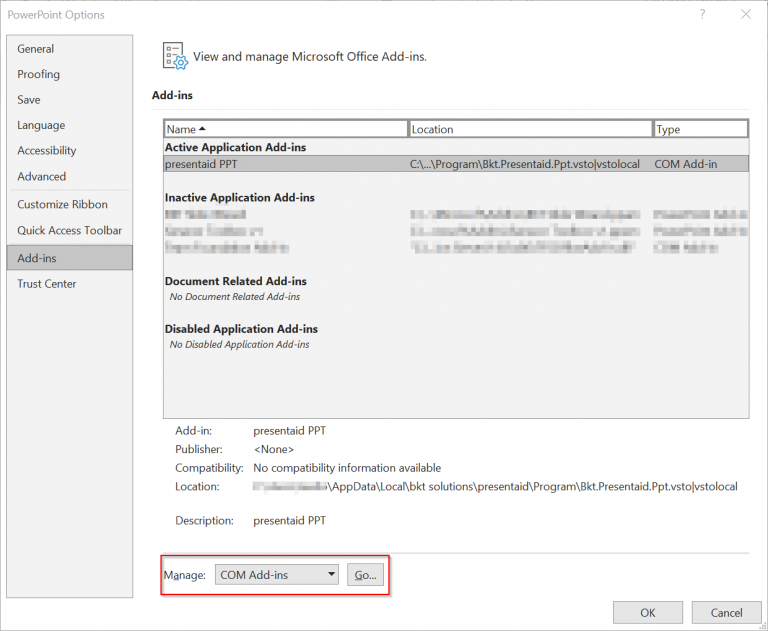
Addin Overview - Select the presentaid addin and make sure that the checkbox is checked
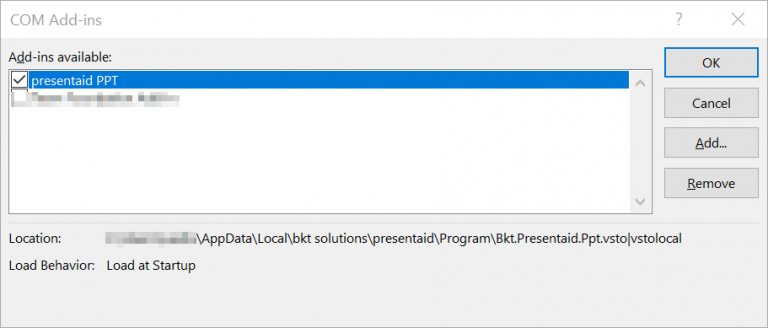
COM Add-ins overview
Attention: The most common message, indicating a problem, would be 'Not loaded. A runtime error occurred during the loading of the COM add-in'.
Remove presentaid from the "Disabled Items"
If presentaid is not in the "COM Add-ins" list you have to remove it from the disabled items.
- In PPT/XLS, click on File → Options → Add-ins
- Select Disabled Items in the dropdown menu at the bottom
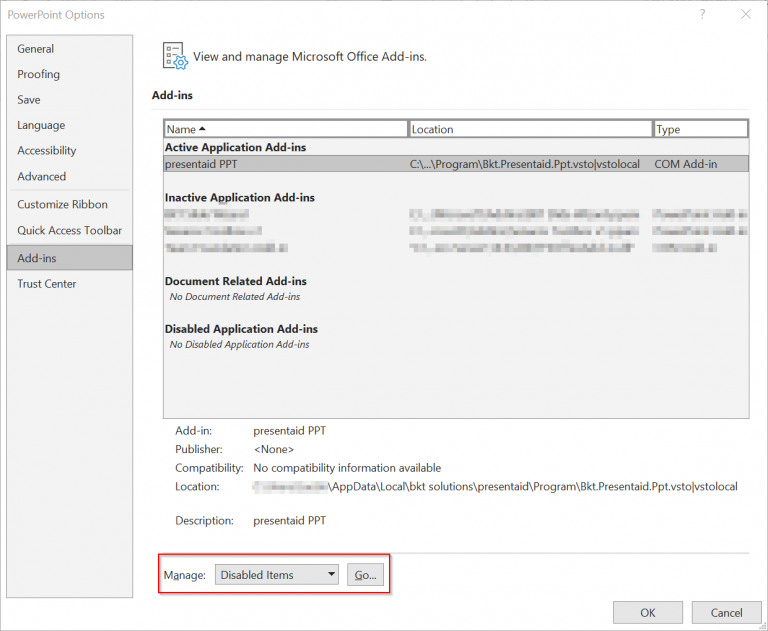
Disabled Add-ins Overview - Select the presentaid addin and click Enable

Disabled Add-ins Details
"Not loaded. A runtime error occurred during the loading of the COM add-in"
If this error is shown in the "Load Behaviour" of the presentaid add-in within the "COM add-ins" section there could be a number of reasons for this message. To troubleshoot this error you have to enable VSTO Display Alerts and try to enable the presentaid addin.
- Open System Properties/Search for System Properties
- Select the Advanced tab and click Environmental variables
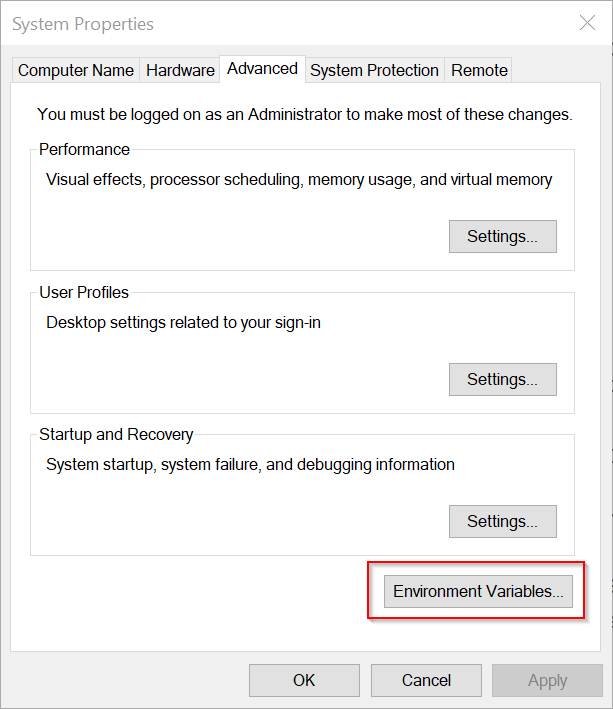
Open Environment Variables - Click New
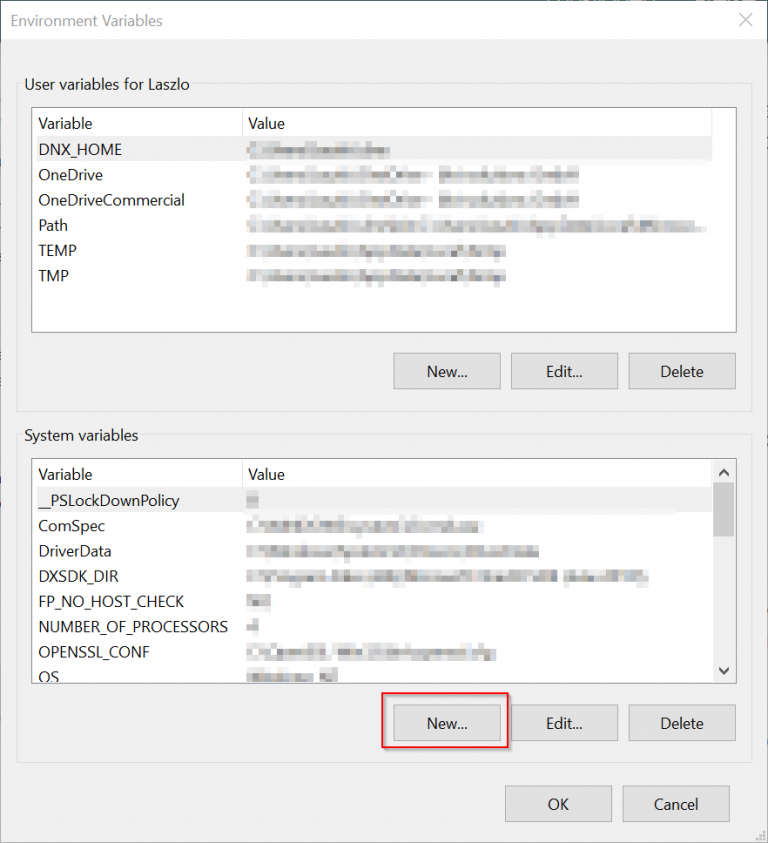
Create New Environment Variable - Add a new variable with name "VSTO_SUPPRESSDISPLAYALERTS" and value "0"
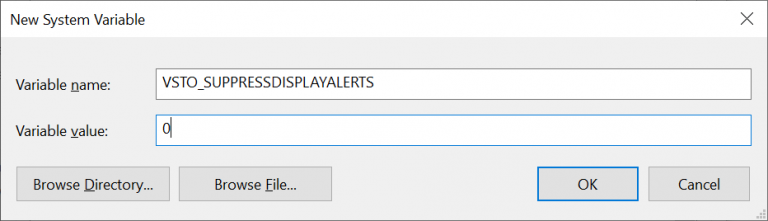
Set Environment Variable - In PPT/XLS, click on File → Options → Add-ins
- Select COM Add-ins in the dropdown menu at the bottom
- Select the presentaid addin and tick the checkbox. You should see an error message now. Please send a screenshot of the error message to support@presentaid.com so we can have a look.
presentaid is not available in PPT/XLS at all
In case you have installed presentaid, but you can't find presentaid neither in the COM Addins nor the disabled Addins tab you need to proceed as follows:
- De-Install presentaid from your machine
- De-Install Microsoft Office from your machine
- Re-Install Microsoft Office
- Re-Install presentaid
- Start XLS/PPT and check if presentaid is available now
If this did not solve your problem, please contact us.