
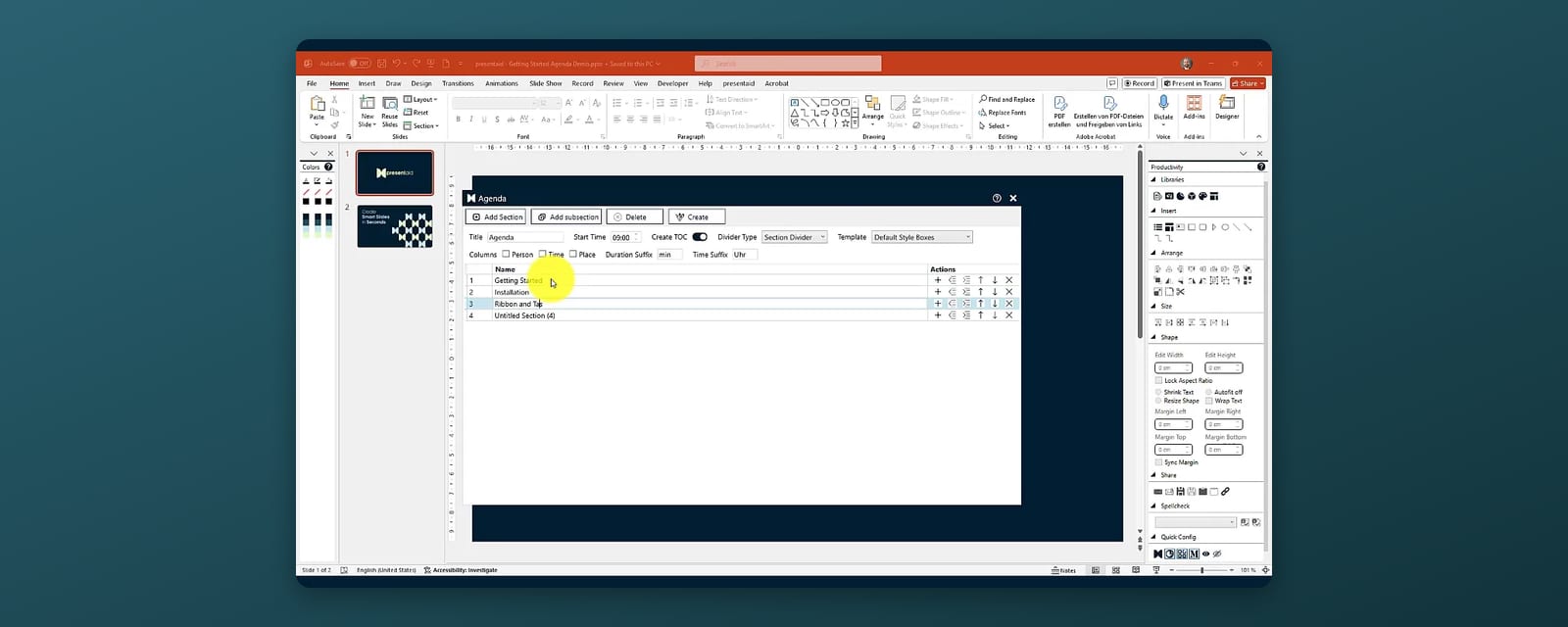
An agenda slide tells the audience where the presentation is going; repeated before each section with the current topic highlighted, it also tells them where they are. In PowerPoint you can build agenda slides by hand, generate a clickable overview with Summary Zoom, or let an add-in like presentaid create the agenda, section dividers and page numbers and keep them up to date when the deck changes.
Option 1: The Manual Agenda Slide
- Create a slide with your section titles and, if you like, page numbers or times.
- Duplicate it before each section and highlight the current item (bold text, an accent color, or greying out the others).
- Use Sections (right-click in the slide sorter → Add Section) to keep the deck organised.
This is how most decks are built - and why most agendas are wrong by the third revision. Every change to the order or length of a section means editing every agenda copy and every page number by hand.
Option 2: Summary Zoom (Microsoft 365)
- Organise the deck into Sections.
- Go to Insert → Zoom → Summary Zoom and select the sections to include.
- PowerPoint creates a summary slide with a clickable thumbnail per section; during the presentation, clicking a thumbnail jumps to that section and back.
Summary Zoom is great for non-linear presentations where you jump between topics. It is less suited to classic business decks: thumbnails instead of a text agenda, no page numbers, and no repeated divider slides that highlight the current section.
Option 3: The presentaid Agenda Manager
The Agenda Manager creates the agenda slide and the section dividers from one list of sections - and recreates them whenever the structure changes.
- Open the Agenda Manager from the presentaid ribbon or the Productivity Pane.
- Add your sections and set the parameters: a title, optionally a start time (durations and times are then calculated per section), and extra columns for presenter or location.
- Choose whether to create a table of contents at the beginning and which divider type you want before each section: none, a simple section divider, or a TOC divider - a copy of the agenda with the current section highlighted.
- Pick an agenda template - one of the included templates, or your company's shared template.
- Click Create.
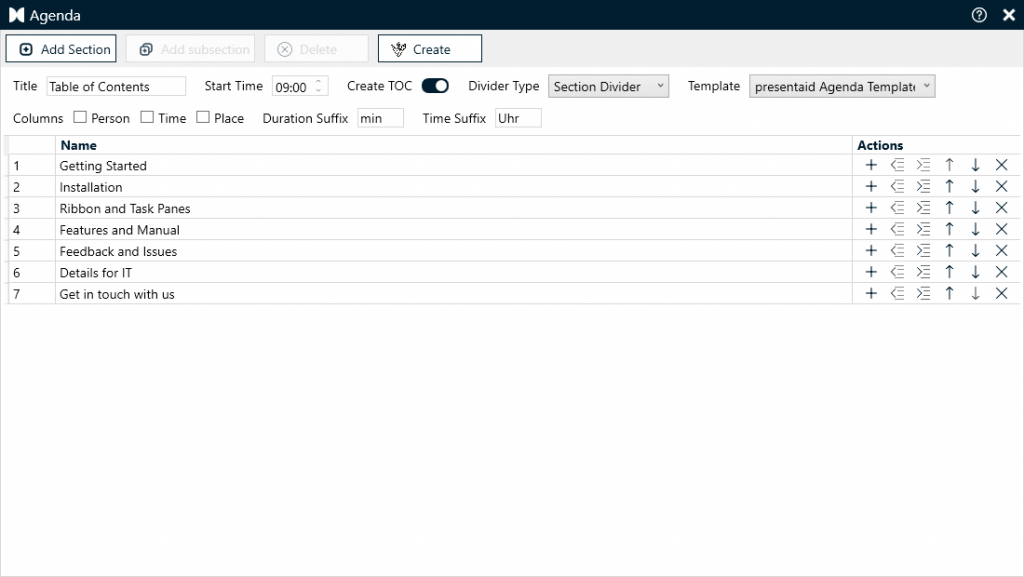
Now add your content slides to the sections. When the structure changes - a section moves, a new one is added, slides are inserted - open the Agenda Manager again and click Create: the order, the highlighting and the page numbers in the table of contents are updated.
Tips for Agenda Slides
- Four to seven sections. More than that and the agenda becomes a table of contents nobody reads.
- Use action titles, not labels: "Where we lose margin" instead of "Analysis".
- Repeat the agenda only in longer decks. For 10 slides, one agenda at the start is enough; for 40, a highlighted divider before each section helps the audience keep their bearings.
- Make it your template. A company-wide agenda template (shared via presentaid's libraries) keeps every team's decks consistent.
FAQ
How do I highlight the current section on an agenda slide?
Manually, by duplicating the agenda slide and formatting the current item differently. With presentaid, choose TOC Divider as the divider type and the Agenda Manager creates the highlighted copies for you.
Can PowerPoint update agenda page numbers automatically?
Not on its own - the page numbers in a manually written agenda are plain text. presentaid's Agenda Manager recalculates them when you click Create again.
What is the difference between sections and an agenda slide?
Sections organise slides in the editor (and power Summary Zoom); the audience never sees them. An agenda slide is visible content that explains the structure.
More: Structure & agenda feature · Guide: the Agenda Manager · Why an automated agenda keeps your story structured