Spalten hinzufügen/löschen
Um eine Spalte hinzuzufügen, klicke einfach auf die Spaltenüberschrift im Aufgabenbereich. presentaid schlägt anhand der zugrunde liegenden Daten automatisch den passendsten Spaltentyp vor.
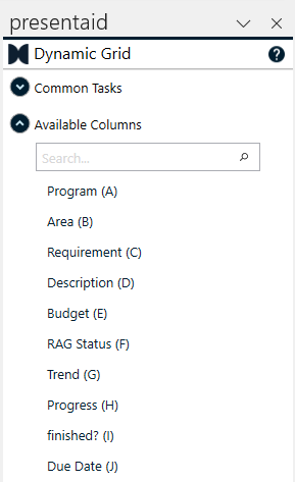
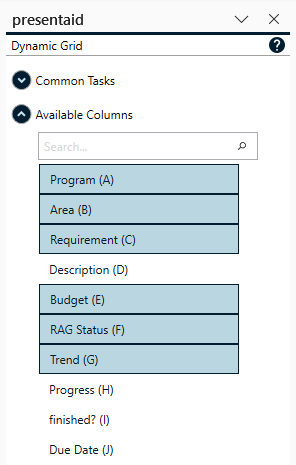
Um eine Spalte zu entfernen, wähle eine Form dieser Spalte aus und lösche sie. Das Dynamic Grid erkennt diese Änderung und entfernt die gesamte Spalte.
Spaltenkonfiguration
Gruppierung von Spalten
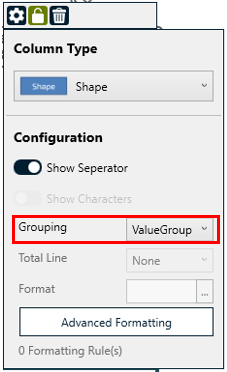
Der Gruppierungsparameter hilft dabei, Datenzeilen mit demselben Wert visuell zu verbinden. Die Gruppierungslogik kann im Aufgabenbereich geändert werden.
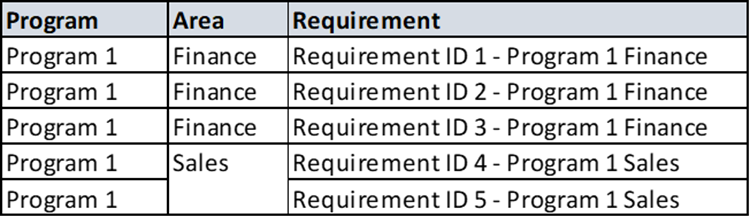
Nehmen wir an, wir haben den folgenden Datenausschnitt:
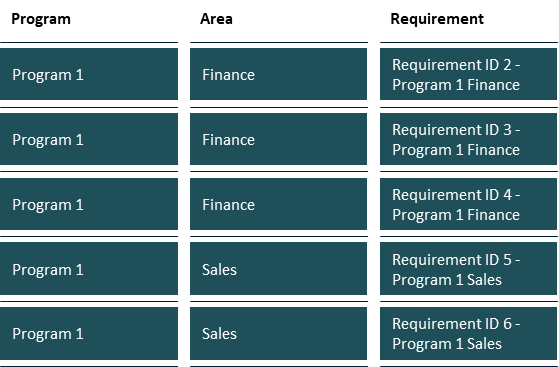
Wenn wir "No Grouping" anwenden, erzeugt das Dynamic Grid für jede Zelle eine eigene Form:
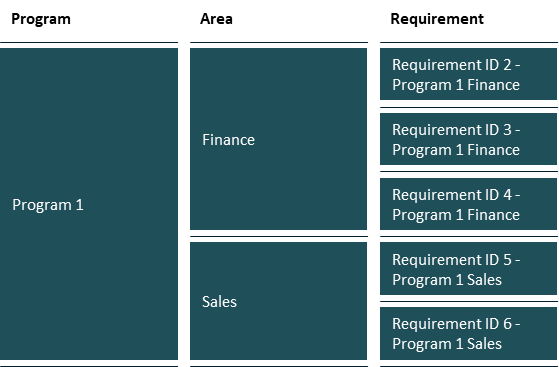
Wenn du "ValueGrouping" auf die erste und zweite Spalte anwendest, sieht das Ergebnis so aus:
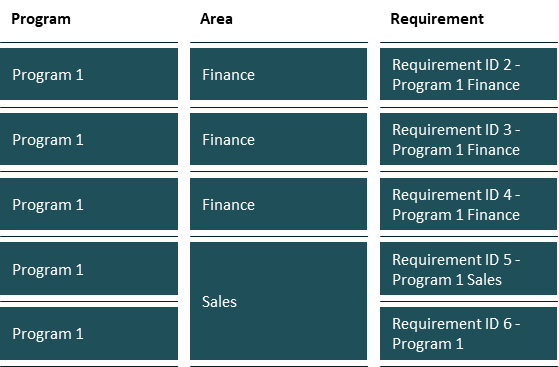
Wenn du "ExcelGrouping" auf die erste und zweite Spalte anwendest, basiert die Gruppierung auf verbundenen Zellen in Excel:
Spaltentyp ändern
Um den Spaltentyp zu ändern, wähle eine Zelle der gewünschten Spalte aus. Im Dropdown oberhalb der Spalte kannst du deinen bevorzugten Spaltentyp auswählen.
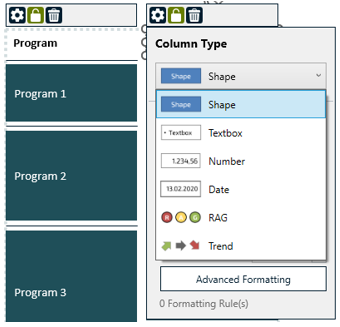
Verfügbare Spaltentypen
presentaid bietet eine Reihe von Spaltentypen, damit du jede Spalte möglichst aussagekräftig darstellen kannst:
| Typ | Was angezeigt wird | Beispiel |
|---|---|---|
| Textbox | Reiner Text - der unveränderte Zellwert |  |
| Number | Eine Zahl, mit optionalem Zahlenformat und Summenzeile |  |
| Date | Ein Datum, mit konfigurierbarem Datumsformat |  |
| Shape | Eine farbige Form (z. B. ein Status-Punkt) je Zelle |  |
| RAG | Rot / Gelb / Grün-Statusanzeigen |  |
| Harvey Ball | Harvey Balls für 0-100 % Fortschritt |  |
| Progressbar | Ein horizontaler Fortschrittsbalken, Wert als % | 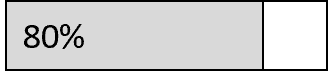 |
| Bar Chart | Ein horizontaler Balken, dessen Länge proportional zum Wert ist | 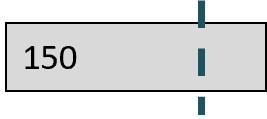 |
| Rating | Eine Sternebewertung (z. B. 3,5 von 5 Sternen) |  |
| Slider | Ein Schieberegler-Knopf auf einer Skala |  |
| Checkbox | Ein angehaktes / nicht angehaktes Kästchen |  |
| Flag | Ein Fähnchen-Symbol zum Markieren von Zeilen |  |
| Trend | Ein Aufwärts- / Abwärts- / Neutral-Trendpfeil |  |
Einige Spaltentypen haben nach der Auswahl eigene Optionen im Kopfmenü:
- Bar Chart - lege das Maximum (der Wert, der einem vollen Balken entspricht) und optional eine Target-Markierung fest.
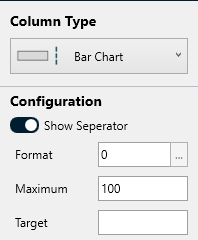
Bar Chart Options - Rating - wähle die Anzahl der Sterne, ob der Quellwert als Prozentwert (0-100 % der Sterne) oder als absolute Sternanzahl (z. B. 3,5) gelesen wird, und ob teilweise gefüllte Sterne exakt oder auf ganze Sterne gerundet angezeigt werden.
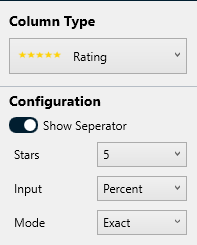
Rating Options
Eine Summenzeile hinzufügen
Für Zahlenspalten kannst du am unteren Rand des Dynamic Grid eine Summenzeile hinzufügen. Du kannst entweder die Summe oder den Durchschnitt der Spalte anzeigen lassen.
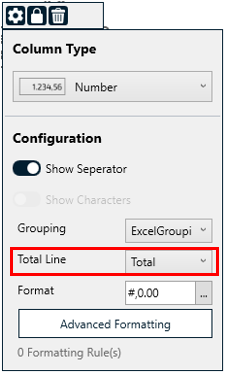
Format von Zahlen- und Datumsspalten ändern
Falls du das Anzeigeformat einer Zahlen- oder Datumsspalte ändern möchtest, wähle eine Form in der gewünschten Spalte aus und öffne das "Format"-Feld im Aufgabenbereich.
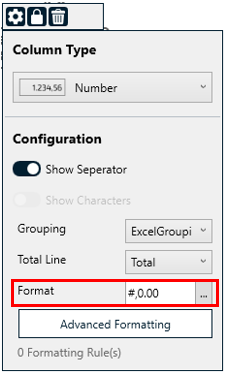
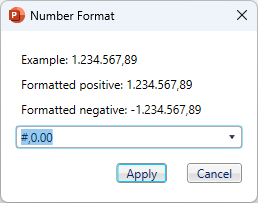
Bedingte Formatierung
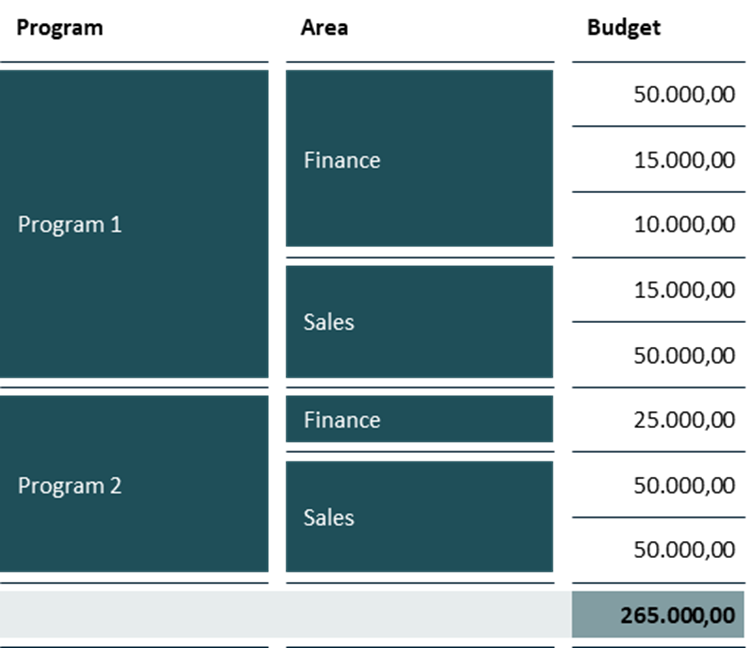
Mit der bedingten Formatierung kannst du zusätzliche Stile basierend auf dem Inhalt einer Zelle im Dynamic Grid hinzufügen. Nehmen wir an, du hast das folgende Grid erstellt und möchtest die Hintergrundfarbe der "Sales"-Einträge in der zweiten Spalte ändern:
- Wähle die Spalte aus, auf die du eine bedingte Formatierung anwenden möchtest
- Klicke im Kopfmenü auf "Advanced Conditional Formatting"
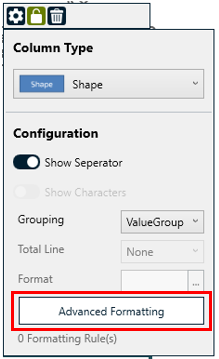
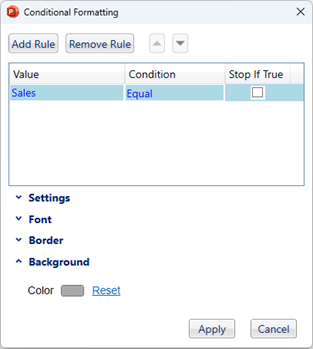
Advanced Formatting - Füge eine Regel hinzu, z. B. Value is equal to "Sales", und lege deinen Stil fest, z. B. einen grauen Hintergrund
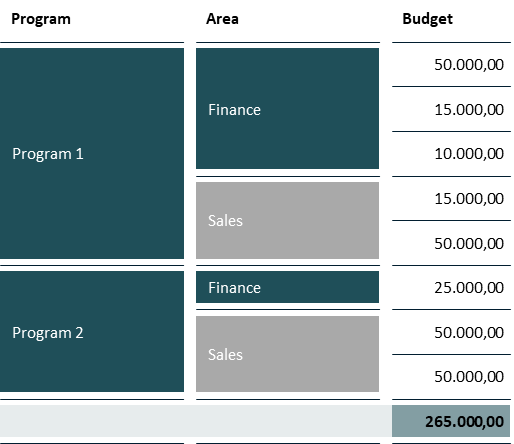
Conditional Format - Die bedingte Formatierung wird nun auf alle Zellen der Spalte angewendet, die der Regel entsprechen.
Conditional Format Post
Grid-Konfiguration
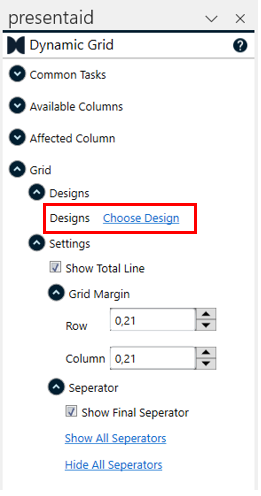
Designs
Mit Designs kannst du unterschiedliche Layout-Stile auf das gesamte Dynamic Grid anwenden. Das ist nützlich, wenn du unterschiedliche Stile für verschiedene Kunden verwenden möchtest oder wenn es in deinem Unternehmen unterschiedliche Berichtsformate gibt.
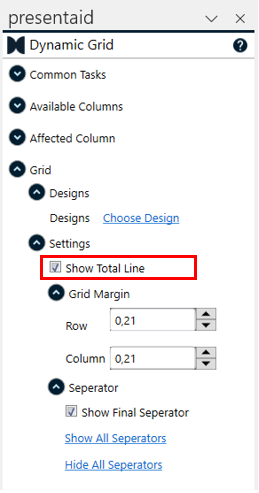
Summenzeile
Aktiviere oder deaktiviere die Summenzeile des Dynamic Grid.
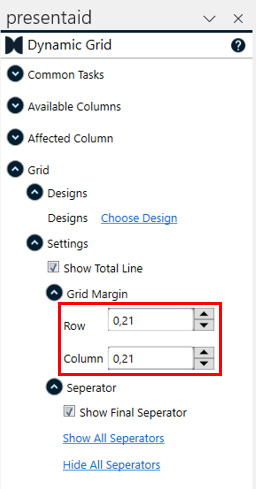
Grid Abstand
Der Abstand definiert den Abstand zwischen den Spalten und Zeilen des Dynamic Grid.
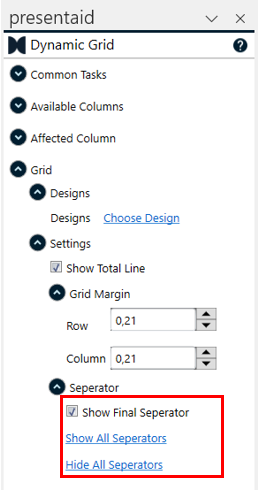
Trennlinien
Die Trennlinien sind die Linien zwischen den Zeilen des Dynamic Grid. Du kannst sie spaltenweise aktivieren/deaktivieren oder diese globale Einstellung im Grid-Einstellungsbereich verwenden.
Streifen (Stripes)
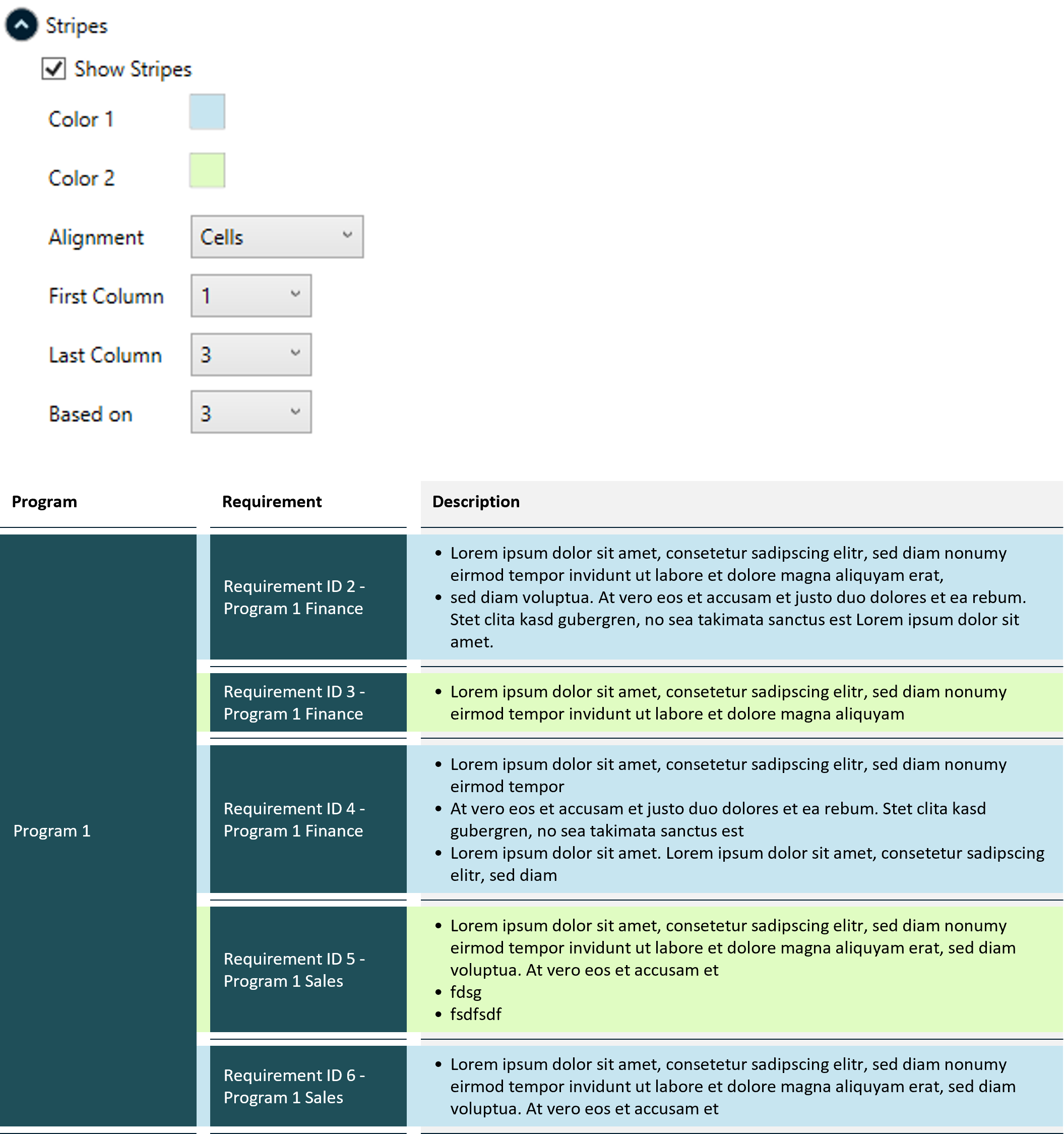
Streifen sind abwechselnde, über die volle Breite gezeichnete Farbbänder hinter den Zeilen, die das Grid leichter lesbar machen.
- Show Stripes - Streifen ein- oder ausschalten.
- Color 1 / Color 2 - die beiden Farben, zwischen denen die Bänder wechseln.
- Alignment - ob die Bänder an den Separator-Linien oder an den Cells (Zellen) ausgerichtet werden.
- First Column / Last Column - der Spaltenbereich, über den sich die Streifen erstrecken.
- Based on - die Spalte, die bestimmt, wo ein neues Band beginnt. Bei einer gruppierten Spalte erhältst du ein Band pro Gruppe (z. B. ein Band pro Program); bei einer nicht gruppierten Spalte fallen die Streifen auf ein klassisches Zebra-Muster je Zeile zurück. Standard ist die letzte Spalte.
Hintergrund (Background)
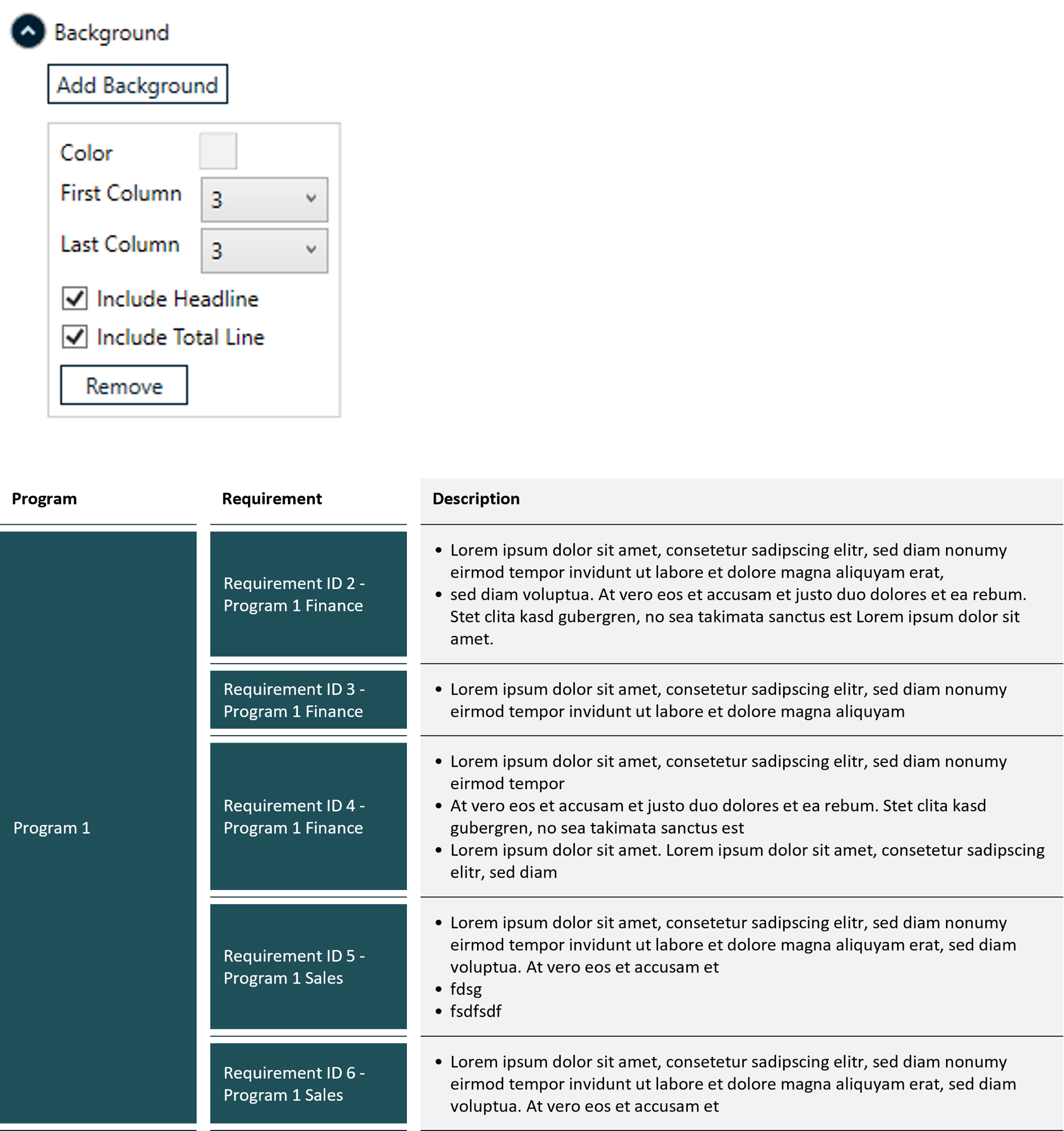
Ein Hintergrund ist ein durchgehendes Farbband, das vollständig hinter dem Grid gezeichnet wird - nützlich, um einen Spaltenblock hervorzuheben.
- Klicke auf Add Background.
- Wähle die Color und die First Column / Last Column, über die sich das Band erstrecken soll.
- Aktiviere optional Include Headline und/oder Include Total Line, um das Band über die Kopfzeile und die Summenzeile auszudehnen.
Du kannst mehrere Hintergründe hinzufügen und jeden davon wieder über Remove entfernen.
Benutzerdefinierte Platzhalter (Custom Placeholders)
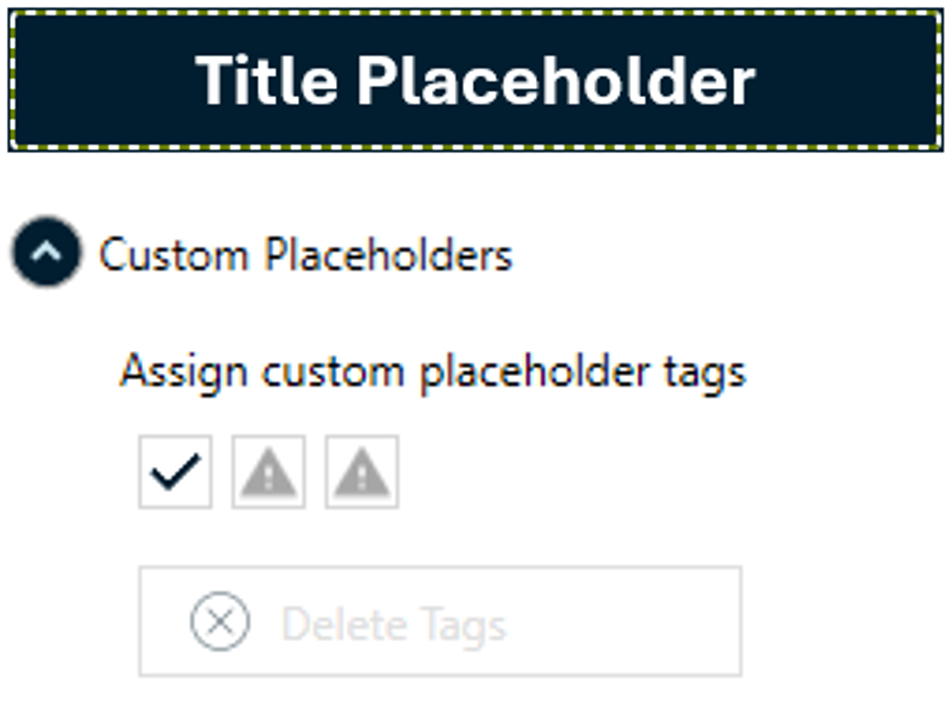
Mit benutzerdefinierten Platzhaltern kannst du zusätzliche Formen - etwa einen Title, Subtitle oder eine Footnote - als Teil des Grid-Templates markieren, sodass sie mit dem Template mitgeführt und beibehalten werden, wenn das Grid (mit Additional Shapes) gespeichert und gerendert wird.
- Wähle die Form aus, die du markieren möchtest.
- Klicke unter Assign custom placeholder tags auf Title, Subtitle oder Footnote.
- Um eine Markierung wieder zu entfernen, wähle die Form aus und klicke auf Delete Tags.