
Wenn du ein Dynamic Grid erstellen möchtest, kannst du entweder von deiner PowerPoint-Präsentation oder von deinen Excel-Daten ausgehen. Damit das Dynamic Grid korrekt funktioniert, ist es wichtig, eine flache Datentabelle zu haben, damit Spaltenüberschriften und Daten erkannt werden können. Am einfachsten erreichst du das, indem du in deinem Excel-Blatt einen Autofilter setzt oder einen Tabellenbereich definierst.
Ein neues Dynamic Grid erstellen
Ausgehend von PowerPoint
- Wähle die Folie aus, auf der du das Dynamic Grid platzieren möchtest
- Klicke im Ribbon auf Add Grid
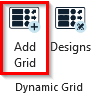
Add Grid Ribbon - Wähle im neu geöffneten Aufgabenbereich rechts Load Data from MS Excel
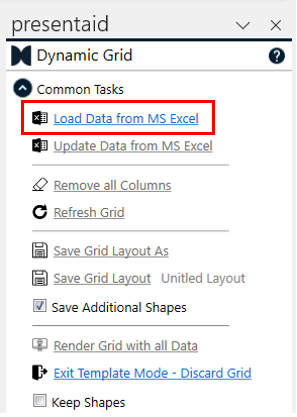
Load Data From Excel - Wähle die Daten aus, die du laden möchtest
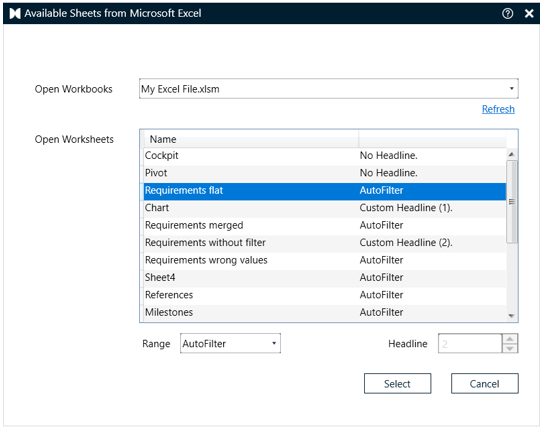
Available Sheets - Die Excel-Daten stehen jetzt in PowerPoint zur Verfügung
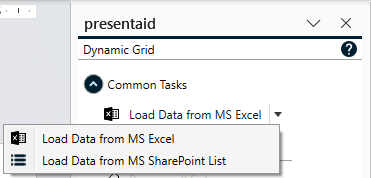
Datenquelle (presentaid Insider): Neben "Load Data from MS Excel" befindet sich ein kleiner Pfeil. Wenn presentaid Insider in den Einstellungen aktiviert ist, kannst du damit die Quelle von Excel auf eine SharePoint-Liste umstellen. Details findest du im Artikel *SharePoint-Liste als Datenquelle verwenden*. Für alle anderen ist der Pfeil ausgeblendet, sodass Nicht-Insider-Benutzer immer aus Excel laden.
Ausgehend von Excel
- Wähle das Blatt aus, das die Daten enthält, die du präsentieren möchtest
- Klicke auf Create Template. Die Excel-Daten werden nun in deine PowerPoint-Präsentation übertragen
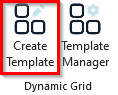
Create Template Ribbon - Die Excel-Daten stehen jetzt in PowerPoint zur Verfügung
Dein Dynamic Grid konfigurieren
- Um Spalten hinzuzufügen, klicke einfach auf die Spaltenüberschrift im Aufgabenbereich
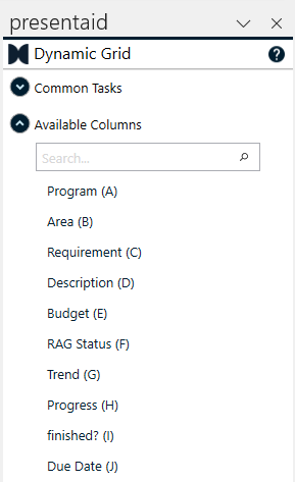
Available Columns - Um den Stil einer Spalte zu ändern, kannst du die Standard-PowerPoint-Werkzeuge verwenden, z. B. für Schriftart, Füllung, Kontur, …
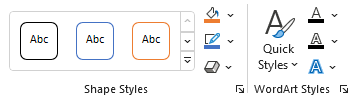
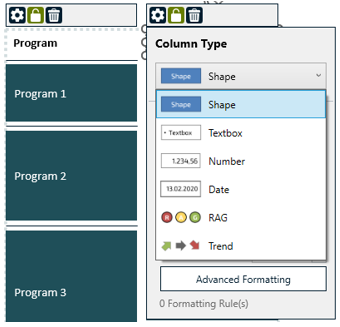
Ribbon Style - Der Spaltentyp kann geändert werden, indem du eine Kopfform der gewünschten Spalte auswählst und deinen bevorzugten Spaltentyp auswählst.
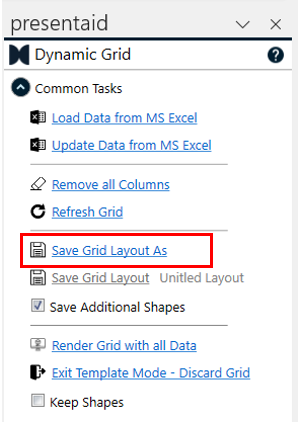
Column Type - Sobald du mit dem Layout fertig bist, kannst du das Grid-Layout-Template speichern, indem du auf Save Grid Layout As klickst. Du kannst das Dynamic Grid mit oder ohne "Additional Shapes" speichern. Additional Shapes sind Formen auf der Folie, die nicht Teil des eigentlichen Dynamic Grid sind, z. B. eine Fußnote, eine Kopfzeile usw.
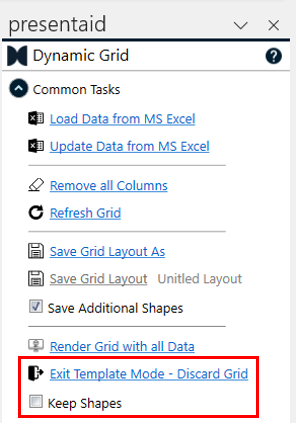
Save Grid As - Um das Dynamic Grid zu verlassen, klicke auf Exit Template Mode - Discard Grid. Du kannst wählen, ob die aktuellen Grid-Formen auf der Folie erhalten bleiben sollen.
Exit Template Mode