Einführung
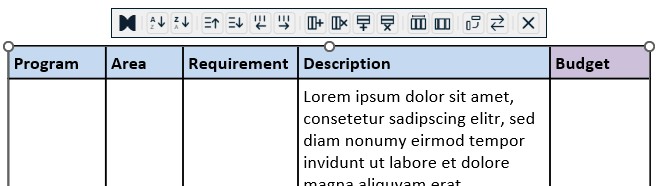
Das presentaid Tabellen-Kontextmenü gibt dir direkt in PowerPoint schnellen Zugriff auf leistungsstarke Aktionen zur Tabellenverwaltung. Wählst du eine Tabelle aus, erscheint automatisch ein Kontextmenü darüber, das dir eine Reihe von Werkzeugen zum Sortieren, Verschieben, Hinzufügen, Entfernen und Umstrukturieren deiner Tabelle bietet - ohne die Folie zu verlassen.
So greifst du auf das Kontextmenü zu
Klicke einfach auf eine beliebige Tabelle in PowerPoint. Das presentaid-Kontextmenü erscheint automatisch über der ausgewählten Tabelle.
Verfügbare Aktionen
Spalten sortieren
Sortiere die Tabellenspalten auf- oder absteigend basierend auf dem Inhalt der ausgewählten Spalte.
Spalten und Zeilen verschieben
Ordne deine Tabellenstruktur um, ohne zu kopieren und einzufügen:
- Move column left / right: Verschiebt die ausgewählte Spalte um eine Position nach links oder rechts
- Move row up / down: Verschiebt die ausgewählte Zeile um eine Position nach oben oder unten
Spalten und Zeilen hinzufügen und entfernen
Erweitere oder verkleinere deine Tabelle im Handumdrehen:
- Add column: Fügt eine neue Spalte neben der ausgewählten ein
- Remove column: Löscht die ausgewählte Spalte
- Add row: Fügt eine neue Zeile neben der ausgewählten ein
- Remove row: Löscht die ausgewählte Zeile
Spaltenbreite verteilen
Passe Spaltenbreiten mit einem Klick an:
- Distribute equally: Setzt alle Spalten auf dieselbe Breite
- Distribute based on content: Passt jede Spalte an ihren Inhalt an
Tabelle transponieren
Dreht die Tabelle so, dass Zeilen zu Spalten und Spalten zu Zeilen werden - nützlich, wenn du die Ausrichtung deiner Daten ändern möchtest.
Spaltenreihenfolge umkehren
Kehrt die Reihenfolge aller Spalten in der Tabelle von links nach rechts um.
Das Kontextmenü deaktivieren
Wenn du das presentaid Tabellen-Kontextmenü nicht verwenden möchtest, kannst du es in den presentaid-Einstellungen oder über die Quick Config im presentaid Productivity Pane deaktivieren.