
Einführung
Manche Präsentationen und Templates sind noch für das klassische 4:3-Folienformat gebaut. Konvertierst du sie auf dem üblichen PowerPoint-Weg ins Breitbild (Design → Slide Size → Widescreen), wird jede Form auf der Folie gleichmäßig gestreckt - das verzerrt Fotos und Logos und wirft deine sorgfältig abgestimmten Ränder durcheinander.
Das presentaid-Tool Convert to 16:9 (Smart Resize) konvertiert deine Präsentation stattdessen auf die smarte Art:
- Deine linken und rechten Ränder ("No-Fly-Zone") bleiben visuell unverändert.
- Bilder, Fotos und runde Formen/Icons behalten ihre exakte Größe und ihr Seitenverhältnis - sie werden nie gestreckt oder verzerrt.
- Gewöhnlicher Inhalt (Text, Tabellen, farbige Formen, …) wird gestreckt, um die neue, breitere Folie zu füllen.
- Schriftgrößen werden nie geändert.
- Die Konvertierung wird in einem einzigen Schritt auf deine(n) Folienmaster, Layouts und jede Folie der Präsentation angewendet.
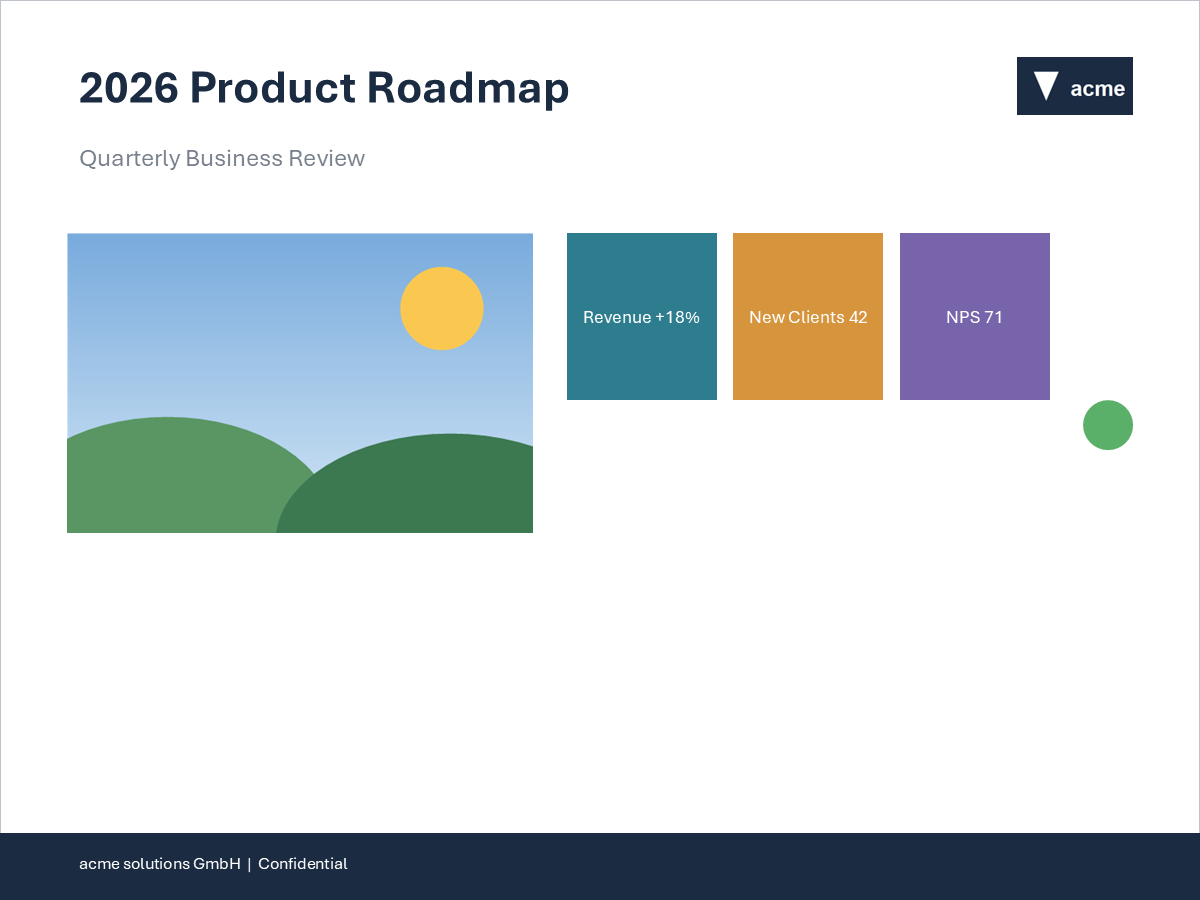
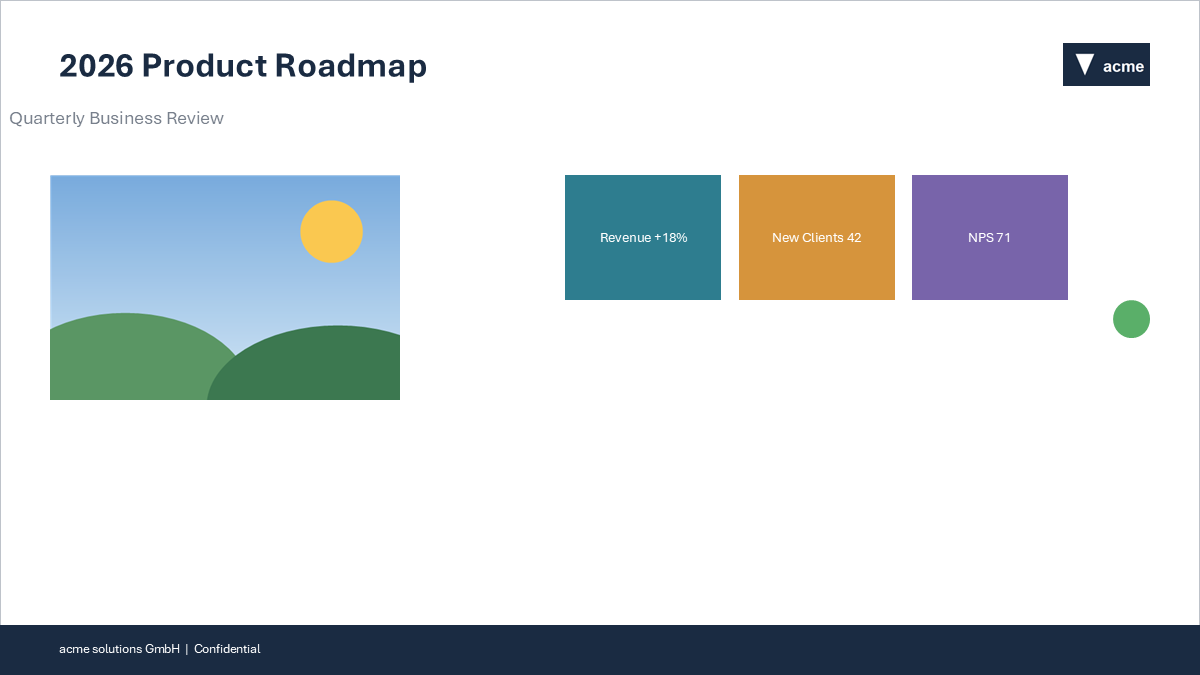
Beachte, wie die Ränder links und rechts gleich bleiben, das Foto und das runde Status-Icon ihre exakte Größe und Form behalten, das Logo nahe am rechten Rand verankert bleibt und nur der Text und die farbigen Inhaltsblöcke gestreckt werden, um die zusätzliche Breite zu füllen.
So konvertierst du eine Präsentation
- Öffne die 4:3-Präsentation, die du konvertieren möchtest.
- Gehe im presentaid-Ribbon zu About → Expert Tools → Convert to 16:9 (Smart Resize).
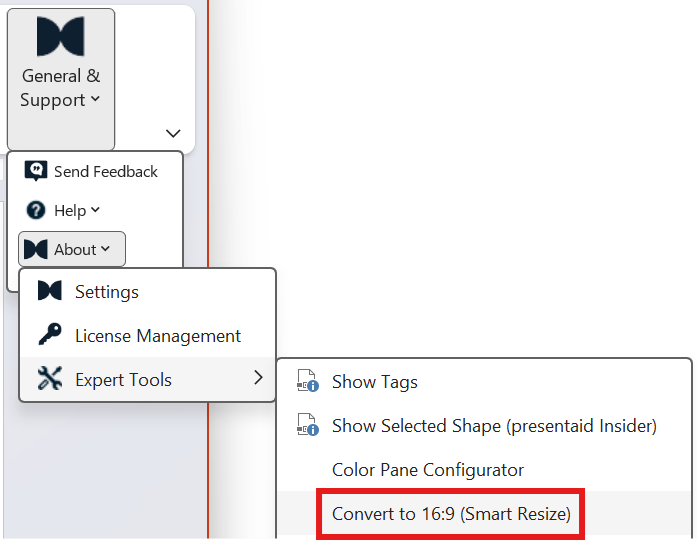
Ribbon About Expert Tools Convert to 16:9 - Bestätige den Dialog, um die Konvertierung zu starten.
Achtung: Dies ändert die Größe jeder Folie, jedes Layouts und jedes Masters in deiner Präsentation. Wir empfehlen, zuerst eine Sicherungskopie deiner Datei zu speichern, wenn du das Original behalten möchtest. Die gesamte Konvertierung kann in einem einzigen Schritt mit Strg+Z rückgängig gemacht werden.
Hinweis: Ist deine Präsentation bereits im Breitbildformat (16:9 oder breiter), teilt dir presentaid mit, dass es nichts zu konvertieren gibt.
Was gleich bleibt, was gestreckt wird
| Element | Verhalten |
|---|---|
| Linke/rechte Ränder | Bleiben erhalten - deine No-Fly-Zone bleibt visuell gleich. |
| Bilder & Fotos | Behalten ihre exakte Originalgröße und ihr Seitenverhältnis, werden neu positioniert, um nahe an dem Rand zu bleiben, dem sie ursprünglich am nächsten waren. |
| Kreisförmige/ovale Formen | Bleiben perfekte Kreise/Ovale - werden nie zu einer Ellipse gestreckt. |
| Datum- & Foliennummer-Platzhalter | Behalten ihre exakte Größe und Schriftart, werden neu in der Nähe des nächstgelegenen Rands positioniert. |
| Text, Titel, Fußzeilentext, Tabellen und andere Formen | Werden gestreckt, um die breitere Folie zu füllen, behalten dabei die ursprüngliche Schriftgröße. |
| Vollflächige Hintergründe (Balken oder Bilder über die gesamte Folie) | Werden gestreckt, um die neue Folie randlos von Kante zu Kante zu füllen. |
Hinweis: Die Schriftgröße wird von diesem Tool nie geändert - nur Position und Größe (Geometrie) werden angepasst.
Tipps
- Überprüfe die konvertierte Präsentation auf Formen, die ungewöhnlich aussehen. Die Konvertierung deckt die große Mehrheit gängiger Layouts ab, aber sehr komplexe oder stark überlappende Designs benötigen möglicherweise noch eine manuelle Nachbearbeitung.
- Das Tool konvertiert nur von 4:3 nach 16:9. Andere Seitenverhältnis-Konvertierungen werden nicht unterstützt.