Einführung
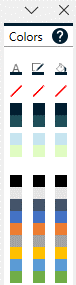
Mit dem Color Pane kannst du einfach auf deine Corporate- und Themenfarben zugreifen und sie auf Schrift, Füllung und Kontur deiner Formen anwenden.
Farben anwenden
Um Farben anzuwenden, wähle einfach deine PowerPoint-Form aus und klicke im Color Pane auf die gewünschte Farbe.
Standardfarben
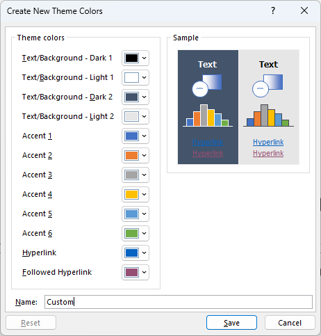
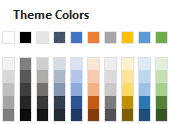
Standardmäßig sind die im Color Pane sichtbaren Farben die Themenfarben deiner aktuellen PowerPoint-Präsentation. Die Themenfarben können im Folienmaster deiner Präsentation geändert werden: View → Slide Master → Colors → Customize Colors
Benutzerdefinierte Farben
Benutzerdefinierte Farben können über den integrierten Color Pane Editor festgelegt werden. Um ihn zu öffnen, mache einen Rechtsklick auf die Kopfzeile des Color Pane und wähle "Edit Color Pane".
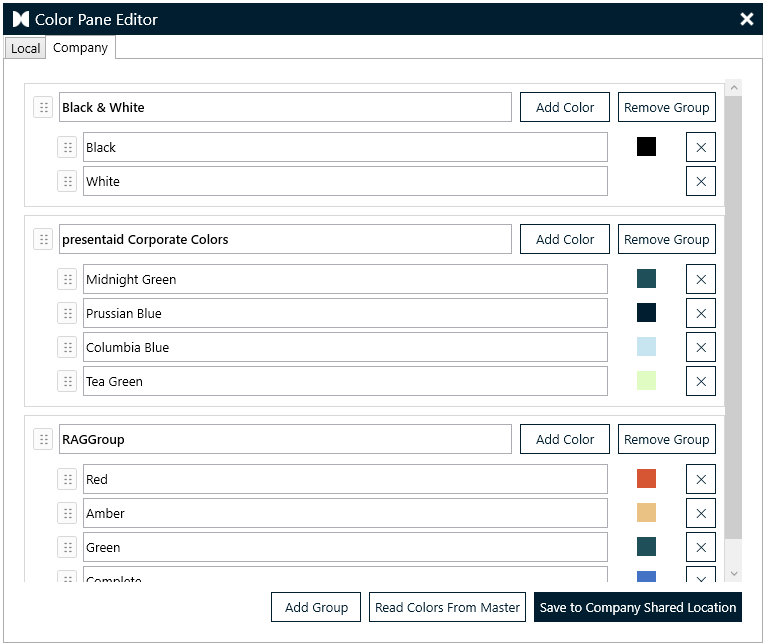
Im Editor kannst du Farbgruppen und einzelne Farben definieren. Klicke abschließend auf Save, um deine Änderungen anzuwenden und zu speichern.
Der Editor hat zwei Tabs:
- Local: Farben, die auf deinem lokalen Rechner gespeichert sind
- Company: Farben, die unternehmensweit geteilt werden (gespeichert am gemeinsamen Unternehmensspeicherort)
Das Color Pane konfigurieren
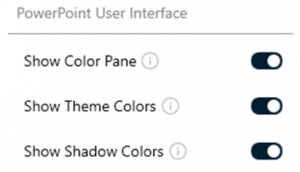
Du kannst das Color Pane über die Schaltfläche "Show Colors Pane" im presentaid-Ribbon ein-/ausblenden. Im Einstellungsbereich (General & Support → About) kannst du die Theme Colors und Shade Colors aktivieren.