Mit Shared Libraries kannst du ganz einfach auf Elemente wie Slide-Templates, Smart Sticker, Dynamic-Grid-Templates usw. in deinem gesamten Unternehmen oder in ausgewählten (Projekt-)Teams zugreifen. Wir empfehlen, eine SharePoint-Site als Backend für eine Shared Library zu verwenden, um alle Synchronisierungsfunktionen zur Verteilung von Elementen nutzen zu können.
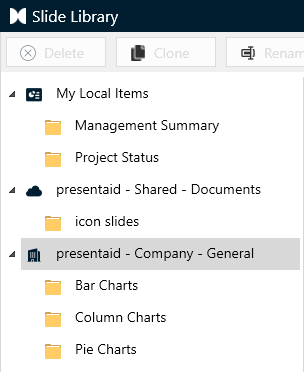
Jede Shared Library hat dieselbe Ordnerstruktur wie deine lokalen presentaid-Elementeordner. Beim Speichern oder Anwenden von presentaid-Elementen (wie SmartStickern, GridLayouts, …) erscheint die Shared Library als zusätzlicher Ordner in den jeweiligen Fenstern.
Eine Shared Library einrichten
Um eine Shared Library einzurichten, sind 3 Schritte nötig:
- Einen Shared Location erstellen - Einrichtung über MS SharePoint (empfohlen) oder über MS Teams
- Den Shared Location einbinden auf deinem Rechner (Synchronisierung mit OneDrive)
- Den Shared Location hinzufügen zu presentaid
Einen Shared Location erstellen
Shared Location auf MS SharePoint
- Wähle im SharePoint Admin Center Sites → Active Sites und klicke auf "Create"
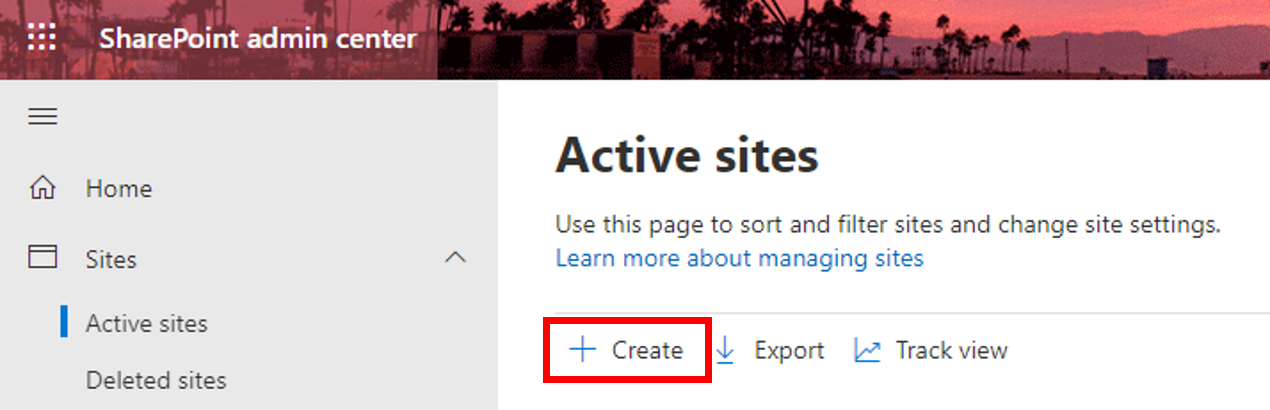
Create SharePoint - Wähle "Team site" und vergib einen Site-Namen sowie einen Group Owner - der Group Owner fungiert als Admin des Shared Location
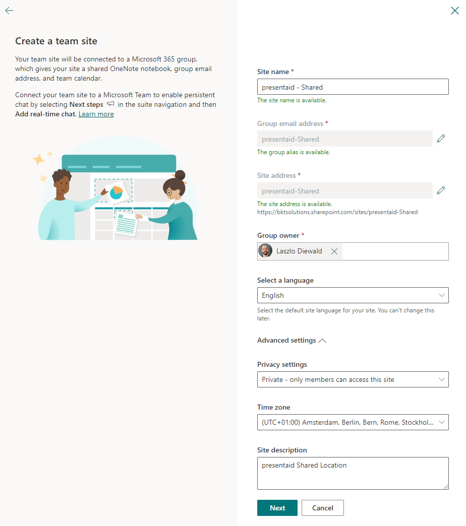
Setup SharePoint - Advanced Settings: Möchtest du einen unternehmensweiten Shared Location einrichten, wähle "Public". Möchtest du den Zugriff auf bestimmte Nutzer beschränken, wähle "Private". Hast du eine "Private" SharePoint erstellt, kannst du im nächsten Schritt Mitglieder hinzufügen
- Füge Mitglieder hinzu und schließe die Site-Erstellung ab. Die SharePoint-Site ist jetzt einsatzbereit
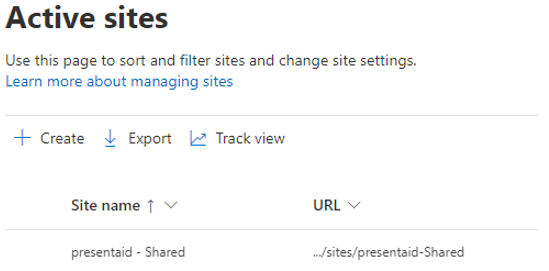
New SharePoint Site
Shared Location über MS Teams
Bitte beachte, dass beim Erstellen eines Teams in MS Teams auch eine SharePoint-Site für die Dateiverwaltung erstellt wird. Wir empfehlen daher, eine SharePoint-Site ohne Team zu verwenden, um unnötigen Verwaltungsaufwand zu vermeiden.
- Klicke in MS Teams auf Teams und füge ein neues Team hinzu
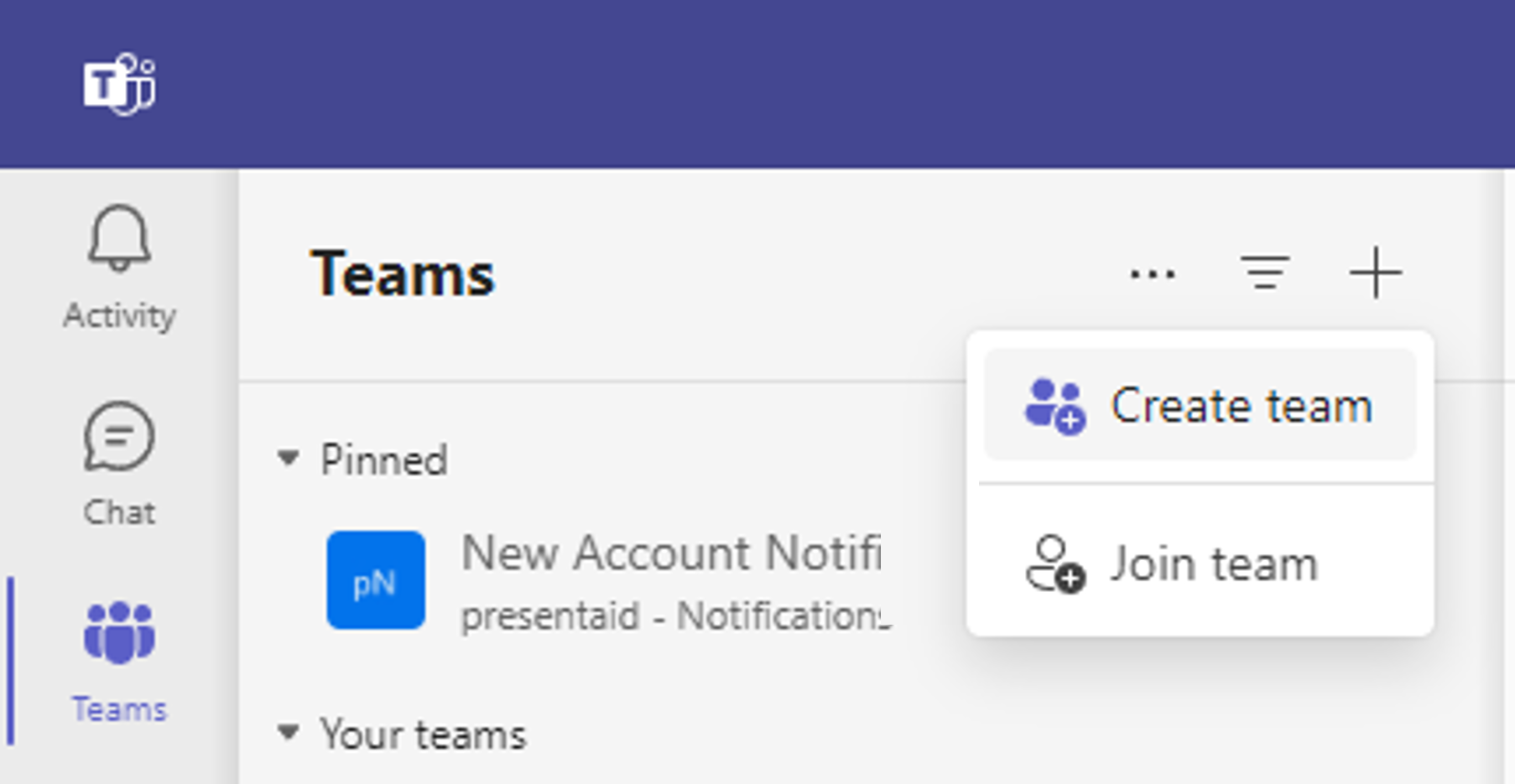
Create New Team - Erstelle ein Team "From scratch"
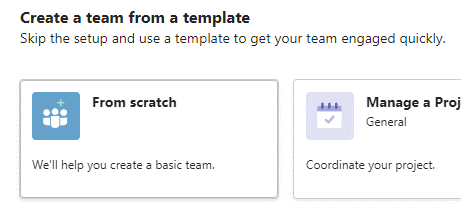
Team From Scratch - Lege fest, wer Zugriff auf das Team haben soll:
- Private: Mitglieder müssen explizit hinzugefügt werden
- Public: Jeder in der Organisation kann beitreten
- Org-wide: Alle Mitglieder der Organisation werden automatisch als Mitglied hinzugefügt
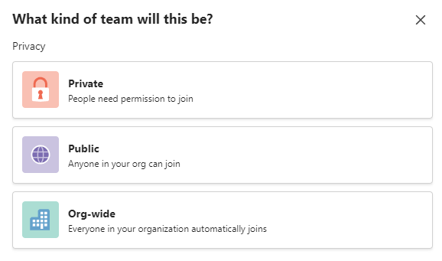
Teams Access
Da dieses Team zum Teilen von Dateien und nicht zur Kommunikation verwendet wird, empfehlen wir, alle Mitgliederberechtigungen in den Team-Einstellungen zu deaktivieren.
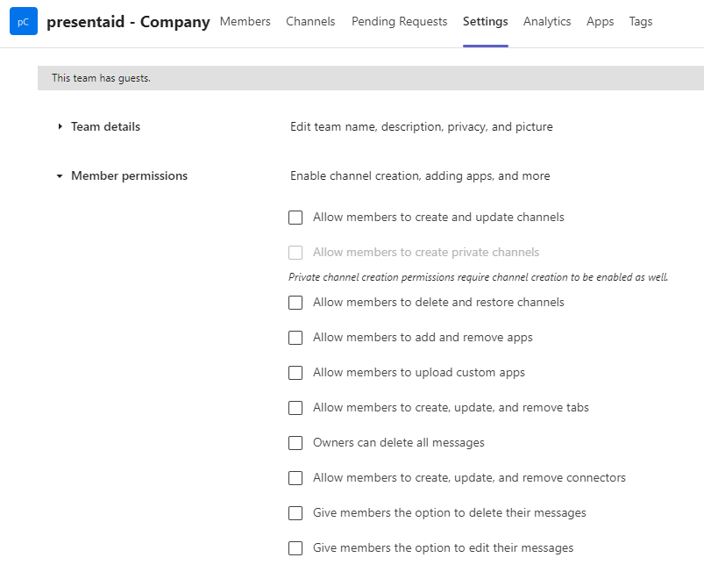
Den Shared Location auf deinem Rechner einbinden
Einbinden über SharePoint
- Öffne den SharePoint-Standort in deinem Browser
- Navigiere zum Tab "Documents" der SharePoint-Site, klicke auf "Sync" und bestätige die Synchronisierung mit OneDrive
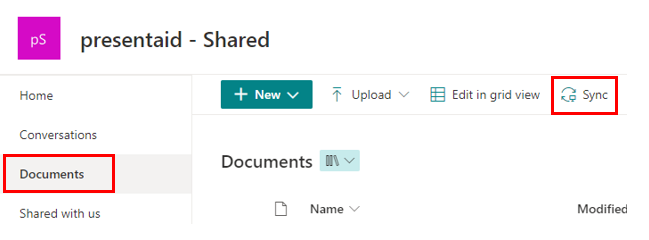
SharePoint Sync - Der SharePoint-Standort ist jetzt über den Windows Explorer erreichbar
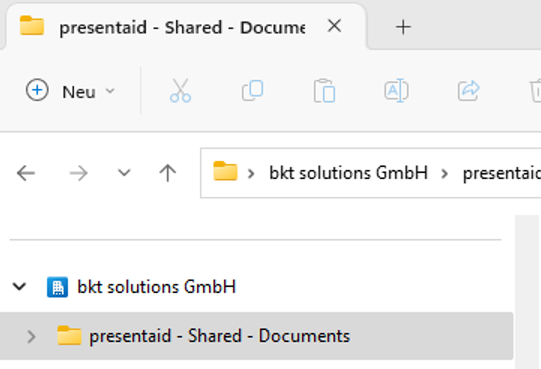
Shared Location Explorer
Einbinden über Teams
- Öffne den Tab "General" des Teams
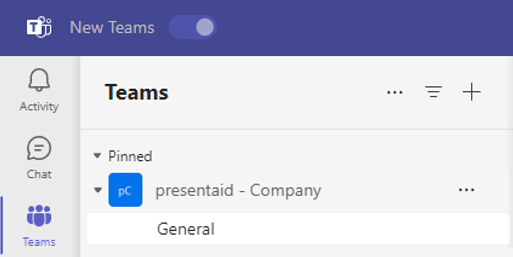
Teams General Tab - Klicke auf "Files" und dann auf "Sync"

Teams Sync - Der SharePoint-Standort ist jetzt über den Windows Explorer erreichbar
Shared Location Explorer
Automatisiertes Einbinden über die IT (Experte)
Möchtest du, dass deine gesamte Organisation den Shared Location einbindet (z. B. für eine Company Library), empfehlen wir die Verwendung des Microsoft Endpoint Configuration Manager. Details zu diesem Vorgehen findest du auf der offiziellen Microsoft-Dokumentationsseite.
Shared Location zu presentaid hinzufügen
Shared Location in PPT/XLS hinzufügen
- Wähle in PPT/XLS den presentaid-Tab im Ribbon und klicke auf "About"

presentaid Ribbon About - Wähle den Tab "Shared Location", klicke auf "Add" und gib den gewünschten SharePoint-Standort an, den du hinzufügen möchtest. Alternativ kannst du deinen lokalen Pfad des eingebundenen Standorts angeben (z. B. "C:\Users\[user]\[OneDrive-Konto]\[SharePoint-Name]")
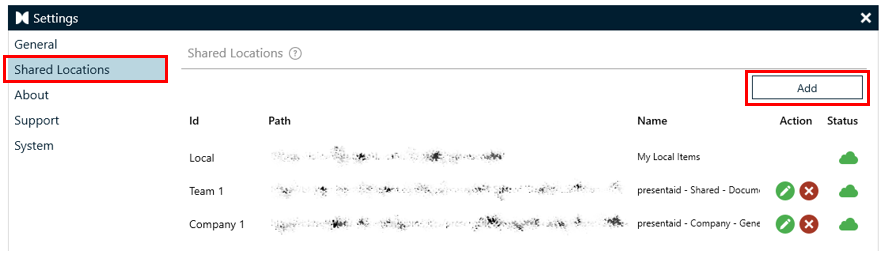
Shared Location Add
- Alles gut, der Shared Location ist verbunden und synchron

- Der Shared Location ist verbunden, aber es gibt nicht indizierte Elemente am Standort. Drücke auf die Cloud, um die Indizierung zu starten (Schreibzugriff auf den Standort erforderlich)

- Verbindung zum Shared Location nicht möglich. Bitte stelle sicher, dass der Shared Location korrekt eingebunden ist.

Shared Location über einen Registrierungseintrag hinzufügen (Experte)
Du kannst deiner Registrierung einen Schlüssel hinzufügen, der beim nächsten Start von presentaid übernommen wird und den Shared Location automatisch hinzufügt. Das ist besonders relevant, wenn du deine gesamte Organisation über einen IT-verwalteten Rollout mit einem Shared Location verbinden möchtest.
Eine Shared Library verwalten
Zugriffsrechte
Zugriffsrechte auf eine Shared Library werden über die standardmäßigen SharePoint-Zugriffsoptionen verwaltet. Standardmäßig gibt es 2 verfügbare Berechtigungsstufen:
- Admin
- Member
Standardmäßig erstellt SharePoint diese 2 Benutzergruppen und gewährt Mitgliedern "Edit"-Zugriff. Möchtest du den Zugriff für Mitglieder auf "read-only" beschränken (z. B. wenn du eine unternehmensweite Shared Library verwaltest), kannst du die Zugriffsrechte wie folgt ändern:
- Öffne die SharePoint-Website als Admin
- Wähle oben rechts das Einstellungssymbol und klicke auf "Site permissions"
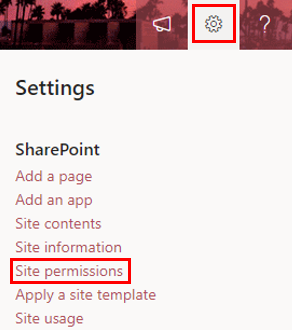
SharePoint Site Permissions - Öffne den Tab "Site members" und ändere die Zugriffsrechte auf "Read"
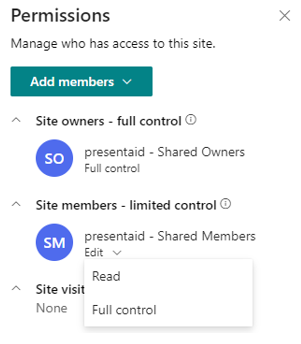
SharePoint Change Permissions - Die Mitglieder werden jetzt als "Site visitors" mit Nur-Lese-Zugriff aufgeführt
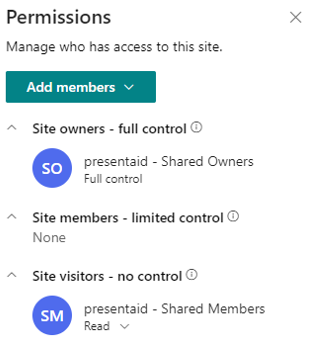
SharePoint Read Only
Nur-Lese-Mitglieder haben Zugriff auf alle Elemente in der Shared Library, können aber keine Änderungen (hinzufügen, löschen, umbenennen, …) an den Elementen vornehmen.
Massenimport von Folien/Dokumenten in die Slide/Document Library
Wenn du bereits eine Ordnerstruktur mit häufig verwendeten Folien und Dokumenten hast und diese zur presentaid Library hinzufügen möchtest, kannst du die eingebaute Migrationsfunktion nutzen.
- Füge die Folien (.pptx-Dateien) zum Speicherort der Slide Library hinzu, bzw. füge die Dokumente (.docx-Dateien) zum Speicherort der Word Library hinzu
- Öffne PowerPoint/Word und navigiere zu presentaid → About
presentaid Ribbon About - Klicke auf die gelbe Cloud, um den Indizierungsvorgang zu starten. Bitte beachte, dass PowerPoint/Word geöffnet bleiben muss, während die Indizierung läuft
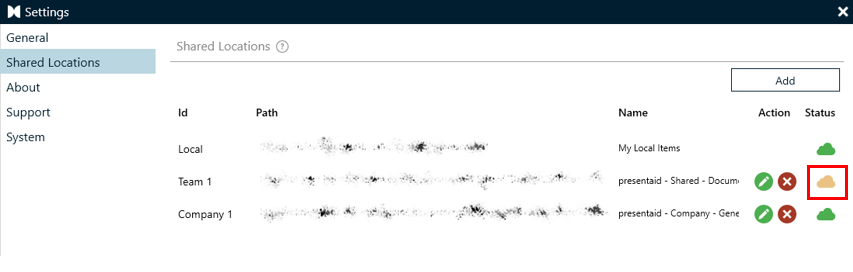
Library Start Syncing - Sobald der Indizierungsvorgang abgeschlossen ist, wird die Cloud grün.
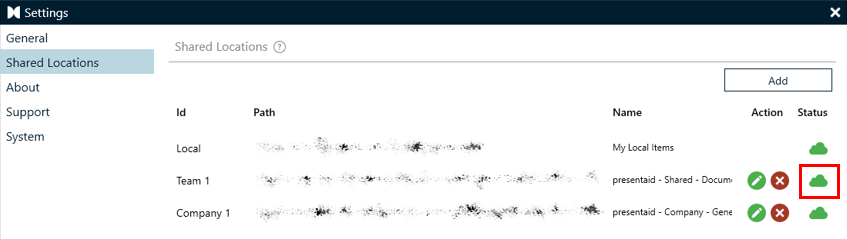
Library Done Syncing
Experten-Tipp: Du kannst eine Präsentation im Rahmen des Massenimports auch in einzelne Folien aufteilen. Um dieses Verhalten auszulösen, füge dem Dateinamen einfach "[split]" hinzu, z. B. "presentaid example[split].pptx".
Beispiel-Eingabedatei:
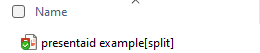
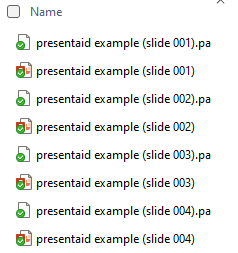
Beispiel-Ausgabe: Neuer Ordner mit einzelnen Folienelementen