
Einführung
Mit dem presentaid Gantt-Diagramm erstellst du Projektzeitpläne direkt auf deiner PowerPoint-Folie. Es gibt keine versteckte Excel-Tabelle und kein Zusatztool: Du klickst, ziehst und tippst direkt im Diagramm - und was du siehst, landet genau so auf der Folie.
Jeder Balken, jeder Meilenstein und jede Beschriftung ist eine ganz normale PowerPoint-Form. Dein Diagramm sieht in jeder Präsentation sauber aus, und auch Kollegen ohne presentaid können es öffnen und ansehen.
Diese Anleitung führt dich durch alles - vom ersten Diagramm bis zum Verschieben eines kompletten Projektplans.
Ein Gantt-Diagramm hinzufügen
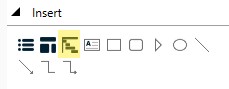
Füge ein neues Gantt-Diagramm hinzu, indem du auf die Schaltfläche im Ribbon oder im Productivity Pane klickst.

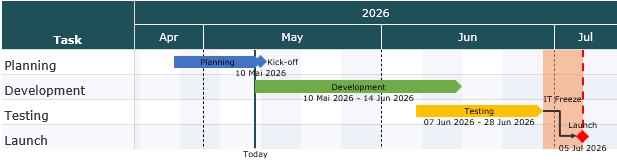
Ein neues Gantt-Diagramm mit ein paar Beispielaufgaben wird deiner Folie hinzugefügt. Ersetze die Beispiele einfach durch dein eigenes Projekt.
Dein Diagramm bearbeiten
Um ein Gantt-Diagramm zu bearbeiten, klicke es einfach auf der Folie an. Der Editor öffnet sich direkt über dem Diagramm, und jede Änderung erscheint sofort auf der Folie.
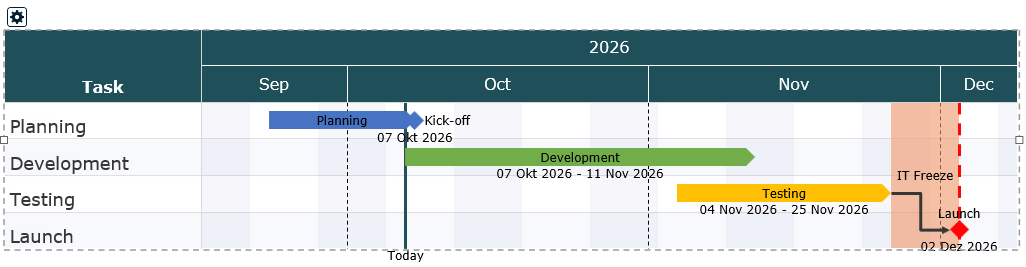
Wenn du fertig bist, klicke irgendwo anders auf die Folie. Der Editor schließt sich und dein Diagramm bleibt genau so, wie du es verlassen hast.
Fast alles im Editor funktioniert so, wie du es aus PowerPoint kennst:
- Rechtsklick auf ein beliebiges Objekt - eine Aufgabe, einen Balken, die Zeitleiste - zeigt dir, was du damit tun kannst.
- Doppelklick auf einen Namen oder eine Beschriftung ändert den Text; ein Doppelklick auf ein Element öffnet seine Eigenschaften.
- Ziehen verschiebt Objekte.
Mit Aufgaben arbeiten
Aufgaben sind die Zeilen deines Diagramms. Ihre Namen stehen in der Aufgabenspalte links.
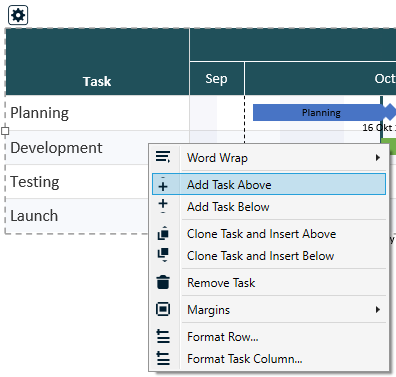
- Aufgabe hinzufügen: Rechtsklick auf einen Aufgabennamen und Add Task Above oder Add Task Below wählen.
- Aufgabe umbenennen: Doppelklick auf den Aufgabennamen, neuen Namen eintippen und Enter drücken. Mit Esc brichst du ab.
- Reihenfolge ändern: Ziehe einen Aufgabennamen nach oben oder unten an die neue Position.
- Aufgabe duplizieren: Rechtsklick auf die Aufgabe und Clone Task and Insert Above oder Below wählen. Die Kopie enthält alle Balken und Meilensteine der Aufgabe - praktisch für Phasen, die sich wiederholen.
- Aufgabe löschen: Rechtsklick auf die Aufgabe und Remove Task wählen.
- Eine einzelne Zeile formatieren: Rechtsklick auf die Aufgabe und Format Row... wählen (siehe unten).
Eine einzelne Zeile formatieren
Manche Zeilen verdienen ein eigenes Aussehen - eine höhere Zeile für eine Sammelaufgabe, eine hervorgehobene Phase, eine andere Schrift. Rechtsklick auf die Aufgabe und Format Row... wählen:
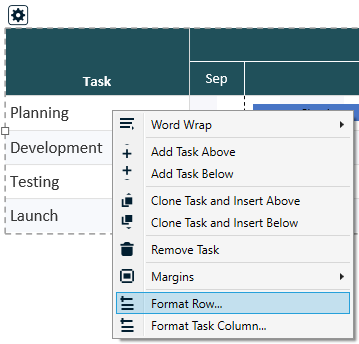
- Row Height: eine feste Höhe für diese Zeile. 0 bedeutet automatisch - die Zeilenhöhe des Diagramms, vergrößert für umbrochenen Text.
- Element Position: der Abstand vom oberen Rand der Zeile bis zur Mitte ihrer Balken und Meilensteine. 0 zentriert sie in der Zeile.
- Own background: eine Füllfarbe nur für diese Zeile, statt der Streifen des Diagramms.
- Separator Below: die Trennlinie unter dieser Zeile ein- oder ausblenden oder der Diagramm-Einstellung folgen.
- Font und Font Size: für den Aufgabennamen und die Zellen dieser Zeile. Schriftgröße 0 verwendet die Aufgaben-Schriftgröße des Diagramms.
Balken und Meilensteine hinzufügen
Die Balken, Meilensteine und Linien in deinem Diagramm heißen Elemente. Jedes Element gehört zu einer Aufgabenzeile.
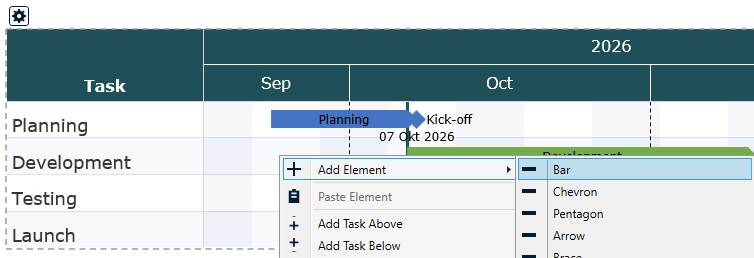
- Rechtsklick in eine Aufgabenzeile, ungefähr an dem Datum, an dem das Element beginnen soll.
- Add Element wählen und den gewünschten Typ aussuchen.
- Das neue Element erscheint an dem Datum, auf das du geklickt hast. Ziehe es jetzt an die genaue Position.
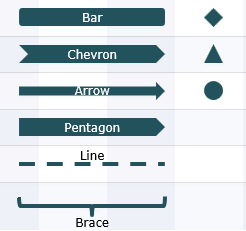
Welches Element passt wofür?
| Element | Geeignet für |
|---|---|
| Bar | Der klassische Aufgabenbalken von einem Start- bis zu einem Enddatum. |
| Chevron, Pentagon, Arrow | Balken mit spitzem Ende - ideal für Phasen, die ineinander übergehen. |
| Brace | Eine geschweifte Klammer über einem Zeitraum, um mehrere Aktivitäten optisch zusammenzufassen. |
| Horizontal Line | Eine schmale Linie über einen Zeitraum, z. B. für einen Puffer oder eine Wartezeit. |
| Milestone (Diamond, Triangle, Circle) | Ein einzelnes wichtiges Datum, etwa ein Go-Live oder ein Review. |
| Milestone Global (Diamond, Triangle, Circle) | Wie ein Meilenstein, aber mit einer gestrichelten Linie durch das gesamte Diagramm - so sieht jeder, wie sich dieses Datum auf alle Aufgaben auswirkt. |
| Vertical Line | Eine Linie quer durch das ganze Diagramm an einem Datum, z. B. für "heute" oder eine feste Deadline. |
Elemente verschieben und in der Länge ändern
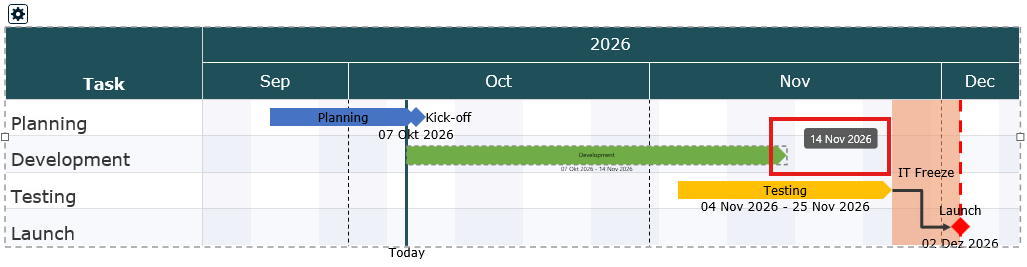
- Termine ändern: Ziehe ein Element nach links oder rechts. Die Dauer bleibt gleich.
- Nur Start oder Ende ändern: Ziehe am linken oder rechten Rand eines Balkens.
- Zu einer anderen Aufgabe verschieben: Ziehe das Element nach oben oder unten in eine andere Zeile.
Beschriftungen und Datumsangaben
Jedes Element kann eine Beschriftung (zum Beispiel "Design" oder "Go-Live") und seine Daten anzeigen.
- Beschriftung bearbeiten: Doppelklick auf den Beschriftungstext und lostippen. Mit Enter bestätigen.
- Beschriftung verschieben: Ziehe die Beschriftung. Sie rastet an der nächsten sinnvollen Stelle ein - im Balken, darüber, darunter, links oder rechts davon.
- Datum ein- oder ausblenden: Doppelklick auf das Element und unter Show Date festlegen, ob und wo die Daten erscheinen.
Wie Datumsangaben geschrieben werden (zum Beispiel 30 Oct 2026 oder 30.10.26), legst du einmal für das ganze Diagramm in den Gantt-Einstellungen unter General > Element Date Format fest.
Element-Eigenschaften
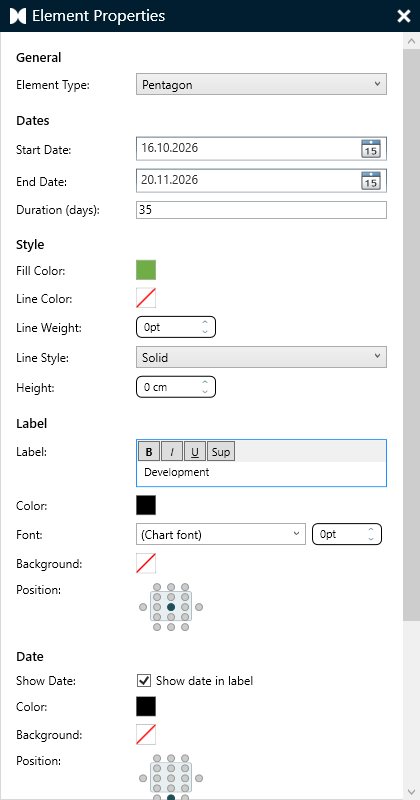
Für die volle Kontrolle doppelklicke auf ein Element (oder Rechtsklick und Properties... wählen). Im Eigenschaften-Fenster kannst du:
- genaue Start- und Enddaten oder eine Dauer in Tagen eingeben,
- für Meilensteine die Tageszeit wählen (Tagesbeginn, Mittag oder Tagesende),
- Füllfarbe, Rahmen und Textabstände festlegen,
- die Beschriftung ändern und bestimmen, wo Beschriftung und Datum stehen,
- Beschriftung und Datum eine eigene Farbe, Schriftgröße und einen Hintergrund geben - zum Beispiel ein weißes Feld hinter einer Beschriftung, die auf einer Gitterlinie liegt,
- bei Balken, Chevrons, Pentagonen und Pfeilen: eine Prozentfüllung anzeigen (siehe unten),
- bei vertikalen Linien: einen End Marker wählen (keine, Dreieck, Raute oder Kreis) und festlegen, wie weit die Linie unter das Diagramm reicht (Extend Below).
Für eine schnelle Farbänderung genügt ein Rechtsklick auf das Element: Neben dem Menü erscheint eine kleine Formatleiste mit Füll- und Rahmenfarbe.
Fortschritt mit einer Prozentfüllung zeigen
Balken, Chevrons, Pentagone und Pfeile können zeigen, wie weit eine Aktivität ist: Das Element wird bis zum eingestellten Prozentsatz in seiner Farbe gefüllt, der Rest bleibt weiß, und der Prozentwert steht auf dem gefüllten Teil.
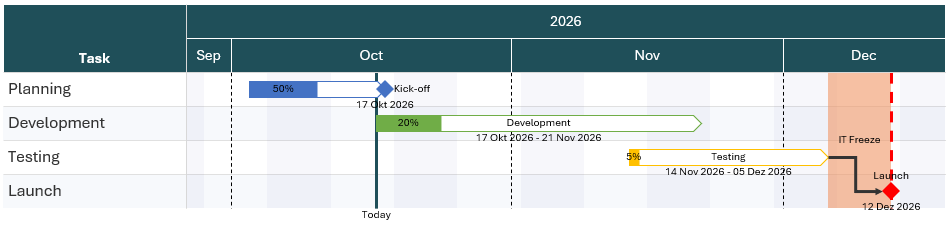
- Doppelklicke auf das Element, um seine Eigenschaften zu öffnen.
- Setze unter Percentage Fill den Haken bei Show percentage fill.
- Gib unter Percentage den Prozentsatz ein (0 bis 100).
- Wähle die Label Position: Left, Center (Standard) oder Right auf dem gefüllten Teil - oder No Label, um die Füllung ohne Zahl zu zeigen.
- Klicke auf OK.
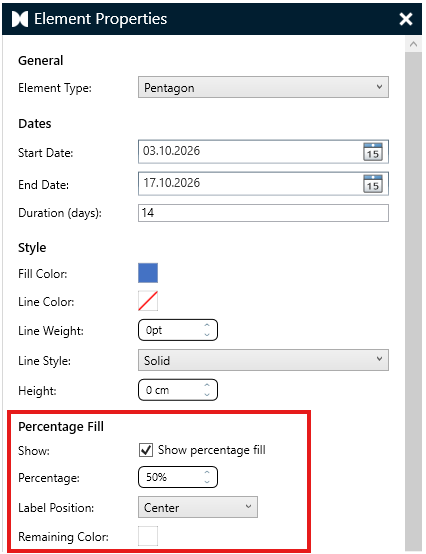
- Der Prozentsatz bezieht sich auf die gesamte Dauer des Elements - 50 % enden immer genau in der Mitte zwischen Start- und Enddatum, auch wenn ein Teil des Elements außerhalb des Diagramms liegt.
- Die Füllung folgt genau der Form, auch der Spitze eines Chevrons oder Pentagons.
- Remaining Color legt die Farbe des noch nicht erreichten Teils fest - standardmäßig Weiß.
- Ein Element ohne Rahmen bekommt einen dünnen Rahmen in seiner eigenen Farbe, damit der ungefüllte Teil auf einer weißen Folie sichtbar bleibt.
- Der Prozentwert verwendet Farbe, Schrift und Schriftgröße der Elementbeschriftung.
Phasen mit Blöcken hervorheben
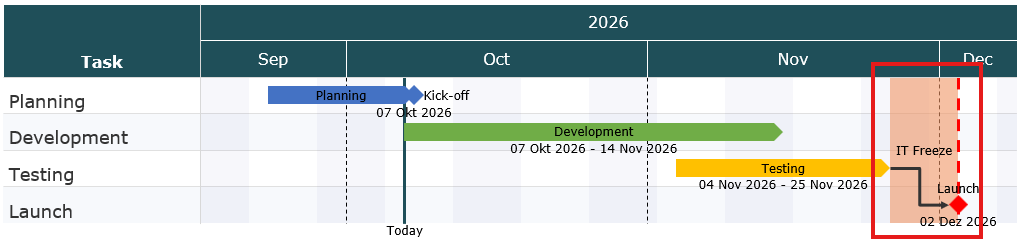
Ein Block ist eine farbige Fläche über mehrere Aufgaben und einen Zeitraum - perfekt, um eine Projektphase, einen Change Freeze über die Feiertage oder ein Testfenster zu markieren.
- Block zeichnen: Halte Umschalt gedrückt, klicke und ziehe über das Diagramm. Alternativ: Rechtsklick in eine Aufgabenzeile und Add Element > Block wählen.
- Verschieben oder Größe ändern: Ziehe den Block oder einen seiner Ränder.
- Farbe und Beschriftung ändern: Rechtsklick auf den Block, oder Doppelklick, um seine Eigenschaften zu öffnen.
Abhängigkeiten mit Verbindern zeigen
Verbinder sind Pfeile, die zeigen, dass eine Aktivität von einer anderen abhängt - zum Beispiel kann "Test" erst beginnen, wenn "Entwicklung" abgeschlossen ist.
- Rechtsklick auf das erste Element und Add Connector wählen.
- Fahre mit der Maus über das Element - an seinen Rändern erscheinen kleine Anfasser.
- Ziehe von einem Anfasser zu einem Anfasser am zweiten Element und lass los.
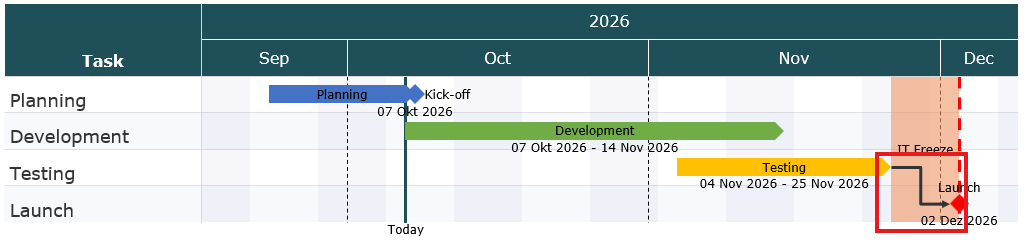
Verbinder bleiben angeheftet, wenn du die Elemente verschiebst. Um einen zu entfernen, klicke ihn an und drücke Entf. Farbe oder Linienart änderst du per Rechtsklick. Mit Esc verlässt du den Verbinder-Modus, ohne einen Verbinder hinzuzufügen.
Zusätzliche Spalten hinzufügen
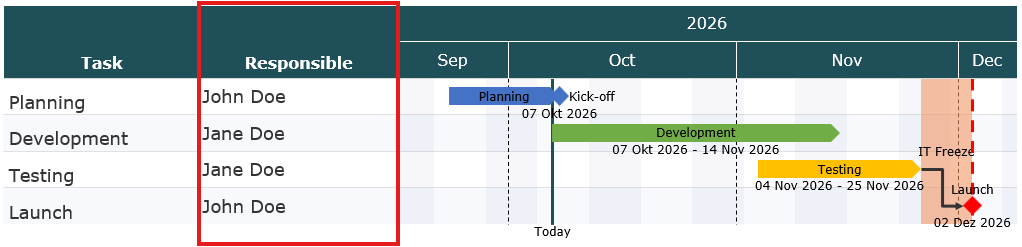
Neben den Aufgabennamen kannst du weitere Informationen neben deiner Zeitleiste zeigen, etwa Verantwortliche, Status oder Budget.
- Rechtsklick auf einen freien Bereich des Diagramms und Add Column Left oder Add Column Right wählen.
- Doppelklick auf eine Zelle der neuen Spalte, um einen Wert einzutragen.
- Rechtsklick auf den Spaltenkopf, um die Spalte umzubenennen, eine weitere hinzuzufügen oder sie zu löschen. Ein Doppelklick auf den Kopf ändert das Aussehen der Spalte.
Gantt-Einstellungen
In den Gantt-Einstellungen legst du fest, wie dein Diagramm aussieht und welchen Zeitraum es zeigt. Du öffnest sie über die kleine Einstellungen-Schaltfläche oben links am Diagramm oder per Rechtsklick > Gantt Settings.
| Tab | Was du ändern kannst |
|---|---|
| General | Sprache der Monats- und Tagesnamen, Datumsformat deiner Elemente und Zeilenumbruch für Aufgabennamen. |
| Dates | Der angezeigte Zeitraum, die Zeitleisten-Zeilen oben, Wochenenden - und Parallel Shift, um deinen ganzen Plan zu verschieben. |
| Style | Zeilen- und Elementgrößen, Schriften, farbige Streifen und Trennlinien. |
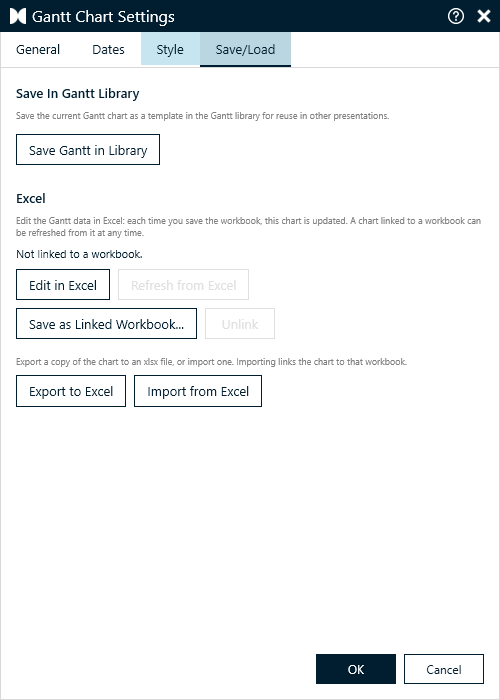
| Save/Load | Diagramm als Template speichern, in Excel bearbeiten, mit einer Arbeitsmappe verknüpfen oder nach Excel exportieren bzw. aus Excel importieren. |
Klicke auf OK, um deine Änderungen zu übernehmen, oder auf Cancel, um sie zu verwerfen.
Zeitraum und Zeitleiste ändern
Im Tab Dates legst du Start Date und End Date des Diagramms fest. Alles außerhalb dieses Zeitraums wird nicht angezeigt.
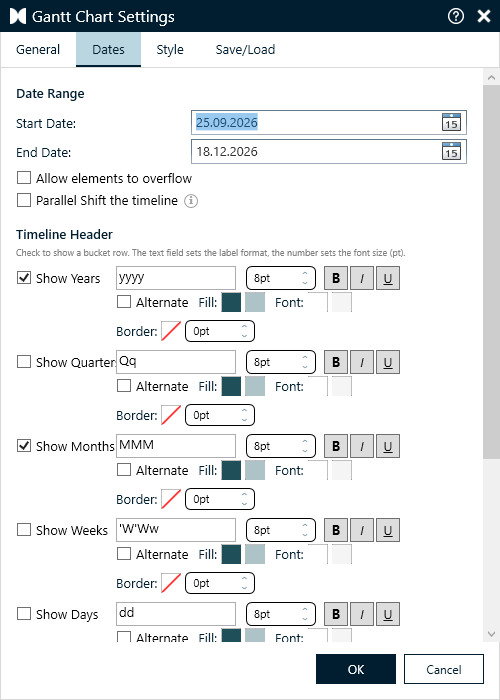
Setze den Haken bei Allow elements to overflow, damit Elemente sichtbar bleiben, die vor dem Start Date beginnen oder nach dem End Date enden: Sie werden bis zum Rand des Diagramms mit einem Pfeilende gezeichnet. Ohne Haken werden sie am Diagrammrand einfach abgeschnitten.
Zeitleisten-Kopf
Unter Timeline Header wählst du, welche Zeilen über dem Diagramm erscheinen: Years, Quarters, Months, Weeks und Days. Für jede Zeile kannst du festlegen:
- das Beschriftungsformat - zum Beispiel zeigt "MMM" "Okt", "MMMM" zeigt "Oktober",
- die Schriftgröße sowie fett, kursiv oder unterstrichen,
- die Farben - setze den Haken bei Alternate, um zwischen zwei Farben zu wechseln. Das macht lange Zeitleisten leichter lesbar.
Monatsnamen
Du möchtest "Jan, Feb, Mrz" oder eigene Abkürzungen? Trage unter Month Names zwölf Namen ein, getrennt durch ;. Sie werden überall verwendet, wo ein Format den Monatsnamen zeigt (MMM oder MMMM). Lass das Feld leer, um die Namen der Diagrammsprache zu verwenden.
Wochenenden
Wähle, welche Tage als Wochenende gelten (zum Beispiel Samstag / Sonntag), und setze den Haken bei Highlight Weekends, um sie im Diagramm zu schattieren.
Den ganzen Plan mit Parallel Shift verschieben
Projekte verschieben sich. Statt jeden Balken und jeden Meilenstein einzeln zu verschieben, lässt du presentaid den ganzen Plan für dich verschieben.
Ist Parallel Shift the timeline angehakt und du änderst das Start Date, verschiebt presentaid das End Date und jedes Element - Balken, Meilensteine, Linien und Blöcke - um genau dieselbe Anzahl von Tagen. Dauern, Beschriftungen und die Abstände zwischen deinen Aktivitäten bleiben genau so, wie sie sind.
Beispiel: Dein Plan beginnt am 30.10.2026 und das Kick-off verschiebt sich um vier Wochen. Ändere das Start Date auf 27.11.2026 - das ganze Diagramm samt aller Balken und Meilensteine rückt ebenfalls vier Wochen nach hinten.
- Öffne die Gantt-Einstellungen und wechsle zum Tab Dates.
- Setze den Haken bei Parallel Shift the timeline.
- Ändere das Start Date. Das End Date passt sich sofort an.
- Klicke auf OK.
Deine Auswahl wird für jedes Diagramm gespeichert - der Haken ist also noch gesetzt, wenn du die Einstellungen desselben Diagramms das nächste Mal öffnest.
Das Aussehen anpassen
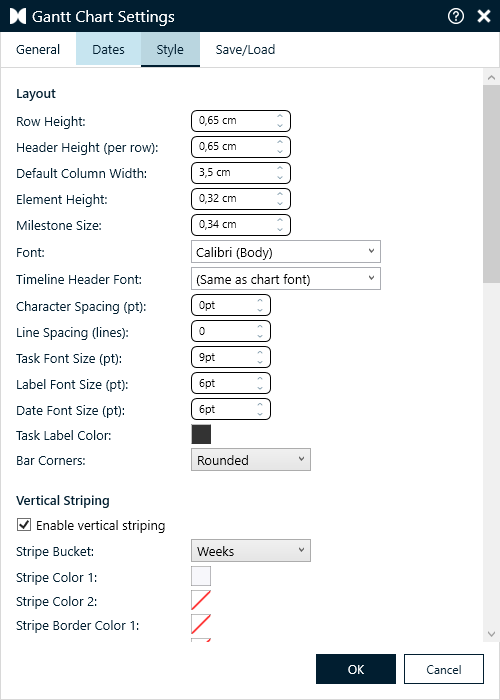
Im Tab Style stimmst du das Erscheinungsbild deines Diagramms fein ab:
- Layout: Zeilenhöhe, Kopfhöhe, Spaltenbreite sowie die Größe von Balken und Meilensteinen.
- Schriften: Schriftart und Schriftgrößen für Aufgabennamen, Beschriftungen und Datumsangaben. Standardmäßig verwendet das Diagramm die Schrift deiner Präsentation.
- Streifen: abwechselnde Zeilenfarben oder senkrechte Streifen pro Monat, Woche oder anderem Zeitraum, damit das Diagramm leichter lesbar ist.
- Trennlinien: dünne Linien zwischen den Zeilen oder zwischen Zeiträumen.
- Major Vertical Separator: eine zweite, gröbere Ebene von Trennlinien - zum Beispiel durchgezogene Quartalslinien über gestrichelten Monatslinien. Wo beide zusammentreffen, wird nur die gröbere Linie gezeichnet.
- Grid Lines and Frame: Linien entlang der Kante der Aufgabenspalte und unter dem Zeitleisten-Kopf, und auf Wunsch ein Rahmen um den Aufgabenbereich und zwischen den Spalten.
- Text-Details: Zeichen- und Zeilenabstand, die Schrift des Zeitleisten-Kopfs und die Farbe der Aufgabennamen.
Gantt-Diagramme speichern und teilen
Du kannst Gantt-Diagramme in deiner Library speichern, um sie später wiederzuverwenden oder mit Kollegen zu teilen. Öffne die Gantt-Einstellungen, wechsle zum Tab Save/Load und klicke auf Save Gantt in Library. Das Diagramm wird als Template in der Gantt Library gespeichert und lässt sich in anderen Präsentationen wiederverwenden.
Um ein Diagramm auf einer anderen Folie zu verwenden, Rechtsklick auf einen freien Bereich des Diagramms und Copy Gantt wählen, dann an der gewünschten Stelle einfügen. Die Kopie ist ein eigenständiges Diagramm, das du separat bearbeiten kannst.
Dein Diagramm in Excel bearbeiten
Große Pläne lassen sich oft schneller in einer Tabelle pflegen. Mit presentaid bearbeitest du die Daten eines Gantt-Diagramms in Excel - Aufgaben, Daten, Farben, Beschriftungen und alle Einstellungen -, und jedes Mal, wenn du die Arbeitsmappe speicherst, aktualisiert sich das Diagramm auf deiner Folie.
In Excel bearbeiten
- Öffne die Gantt-Einstellungen und wechsle zum Tab Save/Load.
- Klicke auf Edit in Excel. Die Daten des Diagramms öffnen sich in Excel.
- Nimm deine Änderungen vor und speichere die Arbeitsmappe (Strg+S). Einen Moment später zeigt das Diagramm auf der Folie sie an.
- Speichere so oft du willst. Wenn du fertig bist, schließe die Arbeitsmappe.

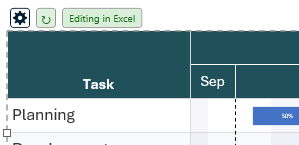
Solange das Diagramm in Excel bearbeitet wird, erscheint oben am Diagramm neben der Einstellungen-Schaltfläche der Hinweis Editing in Excel.
- Ein Diagramm, das nicht verknüpft ist, wird in einer temporären Kopie bearbeitet. Die Kopie wird gelöscht, wenn du sie schließt; deine Änderungen bleiben im Diagramm.
- Ein Diagramm, das mit einer Arbeitsmappe verknüpft ist (siehe unten), öffnet diese Arbeitsmappe - deine Änderungen bleiben also auch dort gespeichert.
- PowerPoint muss nicht im Vordergrund sein: Das Diagramm aktualisiert sich, während du in Excel weiterarbeitest.
So ist die Arbeitsmappe aufgebaut
Die Arbeitsmappe hat für jeden Teil des Diagramms ein eigenes Blatt: Config (die Diagramm-Einstellungen), Tasks (eine Zeile pro Balken oder Meilenstein), Blocks, VerticalLines, Connectors und Columns.
- Die Kopfzeile bleibt auf jedem Blatt beim Scrollen sichtbar.
- Felder mit festen Auswahlmöglichkeiten - Elementtypen, Beschriftungspositionen, Linienarten und jede True/False-Einstellung - bieten ein Dropdown.
- Farben werden aus der Füllfarbe der Zelle gelesen: Färbe die Zelle ein, um die Farbe im Diagramm zu ändern. Die Spalte Opacity% daneben legt die Transparenz fest.
- Eine Aufgabe mit mehreren Elementen belegt mehrere Zeilen mit demselben Aufgabennamen.
- Du kannst Formeln verwenden, zum Beispiel um Enddaten aus Startdaten zu berechnen. Eigene Blätter und Spalten, die du hinter der letzten Spalte anfügst, werden ignoriert.
Ein Diagramm mit einer Arbeitsmappe verknüpfen
Ein verknüpftes Diagramm merkt sich seine Arbeitsmappe. So pflegst du die Daten in Excel und aktualisierst das Diagramm, wann immer sich die Arbeitsmappe ändert.
| Option | Was sie macht |
|---|---|
| Save as Linked Workbook... | Speichert das Diagramm in einer neuen Arbeitsmappe und verknüpft es mit ihr. |
| Import from Excel | Ersetzt das Diagramm durch den Inhalt einer Arbeitsmappe und verknüpft es mit ihr. |
| Refresh from Excel | Aktualisiert das Diagramm aus seiner verknüpften Arbeitsmappe. |
| Unlink | Lässt das Diagramm, wie es ist, aktualisiert es aber nicht mehr aus der Arbeitsmappe. |
| Export to Excel | Speichert eine Kopie des Diagramms in einer Arbeitsmappe, ohne es zu verknüpfen. |
Ein verknüpftes Diagramm zeigt neben der Einstellungen-Schaltfläche eine Aktualisieren-Schaltfläche. Wurde die Arbeitsmappe nach der letzten Aktualisierung gespeichert, zeigt die Schaltfläche einen orangefarbenen Punkt - ein Klick bringt das Diagramm auf den neuesten Stand.
Der Tab Save/Load zeigt außerdem, mit welcher Arbeitsmappe das Diagramm verknüpft ist und ob es aktuell ist.
Tastenkürzel
| Tastenkürzel | Funktion |
|---|---|
| Strg+Z | Letzte Änderung rückgängig machen |
| Strg+C / Strg+V | Ausgewähltes Element oder ausgewählten Block kopieren und einfügen |
| Entf | Ausgewähltes Element, Block oder Verbinder löschen |
| Umschalt + Ziehen | Block zeichnen |
| Enter / Esc | Beim Bearbeiten eines Namens oder einer Beschriftung bestätigen bzw. abbrechen |
| Esc | Verbinder-Modus verlassen |
Ein Gantt-Diagramm aus einem anderen Tool konvertieren
Enthält dein Deck bereits ein Gantt-Diagramm, das mit einem anderen PowerPoint-Add-in erstellt wurde? presentaid kann daraus ein presentaid-Gantt-Diagramm machen, das wie das Original aussieht - und das du danach wie jedes andere bearbeitest, ganz ohne das andere Add-in.
- Wähle eine beliebige Form des Gantt-Diagramms aus - einen Balken, eine Beschriftung oder die Zeitleiste.
- Die Aktionsleiste erscheint mit einer einzigen Schaltfläche: Edit with presentaid.
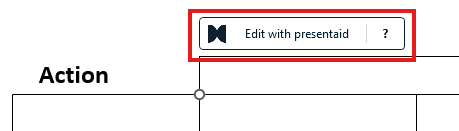
Edit with presentaid bei einem Gantt aus einem anderen Tool - Klicke darauf. presentaid erklärt, was gleich passiert, und bittet dich um Bestätigung.
- Bestätige. Einen Moment später steht an derselben Stelle ein presentaid-Gantt-Diagramm - klicke darauf, um den Editor zu öffnen.
Was übernommen wird
| Das Original | Das presentaid-Gantt-Diagramm |
|---|---|
| Zeitleisten-Kopf (Jahre, Quartale, Monate, Wochen, Tage) | Dieselben Zeitleisten-Zeilen - die Daten werden aus dem Kopf gelesen |
| Aufgabenzeilen und ihre Namen | Aufgaben in derselben Reihenfolge, mit denselben Zeilenhöhen und Textpositionen |
| Balken und Meilensteine | Elemente mit echten Start- und Enddaten, abgelesen an ihrer Position auf der Zeitleiste |
| Beschriftungen und Daten neben Balken und Meilensteinen | Element-Beschriftungen und -Daten an derselben Position, inklusive Hintergrundfüllung |
| Senkrechte Datumslinien | Vertikale Linien an ihrem Datum, mit derselben Endmarkierung |
| Gitterlinien | Trennlinien nach demselben Kalendermuster |
Ab dann sind die Daten echte Daten: Verschiebe einen Balken und seine Daten ziehen mit, verschiebe mit Parallel Shift den ganzen Plan oder exportiere ihn nach Excel.
Was du danach prüfen solltest
Konnte etwas nicht exakt übernommen werden, sagt presentaid dir das direkt nach der Konvertierung. Typische Fälle:
- Die Zeitleiste nennt kein Jahr - zum Beispiel nur Monate. presentaid nimmt dann das aktuelle Jahr an; prüfe das Start Date in den Gantt-Einstellungen.
- Zwei Beschriftungen teilten sich eine Aufgabenzeile - ihre Texte wurden zu einem Aufgabennamen zusammengefügt.
- Wochenlinien, die nicht am Montag beginnen - presentaid zeichnet sie ab Montag.
- Gitterlinien ohne Kalendermuster - sie werden weggelassen.
Ein ganzes Deck konvertieren
presentaid-Ribbon → About → Expert Tools → Charts → Convert all Charts konvertiert in einem Durchgang jedes Chart und jedes Gantt-Diagramm aus anderen Tools - die Gantt-Diagramme zuerst. Braucht ein Gantt-Diagramm einen zweiten Blick, sagt dir das die Zusammenfassung; konvertiere es dann einzeln, um die Details zu sehen. Siehe auch Charts aus anderen Tools konvertieren.