
Einführung
Mit dem presentaid Smart Sticker kannst du deine Formen für die spätere Verwendung speichern und sie zu Gruppen zusammenfassen, um einfach zwischen verschiedenen Zuständen zu wechseln.
Einen Smart Sticker speichern
- Rechtsklick auf die Form, die du speichern möchtest, und wähle presentaid actions → Save SmartSticker
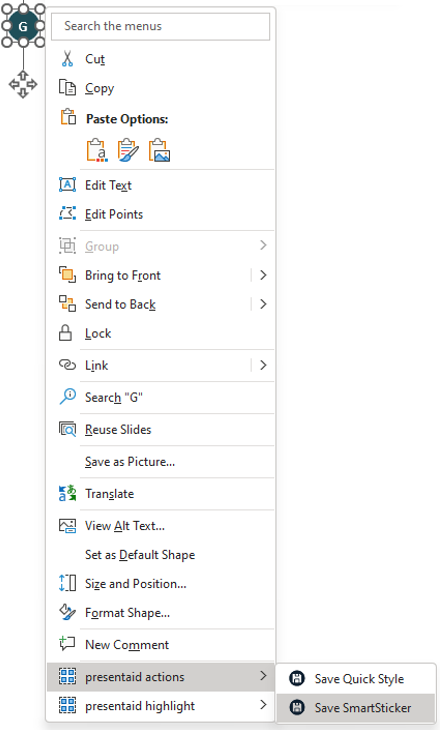
Save Context Menu - Gib deinem Smart Sticker einen Namen und weise ihn einer Gruppe zu
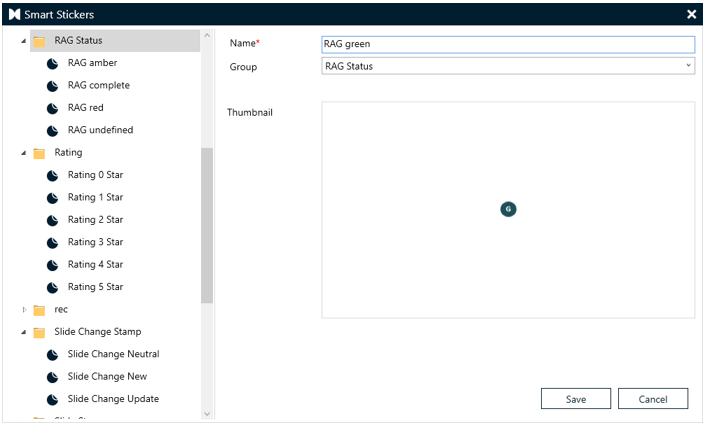
Smart Sticker Save
Einen Smart Sticker anwenden
- Gehe im presentaid-Ribbon zur Gruppe Smart Sticker und klicke auf Apply
- Wähle den Smart Sticker aus, den du auf deiner Folie anwenden möchtest
- Alternativ klicke auf den kleinen Pfeil neben Apply, um die Gallery View zu öffnen. Du kannst zwischen der Flat View (zeigt alle Smart Sticker) und der Grouped View wählen.
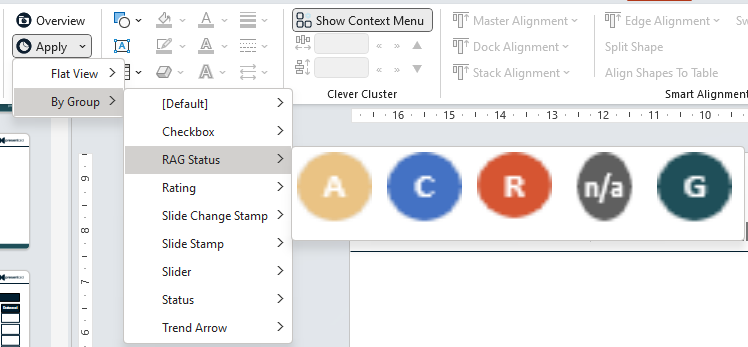
Apply Menu
Hinweis: Der Smart Sticker wird genau an der Position angewendet, an der er gespeichert wurde. Wählst du jedoch eine Form oder eine Tabellenzelle aus und wendest einen Smart Sticker an, wird er in der Mitte dieser Auswahl platziert.
Einen Smart Sticker wechseln
- Wähle einen Smart Sticker aus, den du mit der Smart-Sticker-Funktion platziert hast
- Ein Dropdown-Menü erscheint, das dir alle Smart Sticker zeigt, die zur selben Gruppe wie der ausgewählte gehören
- Wähle den Smart Sticker aus, zu dem du wechseln möchtest
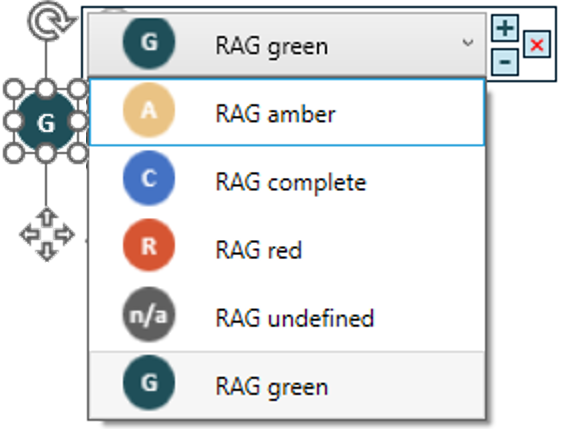
Dropdown
Mit Platzhaltertext arbeiten
Die Smart Sticker unterstützen bestimmte Platzhalter. Jedes Mal, wenn ein Smart Sticker platziert oder aktualisiert wird, wird der Platzhaltertext ersetzt.
| Placeholder | Bedeutung |
|---|---|
| #date# | Fügt das aktuelle Datum im Format "dd/MM/yyyy" ein |
| #timestamp# | Fügt einen Zeitstempel im ISO-8601-Format (UTC) ein |
| #username# | Fügt den Benutzernamen des angemeldeten Nutzers ein |
| #userfirst# | Fügt den Vornamen des angemeldeten Nutzers ein |
| #userlast# | Fügt den Nachnamen des angemeldeten Nutzers ein |
| #userin# | Fügt die Initialen des angemeldeten Nutzers ein |