
Einführung
Wenn du eine Folie aus der geteilten Slide Library deines Unternehmens einfügst, wird sie zu einer Kopie in deiner Präsentation - wird die Originalfolie in der Library später verbessert oder korrigiert, weiß deine Kopie davon nichts automatisch. Slide Radar schließt diese Lücke: Es verfolgt, welche Folien in deiner Präsentation aus der Slide Library stammen, und informiert dich, sobald eine neuere Version verfügbar ist, damit deine Decks nie von der zentralen Quelle der Wahrheit abweichen.
Automatische Benachrichtigungen
Standardmäßig prüft Slide Radar im Hintergrund auf veraltete Folien, sobald du eine Präsentation öffnest. Findet es Folien, für die in der Slide Library eine neuere Version verfügbar ist, erscheint eine Benachrichtigung unten rechts in PowerPoint.
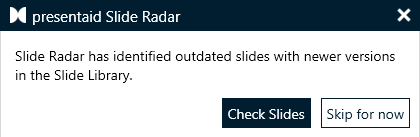
- Klicke auf Check Slides, um das Vergleichsfenster zu öffnen.
- Klicke auf Skip for now, um die Benachrichtigung zu schließen. Slide Radar prüft beim nächsten Öffnen der Präsentation erneut.
Manuelle Prüfung
Du kannst eine Prüfung auch jederzeit manuell auslösen.
- Gehe im presentaid-Ribbon zur Gruppe Proofing und klicke auf Slide Radar.
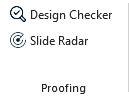
Proofing Ribbon Group - Alternativ löst du Slide Radar über das presentaid Productivity Pane aus, indem du auf Slide Radar klickst.
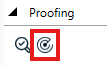
presentaid Productivity Pane Proofing - Sind alle verfolgten Folien aktuell, bestätigt presentaid, dass alle Folien aus der Slide Library synchron sind. Andernfalls öffnet sich das Vergleichsfenster.
Folien vergleichen und synchronisieren
Das Slide-Radar-Fenster listet jede veraltete Folie (bzw. Foliengruppe, falls mehrere Folien gemeinsam als ein Bibliothekselement eingefügt wurden) und zeigt deine aktuelle Version neben der aktualisierten Library-Version an.
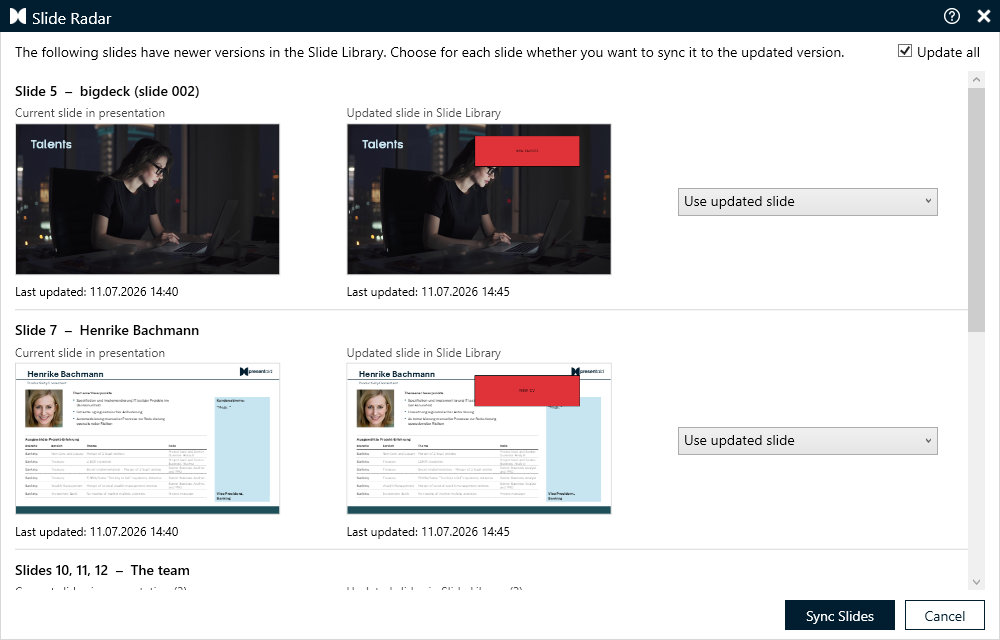
Für jede Zeile kannst du wählen:
| Option | Beschreibung |
|---|---|
| Use updated slide (Standard) | Ersetzt deine aktuelle(n) Folie(n) durch die neueste Version aus der Slide Library. |
| Use current slide | Behält deine aktuelle(n) Folie(n) unverändert. Slide Radar fragt beim nächsten Änderung der Library-Version erneut nach. |
| Use current slide and don't ask again | Behält deine aktuelle(n) Folie(n) und beendet die Verfolgung - Slide Radar markiert diese Folie nicht mehr als veraltet. |
Verwende die Checkbox "Update all" oben, um "Use updated slide" auf alle Zeilen gleichzeitig anzuwenden. Bist du mit deiner Auswahl zufrieden, klicke auf Sync Slides, um sie anzuwenden, oder auf Cancel, um das Fenster ohne Änderungen zu schließen.
Eine Library-Folie von Slide Radar ausschließen
Als Autor eines Slide-Library-Elements kannst du entscheiden, ob es überhaupt von Slide Radar verfolgt werden soll.
- Aktiviere oder deaktiviere beim Speichern einer Folie in der Slide Library "Include in Slide Radar sync" im Speicherdialog.
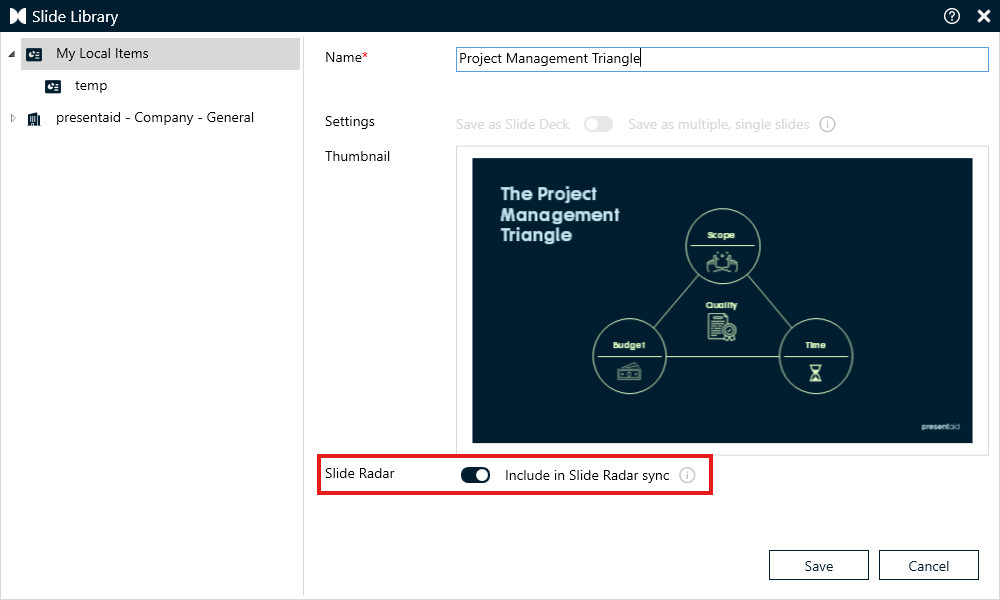
Slide Library Radar Toggle - Für ein bestehendes Bibliothekselement machst du einen Rechtsklick darauf in der Slide Library und schaltest "Include in Slide Radar sync" über das Kontextmenü um.
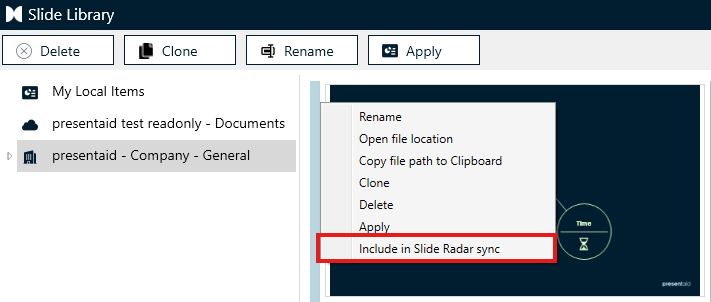
Slide Library Radar Toggle
Ist diese Option deaktiviert, werden Präsentationen, die diese Folie verwenden, von Slide Radar nie als veraltet markiert, auch wenn die Library-Version später geändert wird.