Ein Deck visuell konsistent zu halten wird schwierig, sobald es über eine Handvoll Folien hinauswächst: Schriftarten driften auseinander, Farben schleichen sich über kopierte Folien ein, Formen werden halb aus der Fläche gezogen, und Fußnoten verlieren ihre Referenz. Der presentaid Design Checker wirkt wie ein automatisiertes Korrekturlesen für dein Foliendesign. Er durchsucht deine Präsentation, markiert alles, was markenfremd oder inkonsistent aussieht, und lässt dich direkt zum Problem springen - mit einem Ein-Klick-Fix für die meisten Befunde.
Den Design Checker öffnen
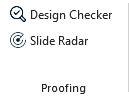
Gehe im presentaid-Ribbon zur Gruppe Proofing und klicke auf Design Checker. Dadurch öffnet sich der Design-Checker-Aufgabenbereich auf der rechten Seite von PowerPoint.Proofing Ribbon Group
Alternativ löst du den Design Checker über das presentaid Productivity Pane aus, indem du auf Design Checker klickst.presentaid Productivity Pane Proofing
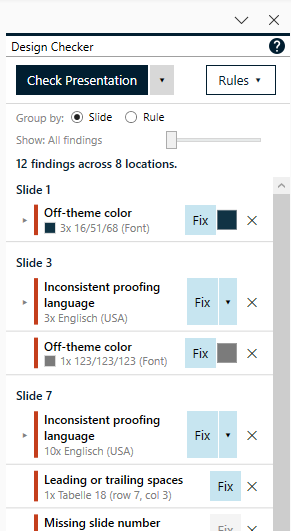
Klicke auf Check Presentation, um das gesamte Deck zu prüfen. Verwende den kleinen Pfeil neben der Schaltfläche, um stattdessen nur die aktuell ausgewählte(n) Folie(n) zu prüfen.Design Checker Pane
Befunde überprüfen
Sobald eine Prüfung durchgelaufen ist, zeigt der Bereich eine Zusammenfassungszeile (z. B. "14 findings across 6 locations") und eine Liste der Befunde.
Befunde können über den Umschalter oberhalb der Liste nach Folie oder nach Regel gruppiert werden.
Verwende den Schweregrad-Regler, um nur Errors, Warnings and errors oder All findings (inklusive kosmetischer Info-Level-Einträge) anzuzeigen.
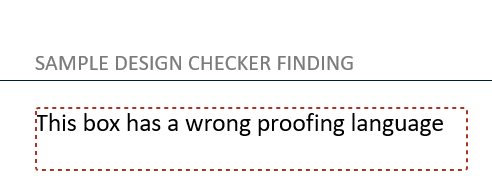
Klicke auf einen Befund, um zur betreffenden Folie zu springen. presentaid zeichnet einen gestrichelten Rahmen um genau die Form oder den Text, sodass du sofort siehst, was den Befund ausgelöst hat.Finding Navigation Highlight
Für jeden Befund kannst du:
Aktion
Beschreibung
Fix
Wendet die empfohlene Korrektur in einem einzigen, rückgängig machbaren Schritt auf jedes Vorkommen der Gruppe an. Sind mehrere Korrekturen möglich (z. B. mehrere genehmigte Farben oder Schriftarten), verwende den kleinen Pfeil neben Fix, um eine auszuwählen.
Undo
Macht eine Korrektur rückgängig und stellt die ursprüngliche Formatierung wieder her - unabhängig vom eigenen Undo-Verlauf von PowerPoint.
✕ Ignore
Verwirft den Befund. Ignorierte Befunde werden direkt in der Präsentationsdatei gespeichert und erscheinen bei zukünftigen Prüfungen nicht erneut.
Hinweis: Manche Befunde (z. B. fehlende Foliennummern, verwaiste Fußnoten, gemischte Anführungszeichen) können nicht automatisch behoben werden und werden gemeldet, damit du sie manuell korrigieren kannst.
Konfigurieren, welche Regeln geprüft werden
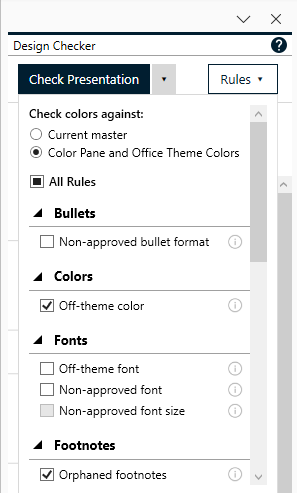
Klicke auf Rules ▾, um das Popup zur Regelkonfiguration zu öffnen.
Rules Popup
Lege fest, ob Farben nur gegen die Themenfarben des aktuellen Folienmasters geprüft werden sollen, oder auch gegen dein Color Pane und die Office-Themenfarben (Tönungen, Schattierungen und benutzerdefinierte Markenfarben).
Deaktiviere jede Regel (oder ganze Kategorie), die nicht geprüft werden soll. Deine Auswahl wird für zukünftige Sitzungen gespeichert.
Regeln, die ein Company Profile erfordern, sind ausgegraut, bis dein IT-Admin den entsprechenden Standard konfiguriert hat (siehe unten).
Referenz der Design-Regeln
Der Design Checker implementiert aktuell folgende Regeln:
Layout
Regel
Schweregrad
Was geprüft wird
Shapes outside the slide
Error
Markiert jede Form, die über den sichtbaren Folienbereich hinausragt. Bietet an, sie vollständig auf die Folie zu verschieben oder zu löschen.
Inconsistent footer text
Warning
Vergleicht den Fußzeilentext über alle Folien hinweg. Teilen sich die meisten Folien dieselbe Fußzeile, werden Minderheitsfolien mit einer Korrektur zur Angleichung an den Mehrheitstext markiert.
Inconsistent title font size
Warning
Vergleicht Titel-Schriftgrößen über Folien mit demselben Folienlayout und markiert Ausreißer.
Distorted circle
Info
Markiert Oval-/Kreisformen, deren Breite und Höhe fast, aber nicht ganz gleich sind - meist das Ergebnis einer versehentlichen Größenänderung. Bietet an, sie zu einem perfekten Kreis zu machen.
Missing slide number
Error
Markiert Folien, bei denen das Layout einen Foliennummer-Platzhalter definiert, dieser aber nicht angezeigt wird oder leer ist.
Near-miss alignment (standardmäßig aus)
Info
Markiert Formen, deren Position oder Größe nahe an, aber nicht exakt mit anderen Formen auf der Folie übereinstimmt - vermutlich nach Augenmaß statt ausgerichtet platziert. Bietet an, auf den passenden Wert einzurasten.
Footer position/format
Warning
Vergleicht Position, Größe und Schriftart der Fußzeile einer Folie mit dem Fußzeilen-Platzhalter des eigenen Layouts und markiert Abweichungen.
Slide number position/format
Warning
Dieselbe Prüfung wie oben, angewendet auf den Foliennummer-Platzhalter.
Titles
Regel
Schweregrad
Was geprüft wird
Title position
Warning
Markiert eine Titelform, die im Vergleich zum Titel-Platzhalter des Layouts verschoben oder in der Größe geändert wurde.
Title font
Warning
Markiert einen Titel, der eine andere Schriftart, Größe oder Fettauszeichnung als der Titel-Platzhalter des Layouts verwendet (wird übersprungen, wenn der Titel bereits eine Theme- oder unternehmensgenehmigte Schriftart verwendet).
Fonts
Regel
Schweregrad
Was geprüft wird
Off-theme font
Error
Markiert jeden Text, der nicht die eigene Überschriften- oder Fließtext-Schriftart des Präsentations-Themes verwendet.
Non-approved font (erfordert Company Profile)
Error
Markiert jeden Text, der eine Schriftart außerhalb der genehmigten Schriftartenliste deiner Organisation verwendet.
Non-approved font size (erfordert Company Profile)
Error
Markiert Text mit einer Schriftgröße außerhalb der genehmigten Größenliste deiner Organisation.
Bullets
Regel
Schweregrad
Was geprüft wird
Non-approved bullet format (erfordert Company Profile)
Error
Vergleicht Zeichen, Schriftart, Größe, Farbe und Einzugsränder jedes Aufzählungspunkts mit dem für die jeweilige Gliederungsebene definierten Standard deiner Organisation.
Colors
Regel
Schweregrad
Was geprüft wird
Off-theme color
Error
Markiert jede Form-, Linien- oder Textfarbe, die nicht zu den genehmigten Farben des Decks gehört, und bietet als Korrektur die nächstliegende genehmigte Farbe an.
Language
Regel
Schweregrad
Was geprüft wird
Inconsistent proofing language
Warning
Markiert Text, der mit einer anderen Rechtschreibprüfungssprache getaggt ist als die dominante Sprache des Decks.
Footnotes
Regel
Schweregrad
Was geprüft wird
Orphaned footnotes
Error
Gleicht hochgestellte Referenznummern in deinem Text mit den Fußnotenlegenden am unteren Folienrand ab und markiert Marker ohne passende Legende, Legenden ohne passenden Marker und doppelte Legenden.
Text Quality
Regel
Schweregrad
Was geprüft wird
Manual character spacing
Info
Markiert Text mit manuell angewendetem Zeichenabstand/Kerning und bietet an, ihn auf normal zurückzusetzen.
Inconsistent hyphenation
Info
Markiert dasselbe zusammengesetzte Wort, das im Deck sowohl mit als auch ohne Bindestrich geschrieben wird (z. B. "Kick-Off" vs. "Kick off").
Inconsistent quotation marks
Info
Markiert ein Deck, das gerade Anführungszeichen (") mit typografischen Anführungszeichen mischt.
Spacing
Regel
Schweregrad
Was geprüft wird
Double spaces
Info
Markiert zwei oder mehr aufeinanderfolgende Leerzeichen und bietet an, sie zu einem zusammenzufassen.
Leading or trailing spaces
Info
Markiert Leerzeichen am Anfang oder Ende einer Zeile und bietet an, sie zu entfernen.
Hinweis: Error, Warning und Info sind Standard-Schweregrade, die pro Regel zugewiesen sind - du kannst den Schweregrad einer Regel nicht ändern, aber du kannst den Schweregrad-Regler im Bereich verwenden, um zu steuern, was angezeigt wird, oder eine Regel ganz deaktivieren.
Den unternehmensweiten Design-Standard konfigurieren (Admin)
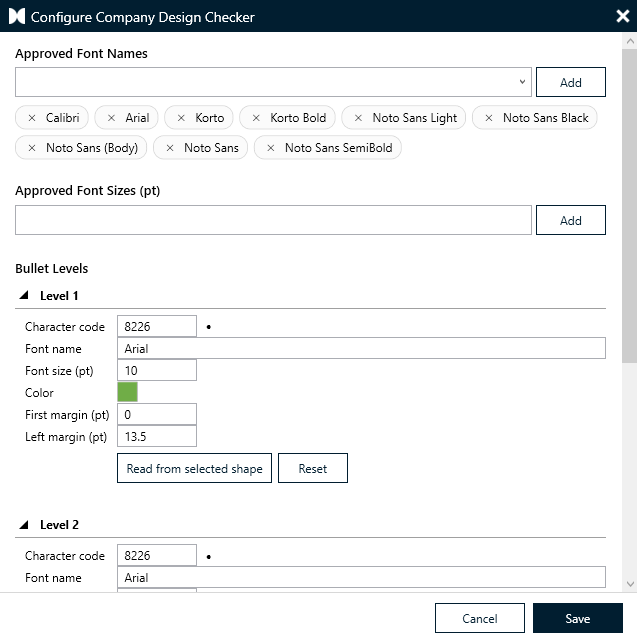
Bist du Unternehmensadministrator, kannst du einen unternehmensweiten Design-Standard definieren, gegen den die Regeln "Non-approved font", "Non-approved font size" und "Non-approved bullet format" prüfen.
Gehe im presentaid-Ribbon zu About → Expert Tools → Company Admin → Configure Company Design Checker.
Definiere deine Approved Font Names und Approved Font Sizes als einfache Listen.
Definiere die erforderliche Formatierung für Bullet Levels 1–9 (Zeichen, Schriftart, Größe, Farbe, Einzugsränder). Verwende Read from selected shape, um die Formatierung direkt von einem Beispiel-Aufzählungspunkt in PowerPoint zu übernehmen, statt Werte manuell einzugeben.Company Design Checker Profile
Klicke auf Save. Der Standard gilt ab dem nächsten Ausführen des Design Checkers für alle Nutzer deiner Organisation.