
Einführung
Der presentaid Clever Cluster bietet dir ein One-Click-Erlebnis, um deine Formen in einem tabellenartigen Format auszurichten. Zusätzlich bietet er ein erweitertes Kontextmenü, um solche Layouts einfach zu pflegen.
Das Clever-Cluster-Kontextmenü aktivieren/deaktivieren
Um das Clever-Cluster-Kontextmenü zu aktivieren oder zu deaktivieren, musst du auf die Schaltfläche `Show context Menu` klicken
Hinweis: Das Clever-Cluster-Kontextmenü muss aktiviert sein, um den Clever Cluster zu definieren und anzupassen
Einen Clever Cluster definieren
- Wähle die Formen aus, die du anordnen möchtest, und klicke auf die Schaltfläche, die unten rechts in deiner Auswahl erscheint
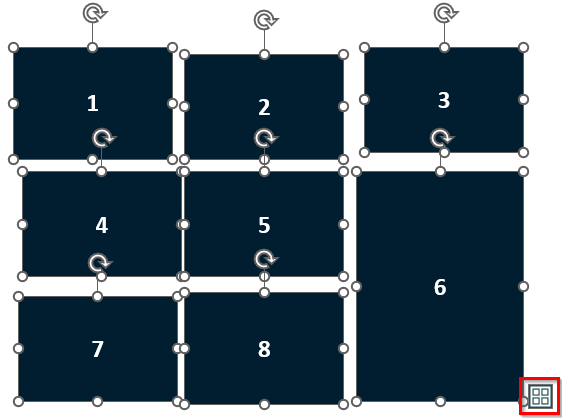
Clever Cluster Button - Die Formen sind jetzt ausgerichtet, und dein Clever Cluster ist definiert
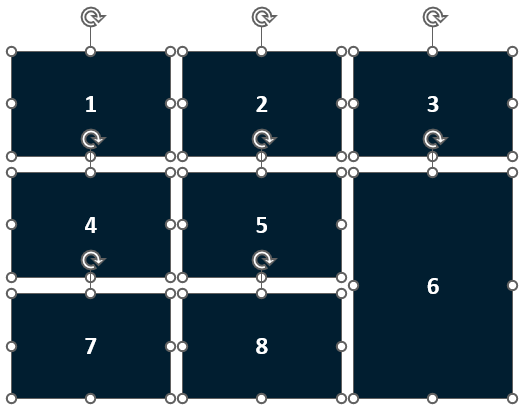
Clever Cluster Done - Passe den horizontalen und vertikalen Abstand mit den Pfeilen im Ribbon an, bis das Layout deinen Anforderungen entspricht
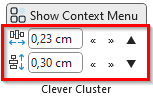
Clever Cluster Adjustment
Spaltenbreite/Zeilenhöhe ausrichten
- Wähle die Formen aus, die du anordnen möchtest, und klicke auf die Schaltfläche, um die Formen vertikal/horizontal auszurichten
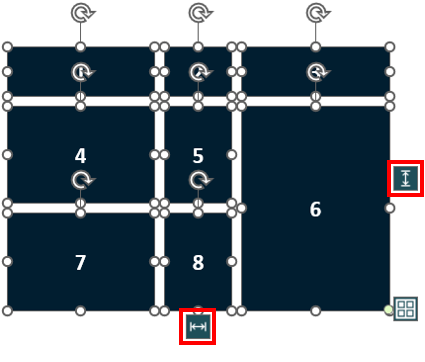
Clever Cluster Distribute - Die Breite/Höhe der Formen wird angepasst. Der Abstand zwischen den Formen bleibt unverändert.
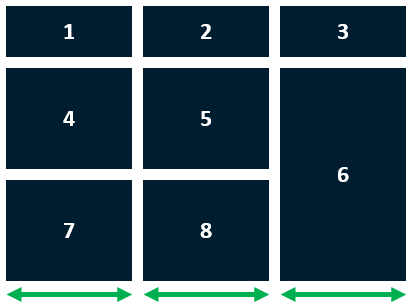
Clever Cluster Distribute Aligned
Die Größe deines Clever Cluster skalieren
- Wähle die Formen aus, die du anordnen möchtest, und ziehe den Anfasser unten rechts am Clever Cluster
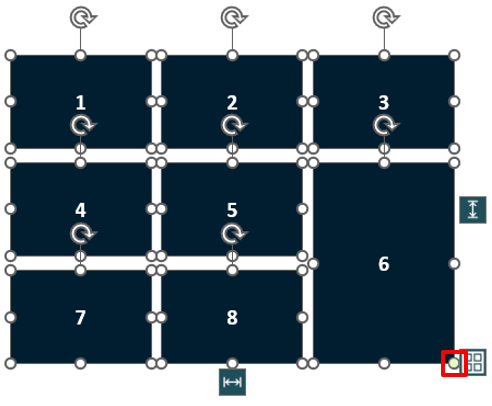
Clever Cluster Adorner - Du siehst eine Vorschau des Zielzustands. Lasse die Maustaste los, um den Clever Cluster fertigzustellen
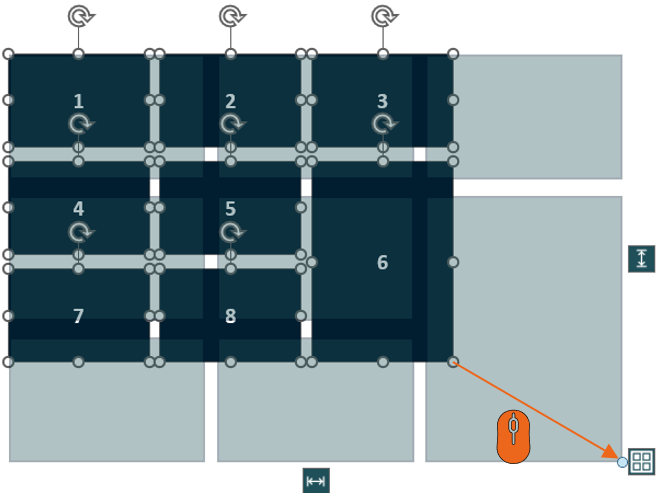
Clever Cluster Adorner Moved
Hinweis: Halte die Taste `SHIFT` auf deiner Tastatur gedrückt, um die vertikale/horizontale Größe deines Clever Cluster zu sperren.
Standardmäßig verändert die Nutzung des Anfassers die Größe der Zellen deines Clever Cluster und lässt den horizontalen und vertikalen Abstand unverändert. Wenn du die Zellgröße sperren und stattdessen den horizontalen/vertikalen Abstand ändern möchtest, halte `CTRL` auf deiner Tastatur gedrückt.
Spalten und Zeilen hinzufügen/entfernen/zusammenführen
- Wähle eine Form in deinem Clever Cluster aus, um das Kontextmenü anzuzeigen
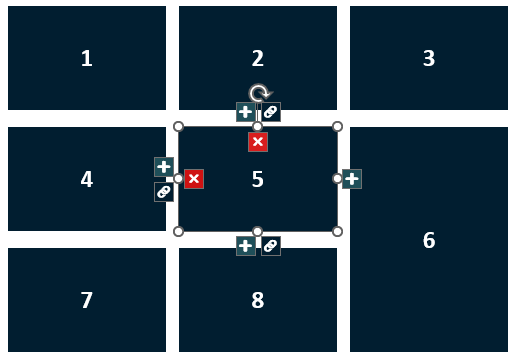
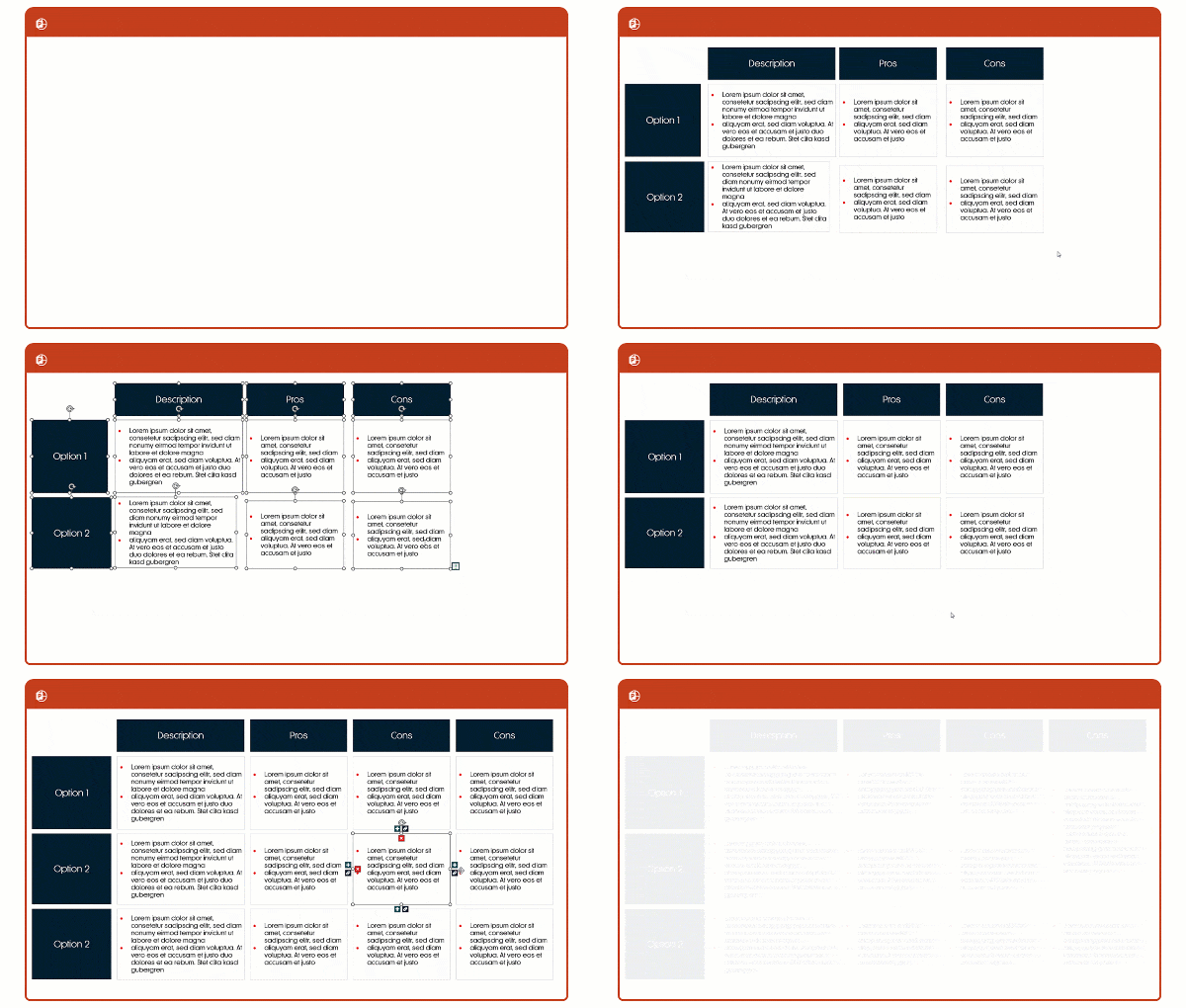
Clever Cluster Menu - Passe den Clever Cluster an, z. B. füge eine Spalte rechts neben deiner ausgewählten Form hinzu
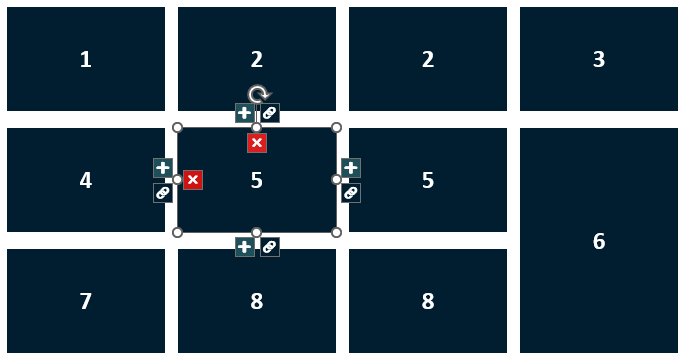
Clever Cluster New Column
Hinweis: Wenn du `CTRL` gedrückt hältst und auf eine Schaltfläche im Clever-Cluster-Kontextmenü klickst, bleibt die Größe des Clever Cluster (Breite und Höhe) erhalten.